

Push one game from Visual Pull
On the Visual Pull page, each game’s Tracked row has its own Push [Game] Tracked to ShippingEasy button (for example, Push Magic Tracked to ShippingEasy), next to that row’s Print Tracked slips for [Game] link. Use it once a game’s pull is done and ready to ship.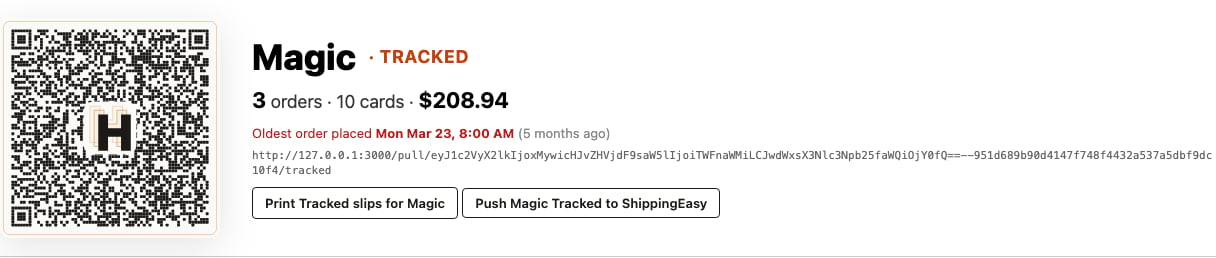
Push every game at once
Push all Tracked to ShippingEasy, at the top of the Visual Pull page, sends every game’s Tracked orders in one click, in the order the games are listed on the page. The same button sits on the active pull’s card under Fulfillment → Pulls, so a manager can push the whole pull without opening the pull sheet.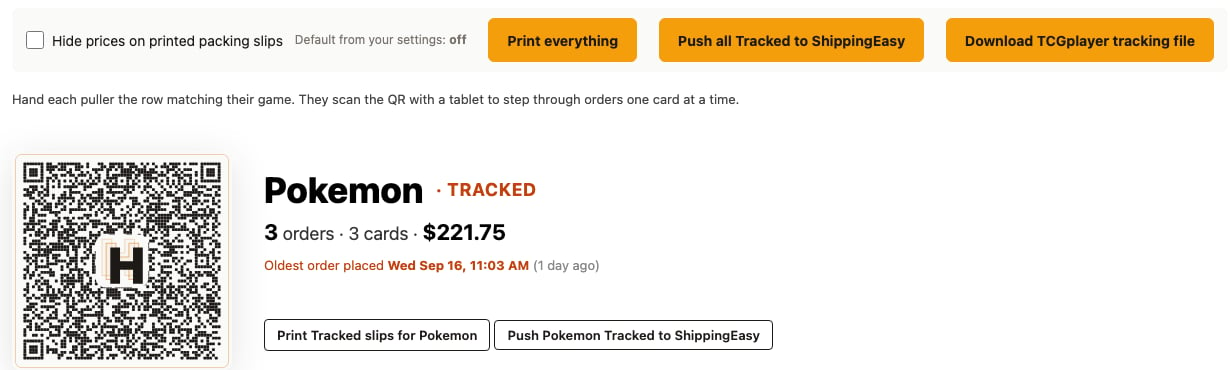
Push a hand-picked batch from Orders
On Sales → Orders, select the rows you want with the checkboxes and click Push to ShippingEasy in the toolbar’s Labels control. This is the main button when ShippingEasy is connected; if it isn’t, the same control shows Export to PirateShip instead, with Connect ShippingEasy in its caret menu.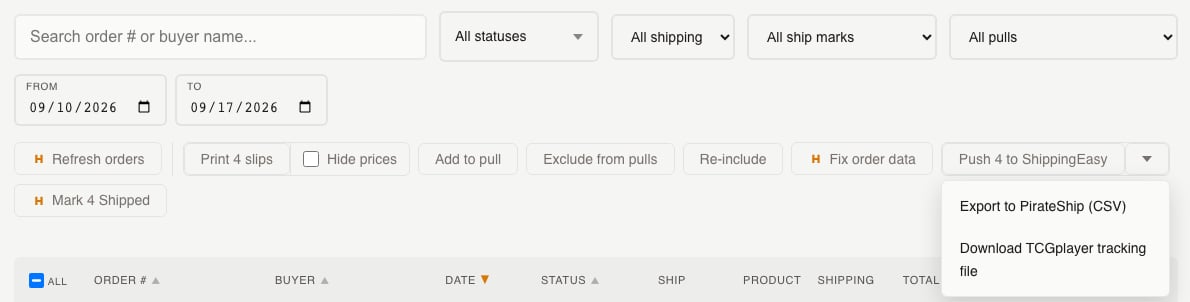
The push runs in the background
A push starts as soon as you click and keeps going without the page. Hoard tells you how many orders it is sending, and you can leave the page or close the tab. On the Visual Pull page, a banner counts the push as it runs, for example “57 of 172 done”. When the push finishes, the banner shows the result until you dismiss it. If you pushed from Sales → Orders or Fulfillment → Pulls, the result arrives as a message on that page, and each order’s badge changes to Pushed to ShippingEasy as it lands. You can only run one push at a time from the Visual Pull page. Pushes from the Orders tab queue up behind a running push. While a push is running, the per-order push button is hidden; it returns when the push finishes.What the result tells you
The result covers how many orders pushed, how many were held for a missing shipping address, how many need a fix before they can go, and how many were already shipped or already carrying tracking and were left alone. PWE orders and fully refunded orders are left out of the push and don’t appear in the result. If ShippingEasy is busy or unreachable, Hoard waits and tries again over the next few minutes. Nothing is marked as a problem when this happens. If it still can’t get through, the result says how many orders are still waiting. Those orders appear in the needs-attention list on the Visual Pull page as Not sent yet. See Fix a ShippingEasy order that needs attention.What arrives in ShippingEasy
Orders land in the ShippingEasy store you connected, in the same order they appear in your Visual Pull. If your printed labels come out in a different order, see Why don’t my labels match my pull slips?. Each order’s line items only include the copies still shipping — a fully refunded line is left off, and a line with 10 of 20 copies refunded arrives as 10 copies. Hoard also sends an estimated package weight based on the card count; see Shipping labels and tracking for the full weight table and what leaves the weight blank.Pushing the same order twice is safe
If you push an order that’s already in ShippingEasy, because you clicked twice or pushed again after a problem, Hoard skips it. It won’t create a second order in ShippingEasy or change the weight or line items already sent, and it won’t mark the order as a problem. This also covers orders you labelled somewhere else. Once TCGplayer shows an order as shipped or has a tracking number for it, Hoard leaves it out of every later push.Common questions
Which orders get pushed?
Tracked and Expedited orders. Tracked follows your tracking threshold (default $50, set under Settings → Repricing); Expedited orders always count as tracked regardless of value. PWE orders are always skipped.Do PWE orders show up in the push at all?
No. They’re skipped everywhere in this system, since they ship with a stamp rather than a purchased label. Use Mark as Shipped on the Orders tab for those once they’re packed.What happens to an order with no shipping address yet?
An order with no shipping address yet is held out of the push rather than sent with blank fields. Once the address syncs in from TCGplayer, push it again.What if the order was refunded?
A fully refunded order isn’t pushed — it’s left out. A partial refund still ships; the refunded copies are dropped from the line items and the weight. If a refund lands after you’ve already bought the label, see Fix a ShippingEasy order that needs attention.Will pushing again after a failed push create a duplicate?
No. Orders already in ShippingEasy are skipped, so pushing again is always safe.Why don’t my labels match my pull slips?
Hoard sends orders to ShippingEasy in pull order. If your printed labels come out in a different order, the cause is a ShippingEasy setting, not your pull. To fix it:- In ShippingEasy, go to Settings → Labels.
- Set Print My Labels by to Order selection sequence.