

Step 1: Find the card
Go to the Cards tab and search or scroll to the card you want to lock. You can search by card name, set name, or any filter syntax (is:reserved, price>50, etc.).
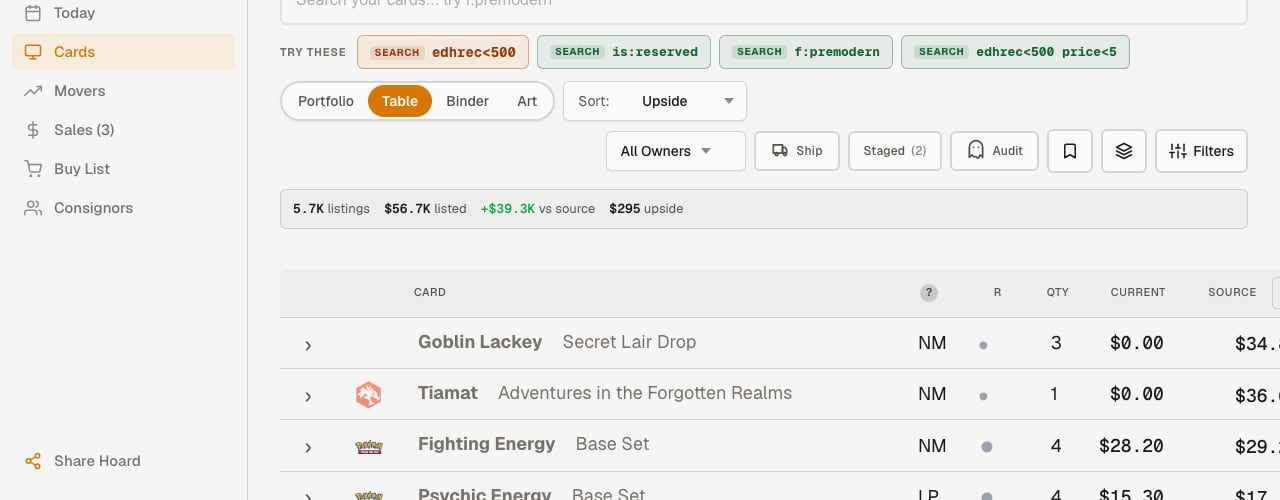
Step 2: Click the target price
In the TARGET column, click the price for the card you want to lock. A small edit popover appears right below the price cell.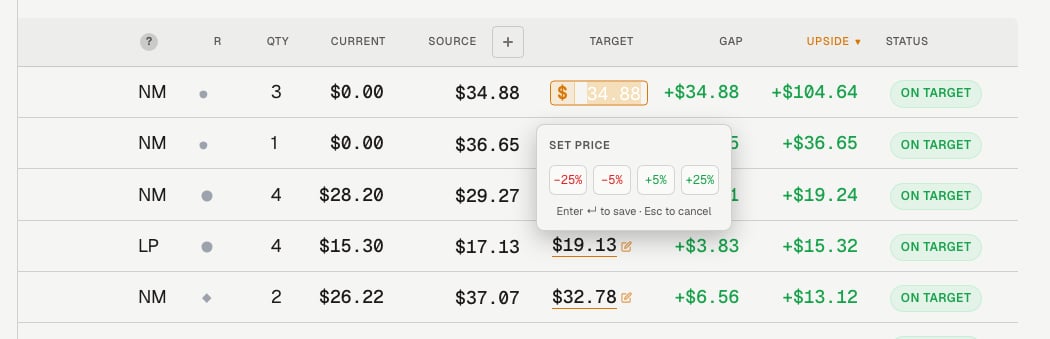
- A dollar input field pre-filled with the current price
- Quick-adjust buttons: -25%, -5%, +5%, +25% (these multiply the current value, so clicking +25% on a 12.50)
Step 3: Press Enter to lock
Press Enter (or click away) to save. The price locks immediately. You’ll see:- A lock icon next to the price
- The lock age (“8w”, “4d ago”) showing how long the price has been locked
- The row gets a subtle amber left border so locked cards are visually distinct
What “locked” means
When a card’s price is locked:- Syncs skip it. The next time Hoard syncs your inventory, this card’s target price stays where you set it. Hoard still exports and uploads it, it just doesn’t get repriced.
- Preview Prices skips it. If you run Preview Prices, locked cards are excluded from the preview entirely.
- Per-card rules don’t apply. Even if the card matches a pricing rule (like
is:reservedat 1.50x), the lock overrides everything.
Unlocking a card
Click the lock icon next to the price. The lock is removed and the card goes back to automatic pricing. The next sync or Preview Prices will calculate a new target price based on your current settings.Finding all your locked cards
Click Filters in the toolbar, then toggle Price Locked on and click Apply. The table filters to show only your locked cards, with a “Locked ×” chip in the summary bar you can click to clear.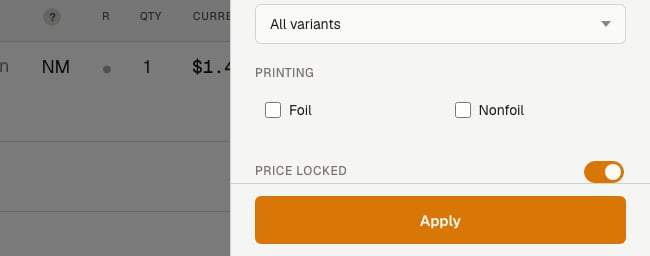
Locked cards in the daily digest
If you have the daily digest turned on (Settings > Notifications), your locked-card count shows up in the digest’s “Under the hood” section alongside price changes and cards managed. It’s a quick way to notice your lock count creeping up and remember to review them — a price you locked 6 months ago might need updating.When to lock a price
A card is spiking and you don’t want to sell cheap. Market data lags reality. If you know a card is being bought out, lock it at the price you want before the market catches up. You’re holding for a specific buyer. Someone asked you to hold a card at a price. Lock it so automation doesn’t change it before they buy. The market price is wrong. Sometimes TCGplayer’s market price doesn’t reflect the real value of a card, especially for low-supply or graded cards. Lock at the price you know is right. You want to test a price. Set a card to a specific price and see if it sells. If it does, you know the market supports that price.When NOT to lock a price
Bulk cards. If you’re locking prices on 500 commons, you’re probably better off adjusting your pricing rules or markup percentage. Locks are for exceptions, not for your whole inventory. Because you’re worried about Hoard’s pricing. If you find yourself locking lots of cards, that’s a signal your pricing settings need adjusting. Check your markup, floor, and never-go-down settings first.Tips
- Quick-adjust buttons multiply, they don’t add. Clicking +5% on a 10.50, not 12.50. This is intentional, it keeps adjustments proportional.
- You can re-lock at a different price. Click the price on an already-locked card to change it. You don’t need to unlock first.
- Locks survive Preview Prices AND syncs. The only way a locked price changes is if you change it yourself.
- The lock age tells you when to review. A price locked “8w ago” is worth checking — the market may have moved.