

Step 1: Open the sign-in page
Go to sign in. You’ll land on the sign-in card with the Hoard logo and a “Sign in or request access” heading. The two social buttons sit at the top: a white Continue with Google with Google’s four-color G, and a blurple Continue with Discord. Below them is an “or” divider, then the email and password fields.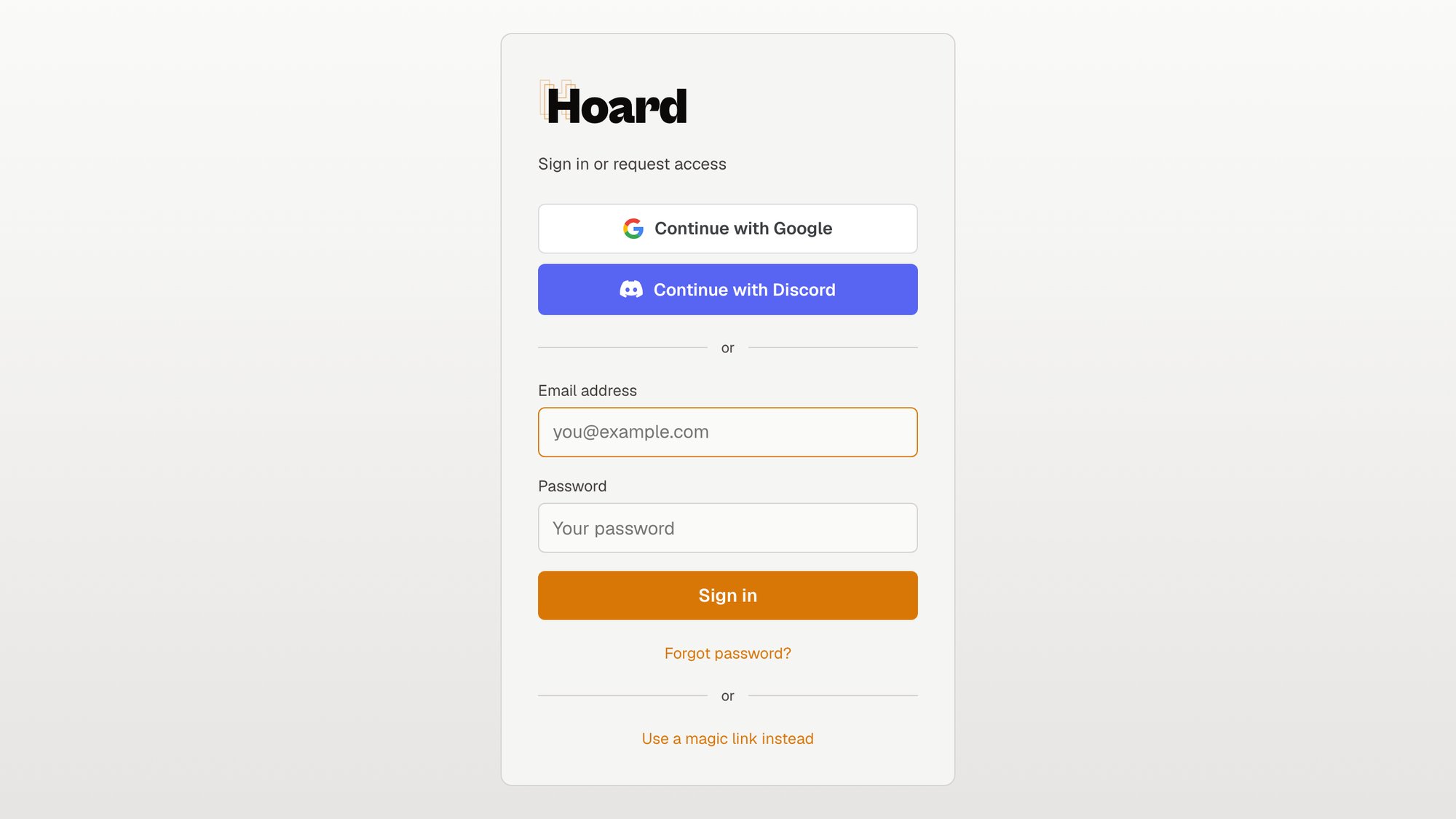
Step 2: Click the button for the account you use
Pick whichever you actually have an account with. If you live in Discord, use Discord. If your everyday email is a Google account, use Google. It doesn’t matter which one you pick the first time, but use the same one each time so you stay one click away.Step 3: Confirm on the Google or Discord screen
The button hands you off to Google or Discord. You’ll see their familiar screen asking you to pick your account (Google) or authorize Hoard (Discord). Sign in there if you aren’t already, and approve the request. This is where you enter your password, with Google or Discord, never with Hoard, so we never see it. During the Google flow, your browser may flash agoogle.com or youtube.com address in the bar for a moment before coming back. That’s Google’s normal cross-domain sign-in doing its thing, not a problem and not a redirect gone wrong. Let it finish.