Start a fixed pull session, print QR codes, track progress, and finish each game queue.
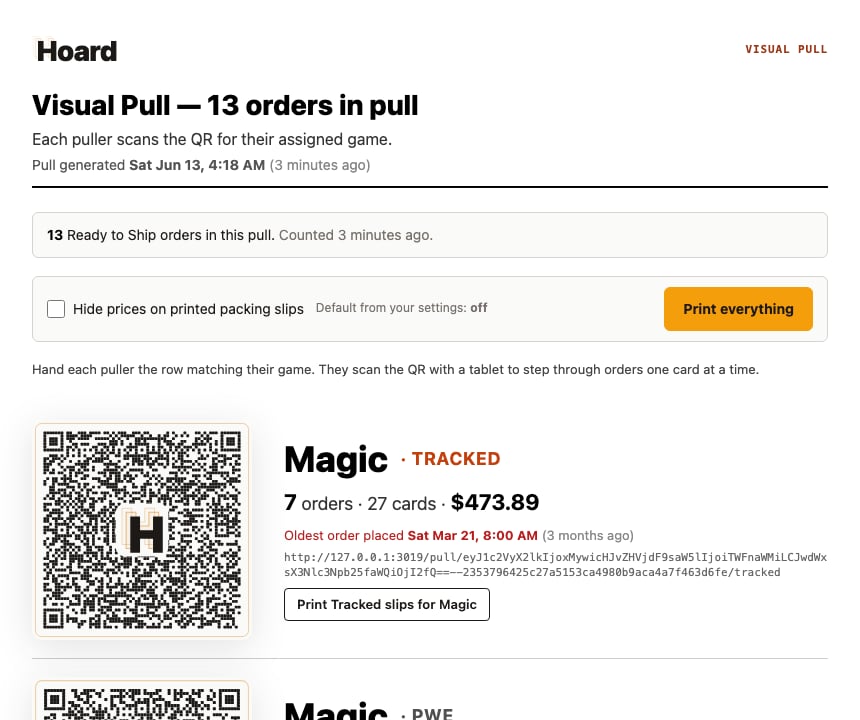
Visual Pull turns your open orders into a fixed picking session. Your team scans QR codes by game, pulls from a tablet, and Hoard tracks progress as they go.
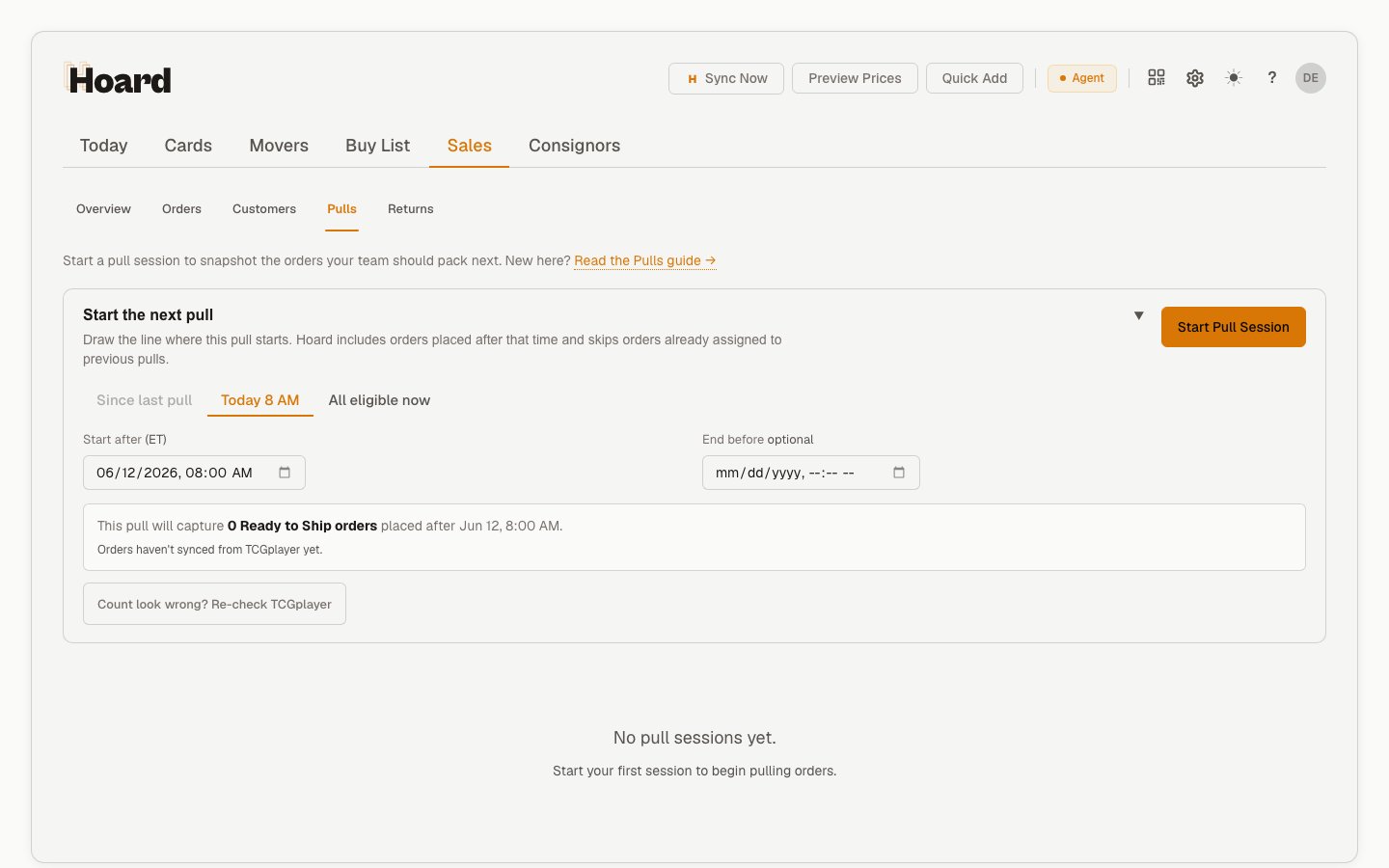
Go to Sales > Pulls and click Start Pull Session.Hoard captures eligible orders at that moment. Orders that arrive after the session starts are saved for the next pull instead of appearing halfway through the current one.
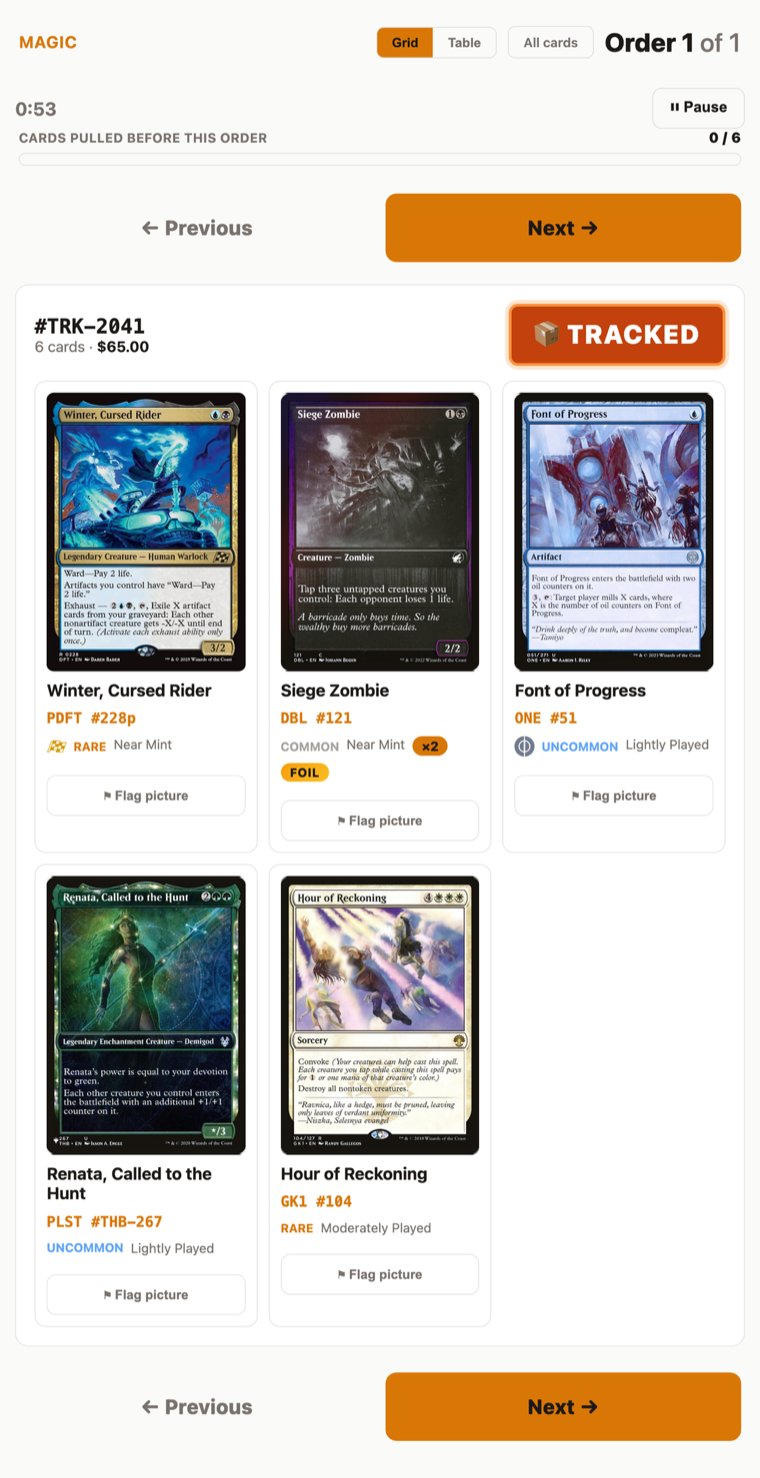
The puller scans the QR code with any phone or tablet. No app install or login is required.Each order shows card images, quantities, condition, set information, and shipping priority. Pull the order, then tap Next.The progress bar is based on all cards in completed previous orders out of the full pull. It is not just progress through the current page.
If the puller cannot find a card, tap Push to the End and confirm.That order moves behind the rest of the session queue. It stays at the end even if the puller refreshes the page, so the team can come back to hard orders after the normal work is done.
At the end of the queue, tap Mark done and confirm.Hoard records the game queue completion and shows a done state. If someone taps it twice, it is safe; Hoard keeps one completion record.
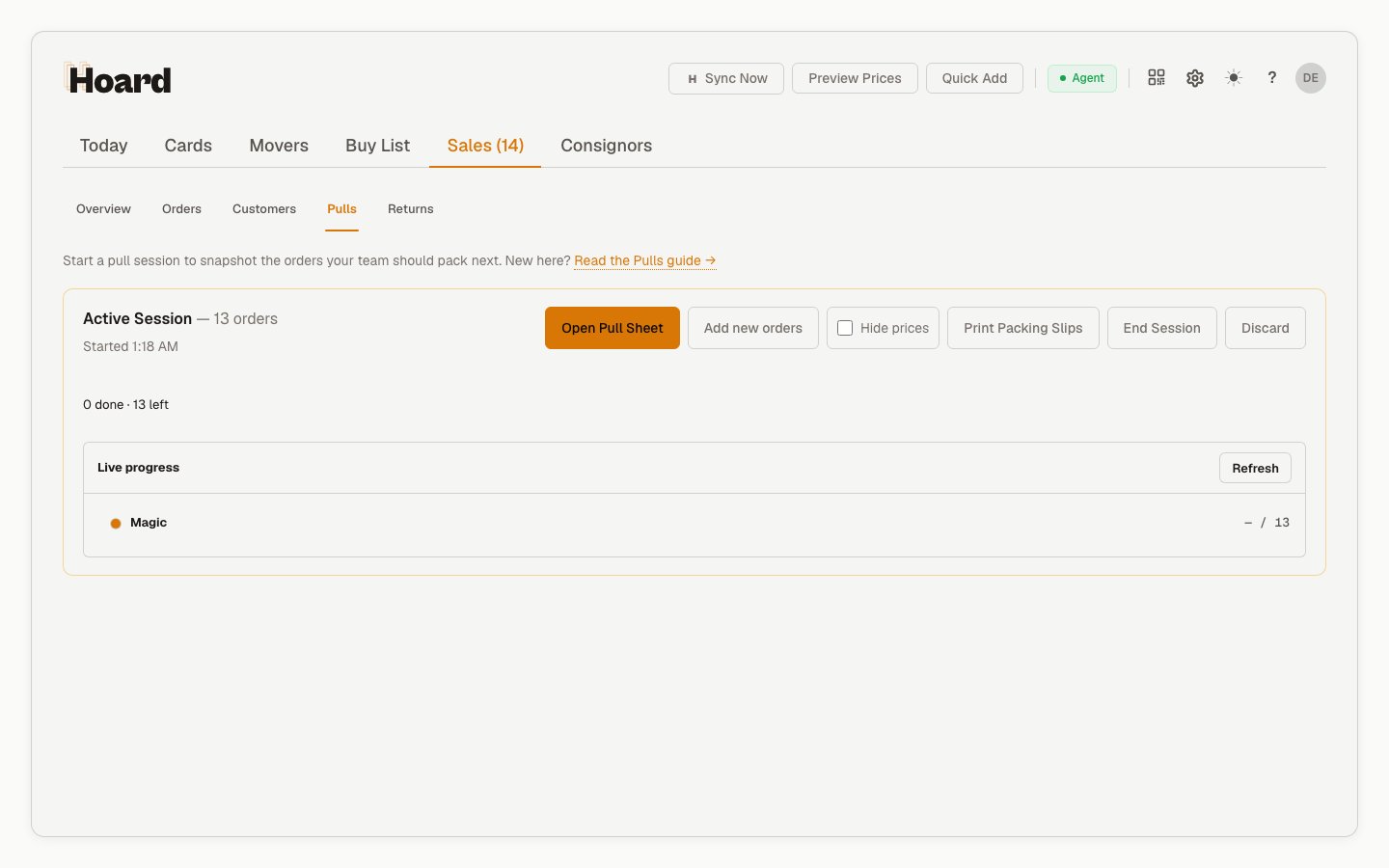
Back in Sales > Pulls, check the active card or history table for:
Orders in the pull
Cards completed
Per-game queue progress, such as Magic 46 / 64 or Lorcana Done
Deferred orders
Warnings
Duration
Use Refresh in the active session panel when you want the latest worker progress without opening the printed sheet or each tablet queue.Orders that belonged to a pull also show a pull link in Sales > Orders, customer order history, and return order rows.
If an order was assigned to the wrong pull, use Sales > Orders, find the order, and click Unassign in the Pull column. After confirmation, that order can be captured by a future pull.