

What you’ll need
- A ShippingEasy account
- A few minutes to create one new store inside ShippingEasy (Hoard pushes into a dedicated store, it doesn’t touch your existing eBay or other stores)
Step 1: Get your API credentials
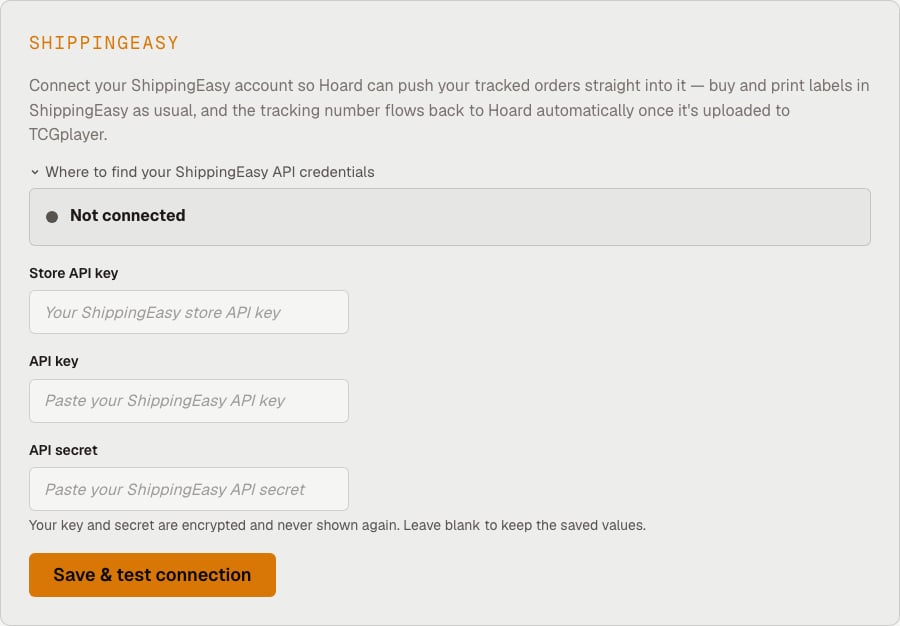
Step 2: Create a ShippingEasy API store
Hoard pushes orders into their own ShippingEasy store, separate from any store you already have connected to eBay or another marketplace. In ShippingEasy, go to Settings → Stores & Orders → Add New, and choose the ShippingEasy API store type. Use your store’s real name and address — ShippingEasy prints them on your shipping labels as the return address, so a placeholder name would end up on every package. Save it, then copy that store’s Store API Key from the stores list (it has a copy button next to it). This new store doesn’t replace anything — your existing stores keep working the same way. It’s the address Hoard pushes tracked orders into.Step 3: Connect in Hoard
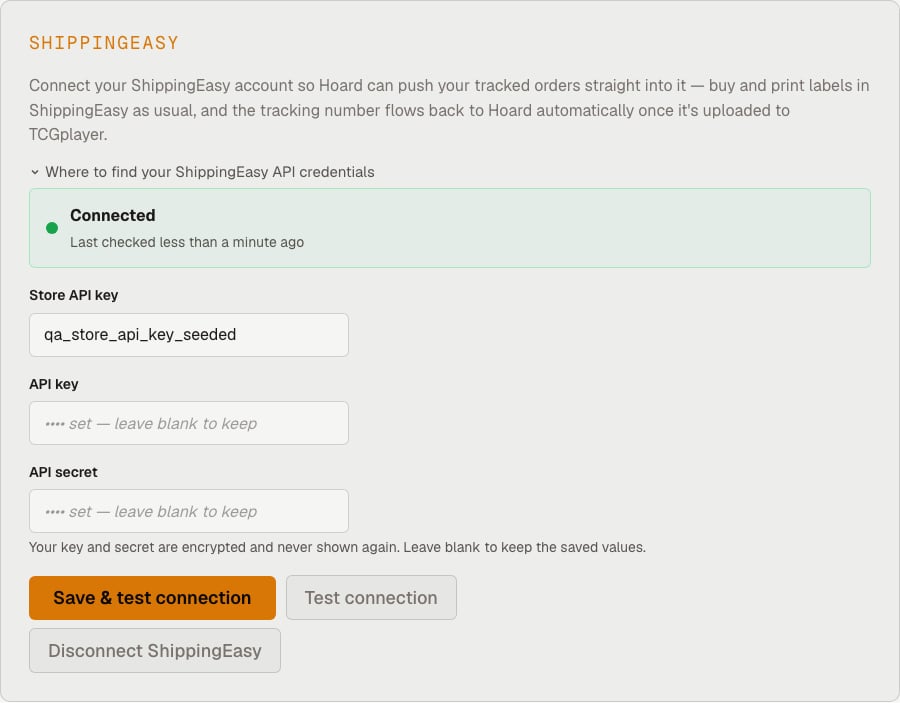
Go to Settings → Integrations and select ShippingEasy. Paste in the three values from the steps above:- Store API key (from Step 2)
- API key (from Step 1)
- API secret (from Step 1)
How it works day to day
- Start a pull in Visual Pull like normal. Tracked orders sort into their own row per game.
- Push the tracked set. Each tracked row has a Push [Game] Tracked to ShippingEasy button next to its Print Tracked slips for [Game] link, and one click sends every tracked order in that row to ShippingEasy. To push every game at once, use Push all Tracked to ShippingEasy at the top of the page, or the same button on the active-session card in Fulfillment → Pulls, which pushes each game in the order it’s listed. For a smaller batch, select orders on the Orders tab and click Push to ShippingEasy in the Labels control.
- Buy and print labels in ShippingEasy, same as you do now. Nothing changes on that end.
- Tracking comes back on its own. Hoard checks ShippingEasy in the background every 10 minutes during the US day and hourly overnight. As soon as a label is purchased, Hoard picks up the tracking number and carrier and uploads it to TCGplayer, which flips the order to shipped automatically. The upload half is controlled by the Auto-ship on TCGplayer toggle on the ShippingEasy card in Settings → Integrations — with it off, tracking still flows back into Hoard and you can upload it yourself with the one-click CSV download.
- Mark leftover plain-envelope orders shipped in one click. Tracked orders ship themselves the way described above; plain-envelope (PWE) orders still use the existing Mark as Shipped bulk action on the Orders tab once you’re done packing them.
- Refunds take care of themselves. If an order is fully refunded before you buy its label, Hoard cancels it in ShippingEasy so it drops off your queue — no spot-checking. If the refund lands after you already bought the label, the order shows up in the needs-fix list telling you to void that label in ShippingEasy. Partially refunded orders still ship — the buyer is owed the remaining cards, and the refunded line is already crossed off your pull slip.
- Anything that needs a hand shows up in a short list, right on the Visual Pull page — a bad address, a cancelled label, a refund that arrived after the label was bought, or a carrier TCGplayer doesn’t recognize. The list tells you whether to fix the order where it is or push it again, then clears once the problem is gone.
Package weight
Hoard sends an estimated package weight with each order, based on how many cards are in it, so you don’t have to type one in before buying a label — see Shipping labels and tracking for the full table and what leaves the weight blank. Refunded copies don’t count toward the card total. You can change the weight on any order in ShippingEasy before you buy its label.Label order
Hoard pushes tracked orders one at a time in the same top-to-bottom order they appear in Visual Pull. It also gives them increasing order dates and an internal note such asHoard pull 007 of 076, so ShippingEasy has the same sequence and you can check any label against the pull stack. ShippingEasy still controls the final batch-print order; confirm the next batch is sorted by Order Date before printing. If the printed stack comes out backwards, flip Reverse label print order on the ShippingEasy card in Settings → Integrations. It’s off by default. ShippingEasy prints the order it received last first, so with the toggle off the stack comes out backwards. With it on, the printed stack matches Visual Pull: games in QR-code order, expedited first within each game.
Orders you label somewhere else
If you make a label outside ShippingEasy for an order you already pushed, the order stays in ShippingEasy with no label. Hoard leaves it out of later pushes and takes it off the needs-attention list, but it is still there the next time you select orders in ShippingEasy, where it is easy to buy a second label by mistake. Turn on Remove orders I labelled somewhere else on the ShippingEasy card in Settings → Integrations and Hoard cancels that order in ShippingEasy for you. It’s off by default. Hoard only does this when all of these are true:- TCGplayer has a tracking number for the order, or the order is canceled on TCGplayer. An order that is only marked shipped, with no tracking number, is left alone.
- The order was pushed more than an hour ago.
- Hoard recorded that it created that exact ShippingEasy draft, and the draft still has the same ShippingEasy order ID. Manual orders, orders from another integration, and adopted or recovered orders are never removed automatically.
- ShippingEasy, checked at that moment, shows no label for the order.
ready_for_shipment, Hoard skips the
order; it does not intentionally void labels.