

What Hoard does and doesn’t do
Hoard connects to ShippingEasy over its API, using your own credentials and a dedicated ShippingEasy store, and pushes your tracked orders straight into it with an address and an estimated weight already filled in. For sellers who use Pirate Ship instead, Hoard builds a CSV shaped for Pirate Ship’s bulk-upload importer, since Pirate Ship has no API of its own. Either way, Hoard can also produce a tracking file for orders you shipped some other way, so you can upload tracking to TCGplayer by hand. None of that includes buying postage or printing a label. That step stays in ShippingEasy or Pirate Ship, exactly as it does without Hoard connected. Hoard automates the handoff on both ends: getting the order and its details to the label tool, and getting the tracking number back to TCGplayer once a label exists.Choosing a path
ShippingEasy automates the most steps, including the tracking upload to TCGplayer. Pirate Ship automates the address and weight lookup for its CSV importer, but Pirate Ship isn’t part of the automatic tracking upload, so you get the tracking number onto TCGplayer yourself. You can use both from the same Orders tab — the Labels control offers whichever export you need.
For the ShippingEasy setup steps, see Connect ShippingEasy.
Which orders are included
Only Tracked and Expedited orders are pushed or exported. Which orders count as Tracked follows your tracking threshold, the dollar amount set under Settings → Repricing (My Shipping Rules) — the default is $50. Expedited orders always count as tracked, regardless of order value, since an expedited shipment can’t go out in a plain envelope. PWE (plain white envelope) orders are skipped everywhere in this system. They ship with a stamp, not a purchased label, so there’s nothing to push or export. A few other conditions hold an order back or leave it alone:- No shipping address yet. Orders whose address hasn’t finished syncing from TCGplayer are held rather than pushed or exported with blank fields.
- Already shipped or already tracked. An order marked shipped, or one that already carries a tracking number from any source, is left alone, so a second label never gets bought for the same order.
- Fully refunded. A fully refunded order owes the buyer nothing, so it isn’t pushed or exported. See the refunds section below for a refund that lands after you’ve already bought a label.
Estimated package weight
Hoard sends an estimated package weight with each pushed or exported order, based on how many cards are in it, so you don’t have to weigh and type in a weight before buying every label.
The four weights are the USPS Ground Advantage rate steps, so postage costs the same anywhere inside one of those steps. An order that mixes cards with sealed product or accessories, or one over 200 cards, gets no estimate at all. Weigh the package once it’s packed and enter the weight yourself in ShippingEasy or Pirate Ship; in Pirate Ship’s CSV, that shows up as a blank Weight (oz) column.
You can change the weight on any order in either tool before you buy its label. Hoard’s estimate is a starting point, not a lock.
How refunds carry through
The card count behind the weight estimate, and the ShippingEasy line items, use the copies that still ship, not the copies originally ordered:- A partial refund still ships the rest. If 10 of 20 copies on a line are refunded, the order arrives in ShippingEasy as 10 copies, weighed as if the order had 10 cards.
- A fully refunded line is left off. If every copy on a line was refunded, that line doesn’t appear in the ShippingEasy order at all, and the pull slip already crossed it off.
- A fully refunded order isn’t pushed or exported. Skipped from both ShippingEasy and Pirate Ship before you push it. If it was already pushed to ShippingEasy before you bought a label, Hoard cancels it there. In the Pirate Ship export, fully refunded orders are left out and counted in the toast, something like “Excluded 3 Refunded Orders.”
- A refund after the label is bought doesn’t change anything retroactively. The order shows up on the needs-fix list telling you to void the label in ShippingEasy.
Where the actions live
The push and export controls show up in four places, depending on how much of your day’s orders you’re working through at once: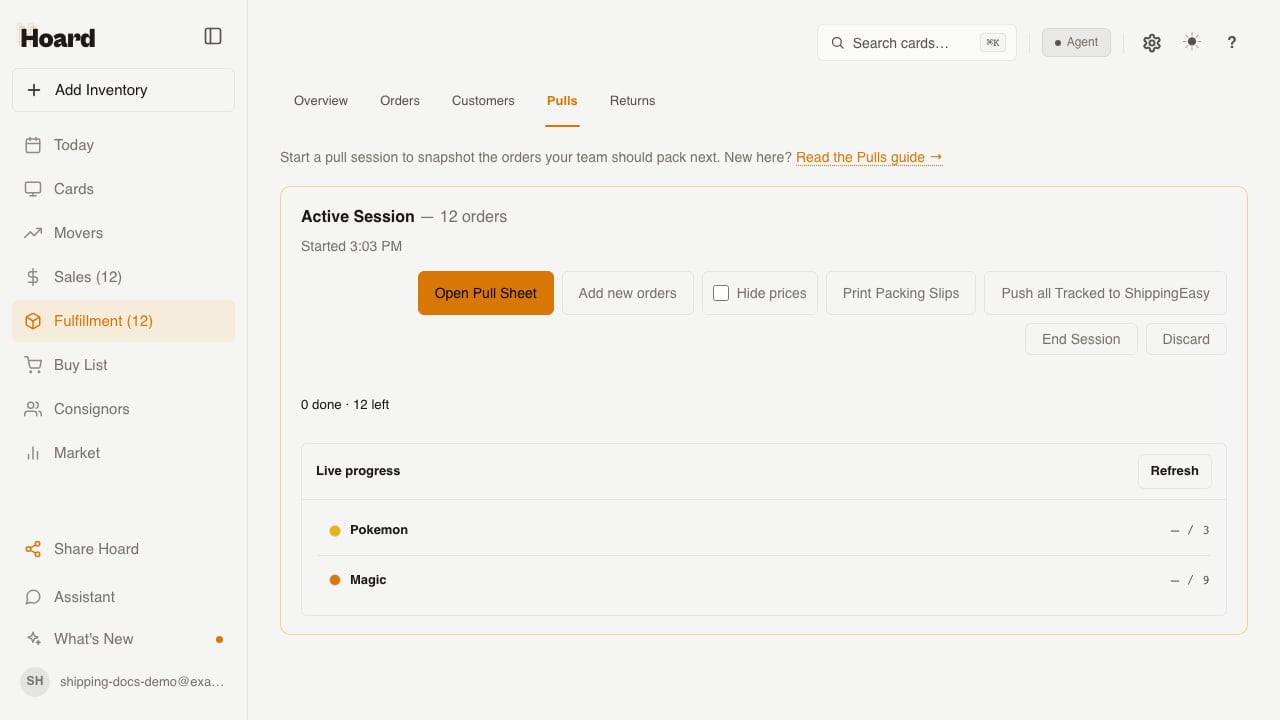
- Visual Pull page. Each game’s tracked row has its own Push [Game] Tracked to ShippingEasy button next to its Print Tracked slips for [Game] link, so you can push one game at a time as your team finishes pulling it. Push all Tracked to ShippingEasy at the top of the page sends every game at once.
- Fulfillment → Pulls. The active-session card carries the same Push all Tracked to ShippingEasy button, so a manager can push the whole pull without opening the pull sheet.
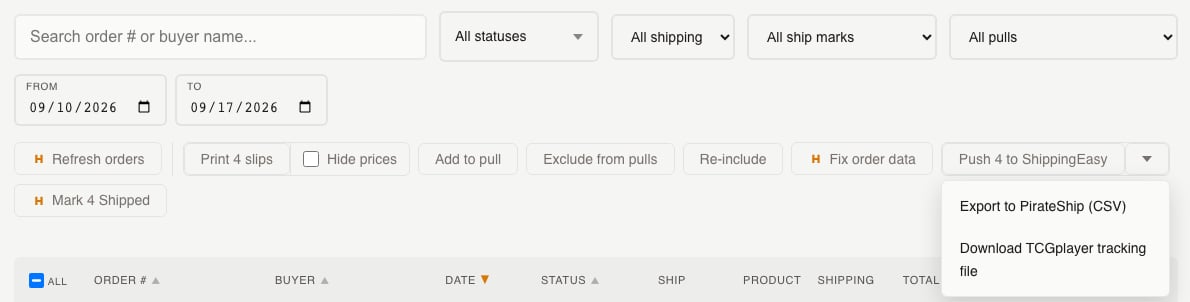
- Orders tab, Labels control. Select specific orders with the row checkboxes, or leave nothing selected to use whatever the tab is currently filtered to. The Labels control’s main button is Push to ShippingEasy if you’re connected, or Export to PirateShip if you’re not; the caret menu next to it holds Export to PirateShip (CSV) and Download TCGplayer tracking file when ShippingEasy is connected, or Connect ShippingEasy when it isn’t.
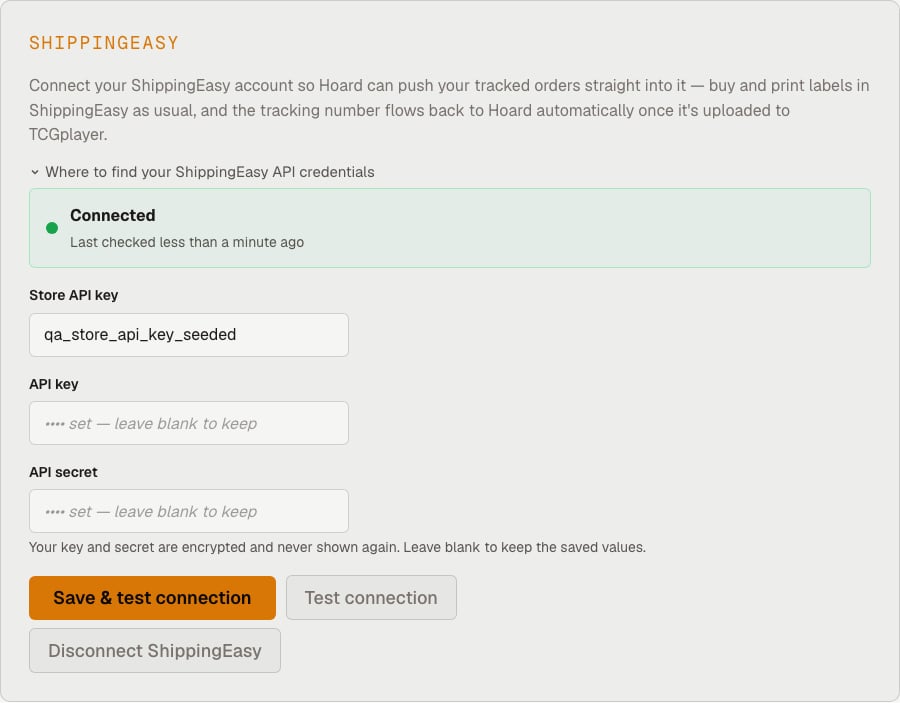
- Settings → Integrations. The ShippingEasy card is where you connect your account, and where the Auto-ship on TCGplayer and Reverse label print order toggles live.
Keeping label order aligned with your pull
Hoard pushes tracked orders one at a time in the same top-to-bottom order they appear in Visual Pull. It sends increasing order dates and numbered internal notes in that sequence. Before batch printing, confirm ShippingEasy is sorted by Order Date; the note lets you check any row against the pull stack. If your printer feeds the stack the other direction and the whole stack comes out backwards, flip Reverse label print order on the ShippingEasy card in Settings → Integrations. It’s off by default. ShippingEasy prints the order it received last first, so with the toggle off the stack comes out backwards. With it on, the printed stack matches Visual Pull: games in QR-code order, expedited first within each game.How tracking gets back to TCGplayer
Once you buy a label in ShippingEasy, Hoard checks ShippingEasy in the background every 10 minutes during the US day and hourly overnight. As soon as it sees a tracking number and carrier on an order, it picks them up and, with the Auto-ship on TCGplayer toggle on, uploads them to TCGplayer, which flips the order to shipped automatically. With the toggle off, tracking still flows back into Hoard, and you upload it yourself with the one-click tracking file download from the Orders tab Labels menu.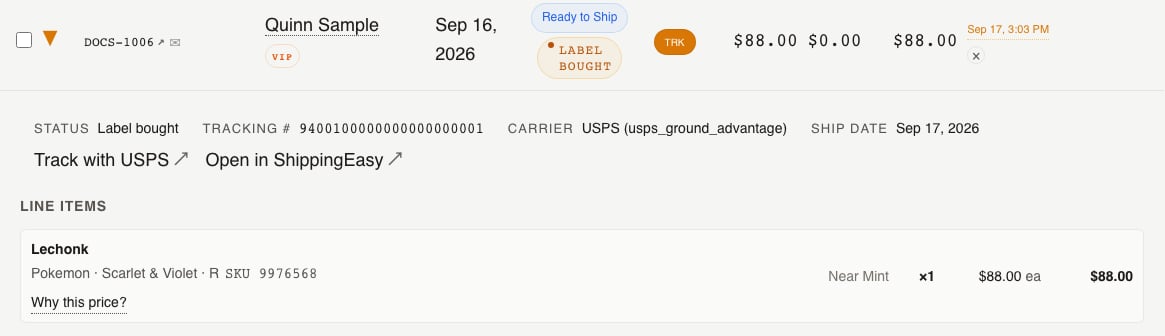
The needs-fix list
Anything that needs a human decision shows up in a short list on the Visual Pull page, right below the pull toolbar, rather than failing silently. The list tells you whether the order needs another push or a fix in ShippingEasy or TCGplayer. The reasons you’ll see:- An address ShippingEasy couldn’t verify
- A push ShippingEasy rejected
- An order a stopped push never reached
- A carrier TCGplayer doesn’t recognize
- A tracking import TCGplayer rejected
- A label that was cancelled
- A drop-shipped order, which needs its tracking checked manually
- A refund that arrived after the label was already bought
- An order pushed to ShippingEasy with no label after 24 hours
- An order with a label that hasn’t imported back into Hoard after 24 hours