

list:con-box price>20), and point a pricing rule at it.
Creating a list
Lists have their own button in the Cards toolbar, sitting right next to the bookmark button. It’s the layers icon. Click it to open the Lists popover.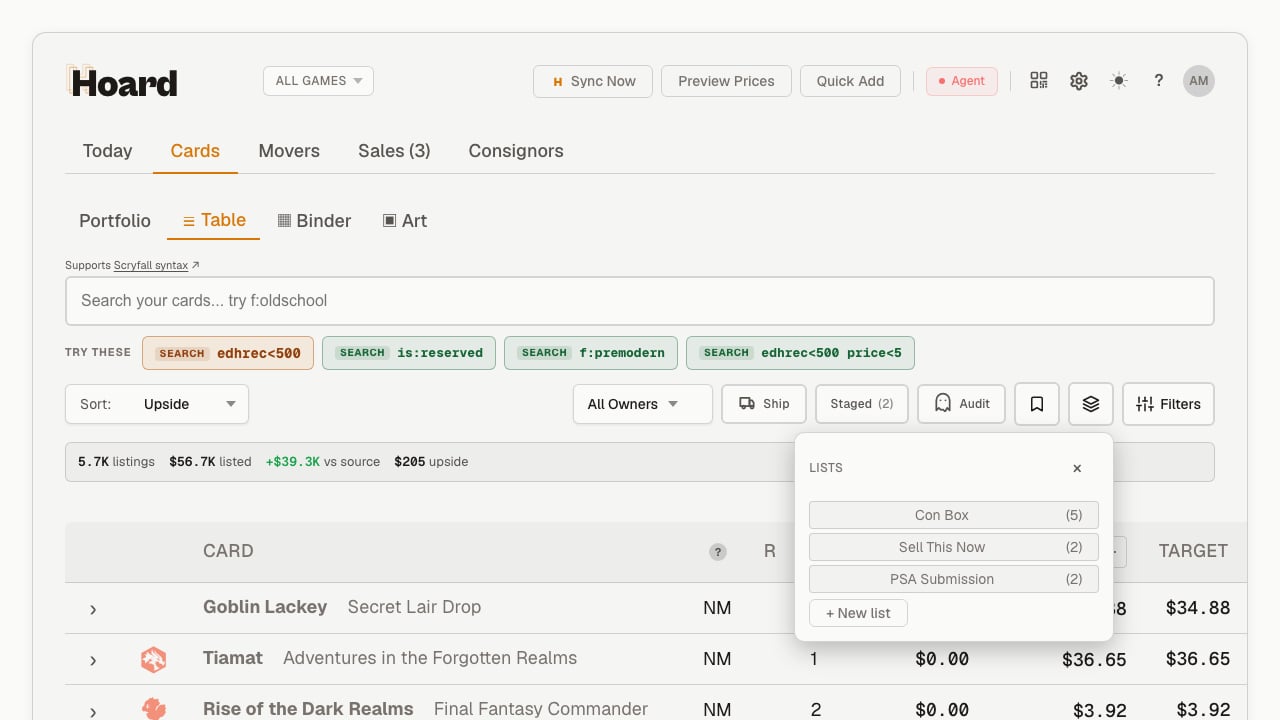
con-box). The slug is what you type when you search the list, and it stays the same even if you rename the list later, so any pricing rule or search you’ve set up keeps working.
Clicking a chip runs a list: search for that list, so the table filters down to just its cards.
Adding cards to a list
There are three ways to put cards on a list, depending on whether you’re working one card at a time or in bulk.From the card detail panel
Open a single card’s detail panel, then click My Copies in the main navigation row. Its Lists area shows which lists the card is already on as chips, plus a dashed + Add to list button. Click + Add to list and a picker opens with a checkbox for every list. Tick the lists you want this card on. This is the path for adding a single card you’re looking at.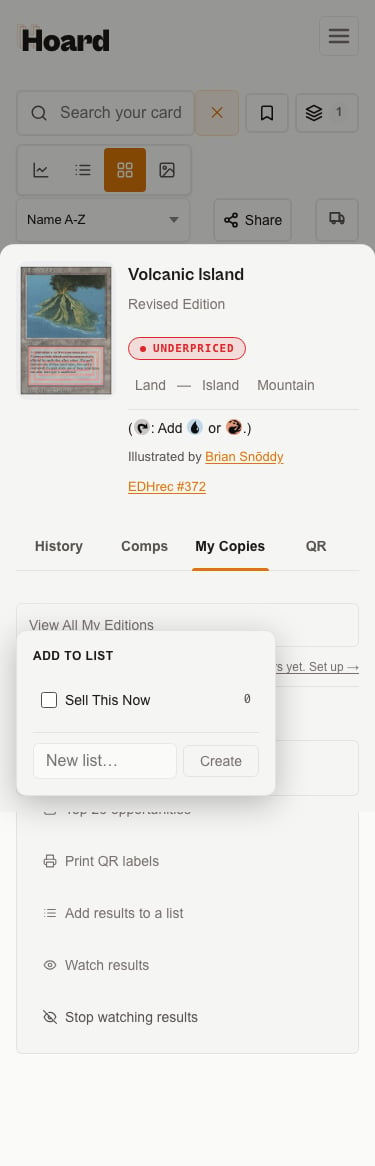
Add a whole filtered set at once
When you want a batch of cards on a list, filter your inventory to exactly the set you want, then use Add results to a list in the Cards-tab Export panel (right next to Print QR labels). It acts on the cards currently showing — the same filtered set you’re looking at — so search, game scope, and any status filters all carry through. This is how you’d build a “Sell This Now” list from, say, everything in a set above a price floor: search for it first, then add the results.After publishing staged cards
Cards you add through Add Inventory sit staged until you publish them. When you publish from the notice above the Cards table, Hoard offers to drop the cards you just published onto a list — new or existing — and jumps you straight to it. That keeps a fresh intake batch together without hunting for the cards again afterward. The publish banner on the Add Inventory page itself publishes the same cards but doesn’t offer the list step.Adding more cards than a list can hold? Lists cap at 1,000 cards each, and you can keep up to 100 lists. A bulk add that would go over the cap adds what fits and tells you how many were left off.
Removing a card and deleting a list
To take one card off a list, open that single card’s detail panel, click My Copies, find the list’s chip in the Lists area, and hover it — an × appears. Click it to remove the card. (On touch screens there’s no hover, so use the + Add to list picker and untick the list instead.) To delete a whole list, searchlist:<slug> until the list is empty, and you’ll find a Delete link in the empty-state message. Deleting a list never touches the cards themselves — it just removes the grouping.
Searching a list
Typelist:<slug> in the search bar to filter to a list’s members — list:con-box, or list:"Con Box" if you’d rather use the name.
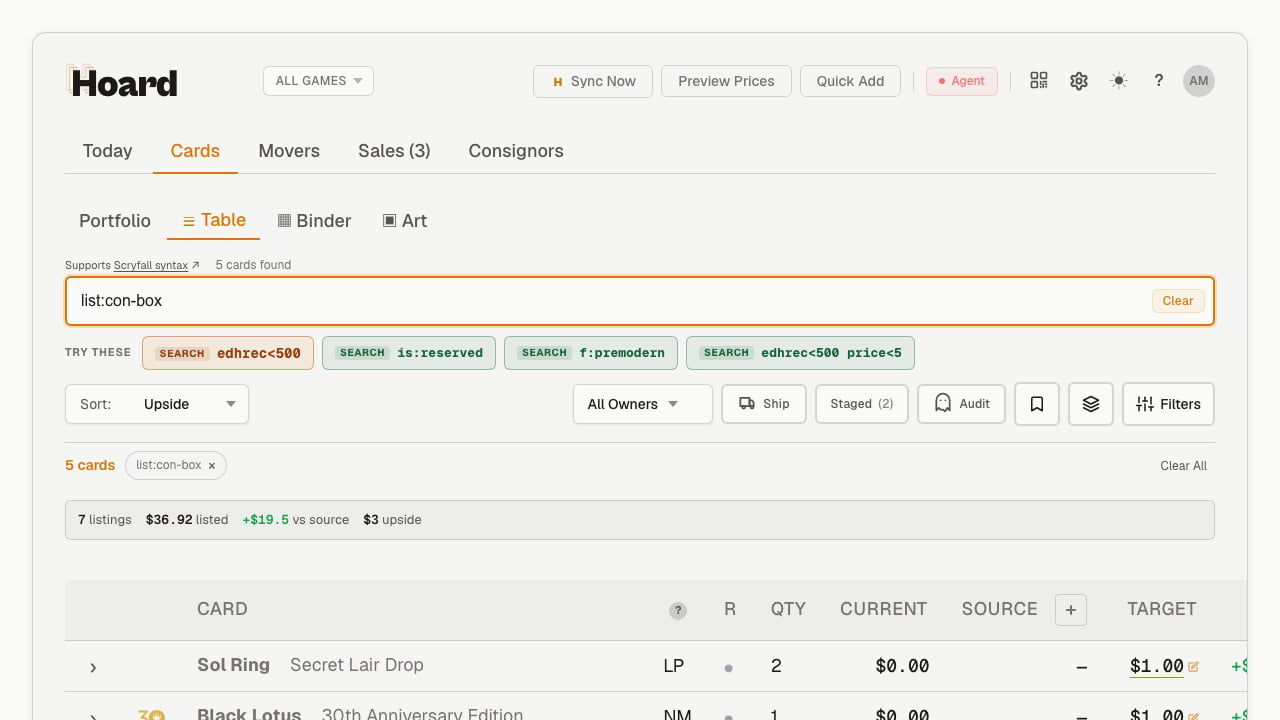
list: composes with every other operator, so you can narrow a list down further: list:con-box price>20, list:sell-this-now r:mythic, and so on.
Because lists keep sold and delisted cards, you’ll sometimes want to see what’s left the list. Add is:gone to filter to only the cards that are no longer on hand — delisted, or sold down to zero copies. So list:con-box is:gone is your audit view of what disappeared off the box. By default, gone cards are hidden, so a plain list:con-box shows only what you still have.
For the full set of search operators you can combine with list: and is:gone, see Advanced search.
Pricing a list
A list can drive a pricing rule. Set up a rule whose query islist:<slug> and every card on that list gets priced by the rule — useful for a “sell this now” shelf you want marked down, or a show box you want priced to move.
A list: rule can skip the game scope. Pricing rules are normally scoped to a single game, but a list is already a specific, bounded set of cards you chose by hand, and a real-world shelf legitimately mixes games — your show box might have Magic, Pokemon, and One Piece in it. Hoard accepts a list:-scoped rule that crosses games.
The rule builder in the dashboard can’t create one. It refuses to save any rule whose query has no game: token (“Choose a game before saving this pricing rule”), and a list: query has to be typed in the builder’s freestyle mode, where the game picker is hidden. So from the dashboard you either add a game: token — which scopes the rule to that one game — or have a connected AI assistant create the cross-game list: rule for you.
When you set a list rule to mark cards down (say, half off), the discount applies to each card’s source price and is then run through your price floors, so nothing drops below the minimum you’ve set. It’s “half of the source price, then floored,” not a literal 50% of whatever’s showing.
Membership changes take effect on rule matching straight away. Add a card to a list that has a pricing rule and the card starts matching that rule immediately; take it off and it falls back to your other rules. The new price itself is calculated on the next reprice, so run Preview Prices or wait for the next sync to see it.