

Find a setting
Search with the words you use, such as minimum price, daily digest, API key, or timezone. Choose a result to open its page, reveal the relevant section, and focus the control. Use the arrow keys and Enter to choose a result, or Escape to clear the search. Pricing and Sync use expandable groups with summaries of your current settings. Open a group when you need its detailed controls. Searching within the current page preserves edits; leaving a page with unsaved changes asks before navigating.Repricing
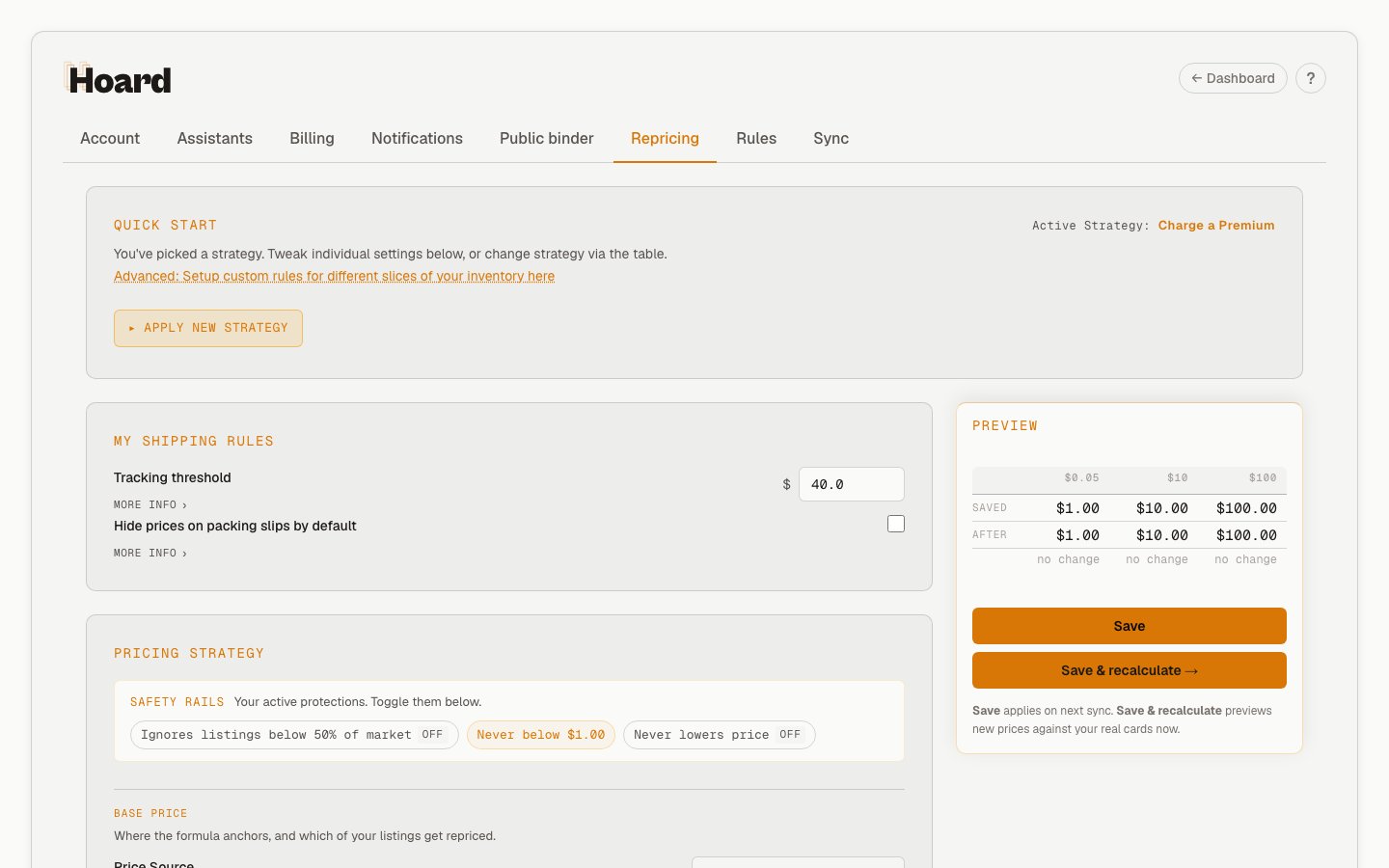
Quick Start templates
Four one-click starting points. The comparison table starts collapsed: open Choose a pricing preset, or Apply New Strategy if you already have one. Your active strategy appears as a chip. You can also click any column header in the table to apply that template — same as clicking the per-column Apply button.- Charge a Premium — market price + 5%, floor-aware at 100% (matches the lowest listing at that step), 15% change cap (10% for cards under $5). Never lower prices is off, so a card with no observed quantity decrease for 90 days drifts down 1% a week. For patient sellers who’d rather miss a sale than leave money on the table.
- Stay Competitive — market price, never lower prices on, floor-aware at 99% (undercuts the lowest listing by 1%), 20% change cap (15% for cards under $5). For most sellers — match the market without leading the race.
- Move Product — low price, 25% change cap on staples but cheap cards swing freely (50% cap under $5), velocity decay on (stale cards get a small weekly drop). For clearing inventory.
- Win the Buy Box — low + shipping × 0.98, stale reductions off, with the recent-mover protection choice saved for rules that enable them (no extra markup), 30% change cap on staples, 50% for cheap cards. For aggressive sellers.
Price source
Which price to use as the base for all calculations. Seven options:- TCGplayer Market Price (default) — the volume-weighted average of recent sales
- TCGplayer Low — the lowest current listing
- TCGplayer Low + Shipping — the lowest current listing plus its shipping cost
- TCGplayer Direct Low — TCGplayer’s Direct Low price
- Higher of Market / Low — whichever of those two is greater
- Highest of Direct / Market / Low — whichever of those three is greatest
- PriceCharting Grade — a condition-matched grade price from PriceCharting’s eBay sold data
Price markup
Percentage above your chosen price source. Options: -5%, -2%, 0% (Match Price), then 5, 10, 15, 20, 25, 30, and 50%.Custom listing price updates
Whether Hoard includes your TCGplayer photo listings and custom listings in pricing. On by default. Turn off if you have graded or specialty listings with manually set prices you don’t want Hoard to touch.Never lower prices
Prevents ordinary formula reductions when market prices fall. Temporary-sale discounts apply afterward and can still lower the final target. Turn it off if you want ordinary repricing to follow the market downward too.Minimum card price (floor)
The minimum applied during the formula calculation. Default $1.00. A later hold or clamp can keep a price below a newly raised minimum. The floor keeps low-value cards at a price that covers your time and shipping, and makes your store attractive for TCGplayer’s cart optimizer (which routes buyers to sellers who can fill orders efficiently).Lowest listing awareness
The toggle is labeled Stay near the lowest listing. When enabled, Hoard prices near the lowest competitor listing instead of dropping all the way to your formula when that listing is above your target. Note this can raise a card above your formula’s price — leave it off if you’re pricing low to clear stock. Ignores unrealistic listings below 50% of market. The follow-up control is labeled How close to the lowest listing, with five choices: Match exactly (0% below), 5% below, 10% below, 15% below, or 20% below. Default is 5% below. Match exactly ties with the current leader at that step; later adjustments can change the final price. A Quick Start template can set a distance that is not one of those five. Stay Competitive sets 99% (1% below), and the dropdown has no 99% option, so it shows one of the five instead. If you save from this page while that is the case, the stored value is replaced by one of the five.Shipping rules
My Shipping Rules sits above Pricing Strategy because the tracking threshold and shipping adder both feed the price preview math. Set your tracking threshold (the dollar amount above which you ship with tracking) and the shipping cost adder (off by default, but onboarding flips it on automatically for sellers who picked “I ship orders myself”). See Shipping cost adder for details. This card also holds Hold orders until fully synced before print/pull (off by default). When on, new pull sheets only capture orders whose shipping address and full item list have finished syncing; held orders show on the pull sheet with the reason and a per-order Print anyway button. See Orders that are still syncing.Inventory movement
Protect recent movers uses quantity history to skip an enabled stale-price reduction. It never adds a markup. Reduce stale prices gradually lowers the formula target after its waiting period. Both controls are optional; protection has no price effect while reduction is off. See Inventory movement and stale pricing.Price change safety
Caps how much any card’s price can change per sync. Separate caps for cards above and below $5. Choose hold (skip the change entirely) or clamp (limit to the max percentage). Off by default. See Price change safety.Market watch
A live count of what Hoard is watching for you right now, broken down by reason — cards you watched yourself, sealed stock, recent sales, new listings, and held-price-change decisions — each one clickable through to the matching Cards filter. Also shows your plan’s per-category watch cap and, if any category is past it, exactly how many cards are missing out, with a link to upgrade. If your Hoard agent needs an update before it can keep watching cards fresh, this section says so instead of showing a misleading zero. See Market depth and watching for the full picture.Saving changes
The pricing footer is sticky and bundles the live preview alongside two save actions:- Save — writes the new strategy. It applies on your next sync.
- Save & recalculate — writes the strategy and immediately previews the new prices against your real cards, so you can see what will happen before the next sync runs.
Rules
Per-card pricing rules created from bookmarked searches. Each rule has its own multiplier, price source, floor behavior, and never-go-down setting. Rules are evaluated top to bottom — first enabled match wins. Creating, editing, duplicating, or choosing a rule template opens the editor over your Cards dashboard. As you change filters, the table shows the matching cards. The editor also estimates pricing effects; cards shown and cards eligible for a price change can differ, for example when a card is price-locked. Previewing does not save a rule or publish prices. You can also start from Bookmarks on the Cards dashboard: click a bookmark’s $ action to build a rule from its saved search. If it already has a rule, including a paused one, the same action opens that rule for editing. On mobile, use the matching-cards control to look at the results, then return to your draft. Closing restores your previous Cards view and asks before discarding edits. Back to Rules returns to the saved-rule list, where you can reorder rules, toggle them, or test a card. Game pills (Pokémon, Magic, One Piece, etc.) appear next to each rule so you can scan a long rule list and spot which product line each one targets. See Pricing rules for the full reference, and the pin and price tutorial for a walkthrough.Sync
Sync frequency
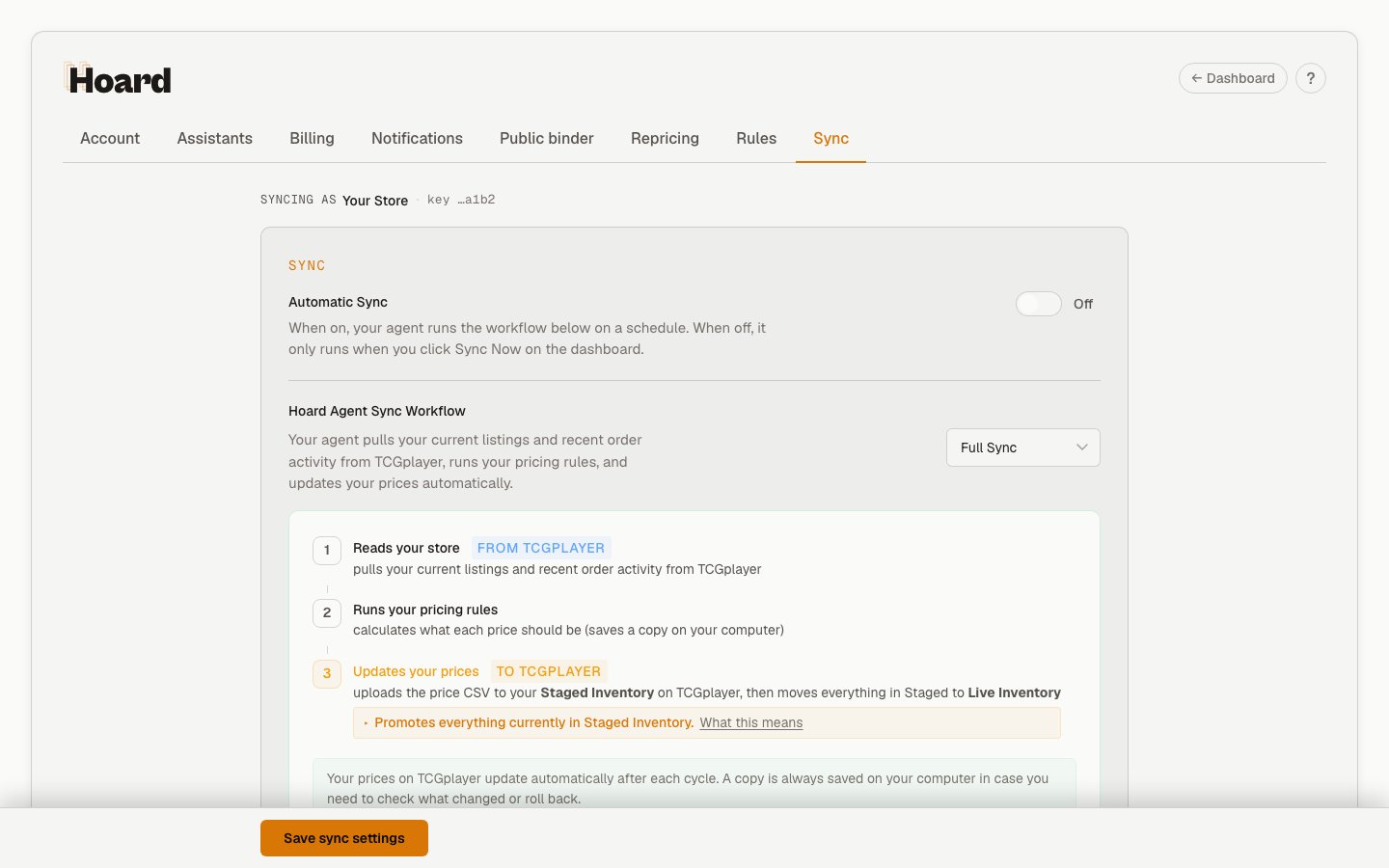
How often Hoard checks in and syncs. Options: every 4, 8, 12, or 24 hours, or once a week (default: once a day). Cadences faster than your plan’s floor are hidden from the dropdown. Hoard must be running on your computer for syncs to happen. If it’s off during a scheduled sync, it picks up on the next check-in. Use Preferred Sync Hour when you want the cadence anchored to a local wall-clock time. Use Quiet Window to block scheduled syncs during a buying rush or shipping block. Use Days of Week if you only want Hoard to sync on certain days. The next-sync preview below those controls shows the next eligible time after your cadence, quiet window, day mask, pause state, and timezone are applied.Product lines
Choose which games show up on your dashboard. Hoard pins games already detected in your inventory, keeps the common games close at hand, and gives you a search box for the longer TCGplayer game list. You can also choose which product groups Hoard is allowed to reprice. Unchecked games still sync and stay visible, but Hoard does not touch their prices. Sealed products and accessories have separate toggles.Import historical data
Three import controls for pulling in older data from TCGplayer:- Orders — pick a start year (2020 or later) and Hoard backfills your order history in yearly chunks
- Feedback — pulls all your buyer feedback ratings
- Sales — pick a year and Hoard imports each month of that year; months you already have stay untouched. A separate Re-import control refetches one specific month
Integrations
Connections to services outside TCGplayer. Each one is a card with a credentials form, a Save & test connection button, and a status indicator. A separate Test connection button appears once credentials are saved, alongside a Disconnect button.- TCGTracking — paste your TCGTracking API key for free USPS letter tracking on PWE orders. TCGplayer does not accept TCGTracking as valid tracking for seller metrics, and you pay TCGTracking directly; Hoard never bills you for it. The test runs in the background and can take up to a minute.
- Shopify — paste a custom app token and API secret so Hoard can read your products, inventory, and orders for restock alerts and price checks. Hoard does not change your Shopify store.
Restock alerts
Once the Shopify connection has tested as connected and Hoard has found active locations in your store, the Shopify card grows a Restock alerts section. Pick which location is your storefront, and say whether a second Shopify location holds your backup stock or whether Hoard should flag every storefront sellout. When a storefront listing sells out, Hoard adds it to your morning digest, the Today tab, and a printable restock list.Public binder
Publish a shareable URL with your top cards. Buyers see image, name, set, and condition — no prices — and click through to your TCGplayer listings. Manage the publish/expiry/indexable settings here; reset or suspend the URL from the Danger zone. Full reference: Share your binder.QR price stickers
Open the print sheet for stamp-sized QR stickers, one per active card. Scanning a sticker shows the live comp, so the sticker itself never has to be reprinted when the price moves. A Public stickers control sets the account-wide default: public means anyone can scan and see the comp without signing in, private means only you can. Either way the page is never indexed by search engines, and your own Hoard ask stays private. You can override any single card from its detail panel. See QR price stickers.Get discovered
An opt-in toggle for network discovery. Off by default. When on, a buyer’s AI assistant searching for a card you have in stock can see the card, your price, and your store. It’s free, and you can turn it off from the same control.Assistants
Connect and manage AI assistants that talk to Hoard over MCP. Each assistant you’ve connected shows up here as its own row, and you can disconnect any of them with one click — revoking a connection cuts off its access right away. This page is also where you enable or disable agent permissions: a single toggle plus a read-only view of what the agent is allowed to do. When permissions are off, connected assistants can read your store but can’t request changes. There’s no per-action permission editor yet (it’s on the roadmap), and the activity log is available through the API rather than as a page here.Profile
The nav item is called Profile; the URL is still/settings/account. The page is a stack of cards: Account, Sign in, Share Hoard, Profile, and Danger Zone. Share Hoard only renders when Hoard has a referral code for your account.
API key
The Account card shows your current plan and your API key. Your API key for Hoard. Click to reveal and copy. Treat it like a password. A key is only generated once you’re on a paid plan; free accounts see an Upgrade link here instead. Click Regenerate key if you think the key has leaked. The old key stops working immediately, so any agent or assistant using it disconnects until you update your agent’s.env with the new key, or re-run the installer. OAuth connectors such as Claude.ai and ChatGPT are unaffected.
Sign in
Your password, plus the Google and Discord accounts linked to your login. See Social sign-in.Share Hoard
Your referral link and code, and a count of how many sellers have joined with it.Store details
The Profile card holds your store logo, your name, store name, public store URL, timezone, and release channel. Your timezone sets which calendar day an order counts on across your sales reports, the Customers list, and the orders timeline, and it controls when your morning digest is delivered. Release channel picks whether your agent and desktop app auto-update from stable or beta builds.Danger Zone
A card at the bottom of the page for destructive actions, kept visually separate so you don’t hit it by accident.- Download my data (JSON) — exports your account data, including inventory, orders, pricing rules, and sync history
- Delete my account — locks your account and queues it for permanent deletion of all associated data. Email support to cancel before it’s processed.
Billing
Four cards:- Plan — your current tier, and the upgrade entry point if you’re on Free. Upgrades take effect immediately — you’re charged a prorated amount for the rest of the current period and get the new tier’s sync cadence and limits right away, no waiting for the next billing cycle. Downgrades work the same in reverse: you’re credited, not charged again, and the change applies immediately too.
- Credits — your credit balance and a link to buy more. Credits cover Spot Checks (one unscheduled sync, the moment you click) and AI write actions through the Hoard plugin. Reading your store data through the plugin is always free.
- MCP usage — units consumed this month
- Credit history — a log of credit purchases and spend
Notifications
Email digests and sync alerts.- Daily Digest — a morning email with sales, orders, price changes, what needs your attention, and the biggest market moves in your inventory. Toggle on or off.
- Weekly & Monthly Digest — a Monday summary of the last 7 days, plus a report on the 1st of the month covering the month before, in the same layout as the daily. One toggle covers both.
- Pull Recap — a confirmation email when someone explicitly ends a pull session. Toggle on or off.
- Delivery Time — pick what hour to send your digests in your local timezone. Options run from 5:00 AM to 11:00 AM (default 7:00 AM).
- Hoard Offline Alert — emails you if Hoard hasn’t checked in for 24 hours. Always on.