

How to get there
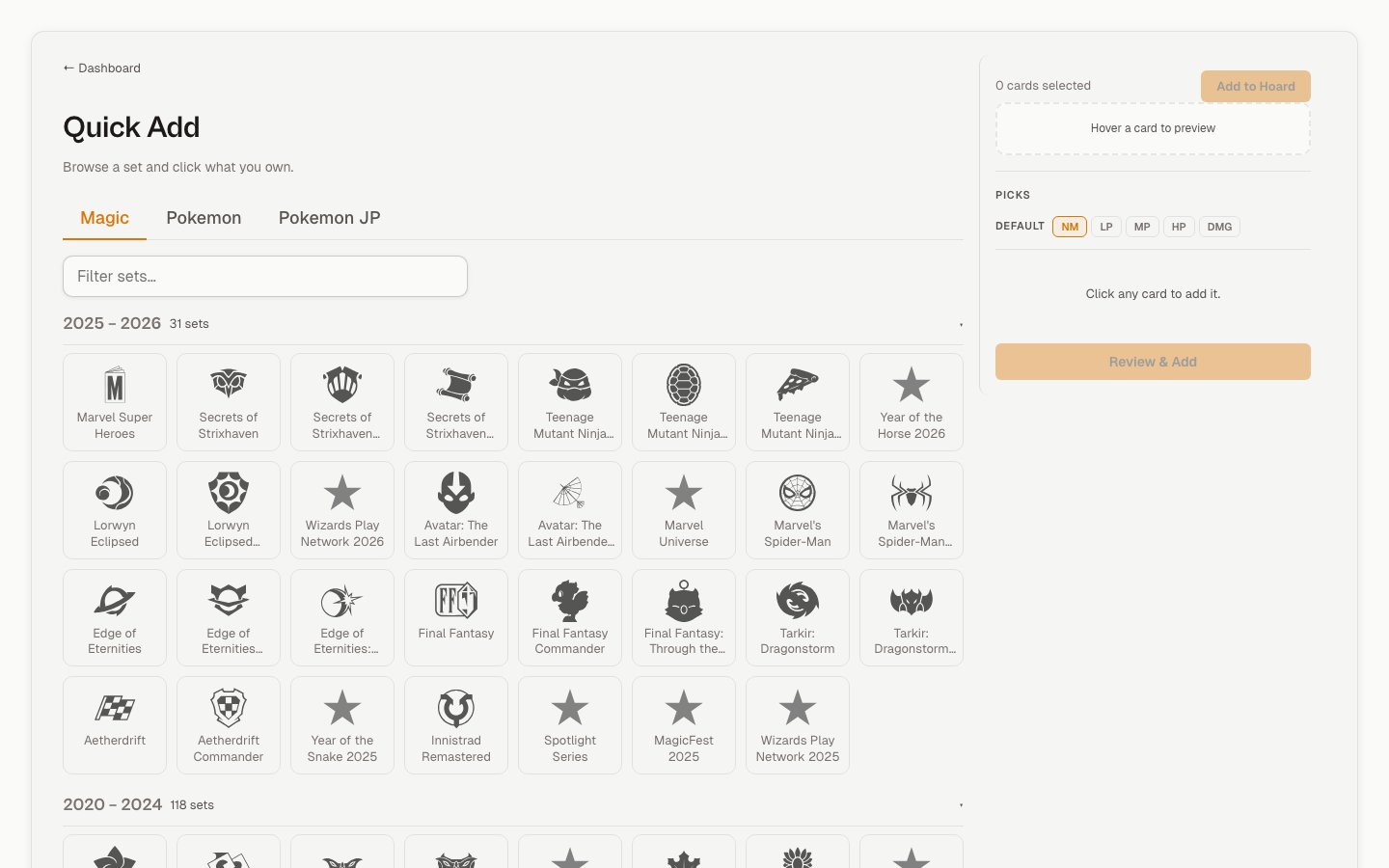
Click Add Inventory in the left sidebar, or tap More → Add Inventory on mobile. You can also go to tryhoard.com/collect.Pick a game
Tabs across the top: Magic · Pokemon · Pokemon JP · One Piece · Yu-Gi-Oh · Lorcana · Digimon · Flesh & Blood · DBS · Star Wars · Riftbound DBS is Dragon Ball Super and Star Wars is Star Wars: Unlimited. Hoard remembers whichever game you used last.Find a set
Sets are grouped into five-year eras (for example2020 – 2024), with Main and Supplemental releases shown separately. Tap any era header to collapse or expand that group. Type a set name in the search box to filter this list — or type a card name to search across every set (see Search for a card).
Voice search
Tap the mic icon next to the search box and say a card or set name. It types for you as you speak. Say “clear” to reset. This only works in the set picker — once you open a set, Voice Match takes over (see below).Search for a card
To search without opening a set first, type a card name in the search box — “greninja”, “lightning bolt” — and Hoard searches every set in the current game, showing matching cards you can add straight from the results. Typing a set name still filters the set tiles above.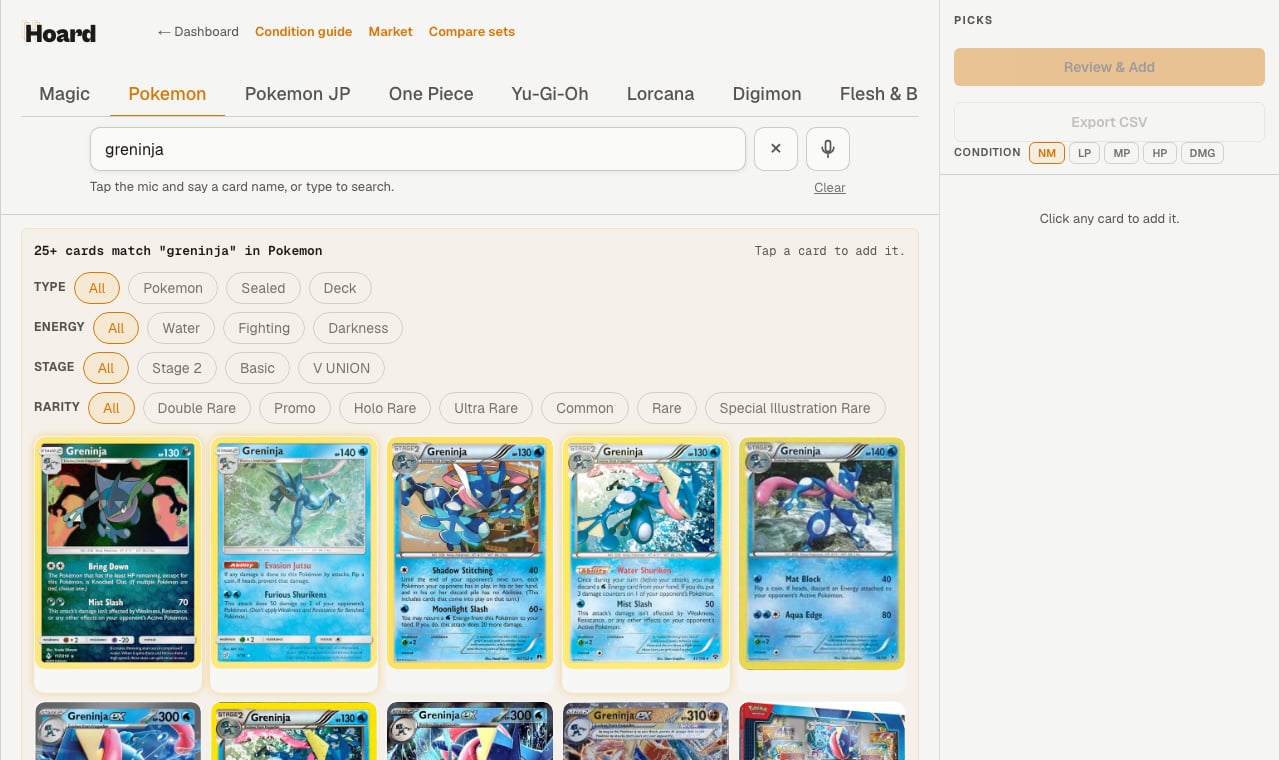
Narrow the results
When the matches vary, filter chips appear above them:- Game facets — Type, Energy, Stage, Color, and the like, depending on the game.
- Rarity and Variant — the quickest way to tell apart the printings of a single card.
Load more
Big searches load a page at a time. Click Load more at the bottom for the next batch.The card grid
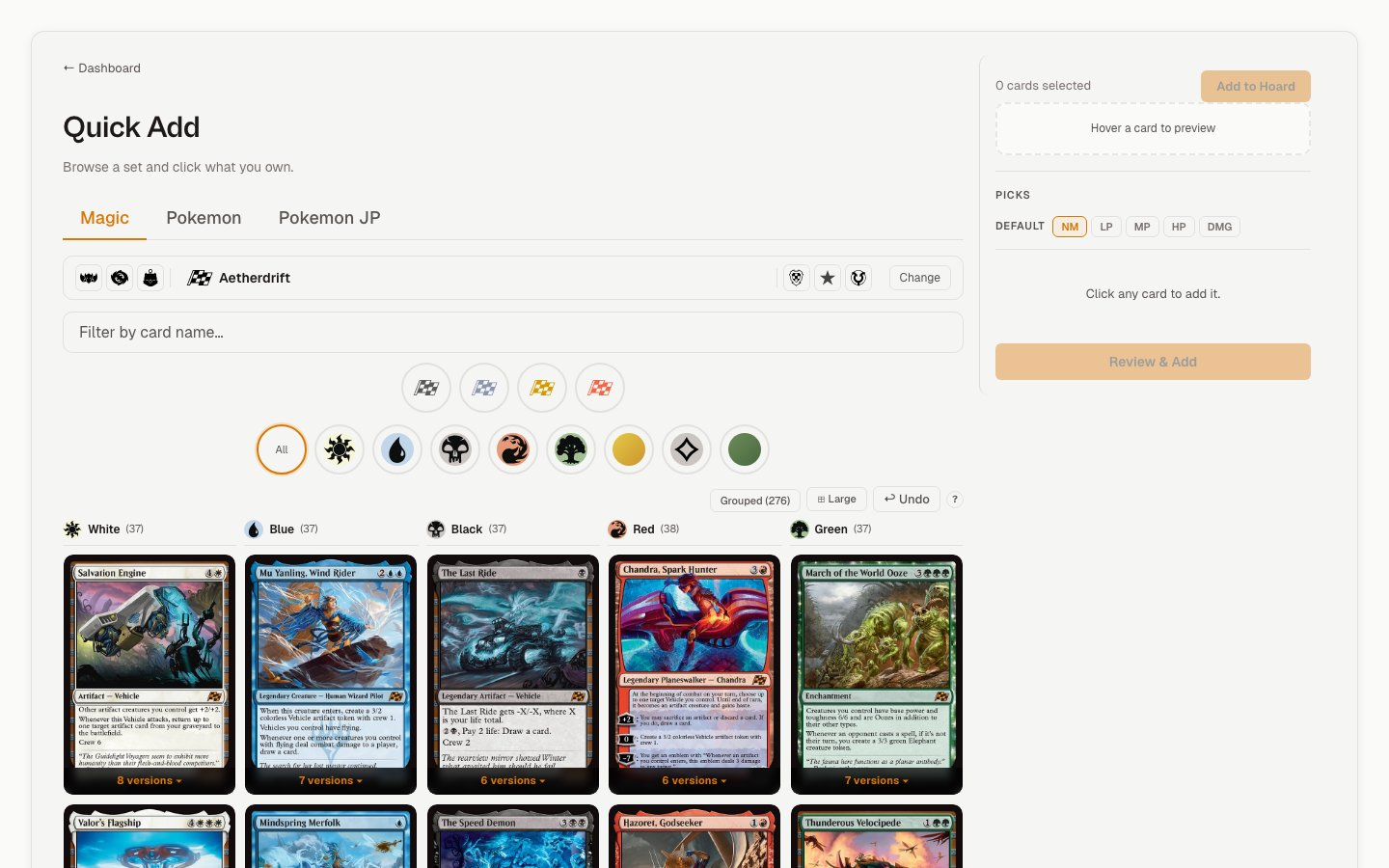
Layout
Four layouts in the toolbar:
Hoard remembers your layout choice per game.
Card size
The size button in the toolbar (⊟ / ⊡ / ⊞) cycles through Small, Medium, and Large. Medium is the default.Grouped vs. all printings
The grid normally shows one tile per card name. If a card has multiple printings (showcase, borderless, extended art), a small badge at the bottom shows the count — click it to expand and see every version in the grid. To show every printing as its own tile from the start, use the toggle in the toolbar. Either way, the button label tells you how many cards you’re looking at.Filters
The available filters adjust based on the set you’re in. Color identity (Magic) is always visible as colored orbs; the price floor, rarity, and variant/treatment filters appear once a set loads. A count badge shows how many filters are active. Hit Clear filters to reset.What you already own
If you have copies of a card in your inventory, a badge on the tile shows the count, split by regular and foil.Voice Match
The mic button in the command bar (Voice Match) lets you call out card names while physically handling cards, without touching the screen. Tap it to start. A panel opens with a live transcript, candidate cards, and example phrases to remind you what you can say.Saying cards
Just say the name. Hoard shows candidates while you’re still speaking. You can pack condition, printing, and quantity into the same phrase:
If multiple cards match, say “first”, “second”, or “third” to pick one, or “skip” to dismiss.
A few other things you can say: “stop” or “clear” to quit listening, “undo” to remove the last card, “switch game to Pokemon” to change games.
Conditions work as full words (near mint, lightly played, etc.) or abbreviations (NM, LP, MP, HP, DMG). Numbers work as words, including homophones — “two”, “too”, and “to” all count as 2.
On iOS
iOS doesn’t support continuous listening, so Voice Match pauses after each card. You’ll see a message asking you to tap the button again for the next one.The picks sidebar
Cards you tap show up in the Picks sidebar on the right (or a tray at the bottom on mobile), with a running count and estimated value.Default condition
The NM / LP / MP / HP / DMG pills at the top of the sidebar set the default for new picks. Change it when you switch grade piles. You can still adjust individual cards after. Not sure how to grade something? The Condition guide link at the top of the page walks through it one question at a time.Default printing (vintage Pokemon)
For sets with both 1st Edition and Unlimited printings, a second row of pills lets you set the default. Switch it before clicking cards, not after.Adjusting a pick
Click any row in the picks list to edit condition, foil/regular, variant, or quantity.Picks save automatically
Closing the tab or navigating away doesn’t clear your picks. Come back later and they’re still there. Use the filter box above the list when things get long.Review & Add
When you’re ready, click Review & Add. A modal shows everything in your picks with thumbnails, conditions, and quantities. The footer says “Auto-saved as draft” — you can close it and keep editing without losing anything. Click Add to inventory to finish. Large batches send in chunks with a progress counter. Once done, the picks clear and the cards appear in your inventory, already priced using your current rules.Export CSV
Export CSV, below the Review button in the picks sidebar, downloads your current picks as a TCGplayer mass-entry CSV you can upload to your store yourself. It doesn’t add anything to your Hoard inventory, and it’s available whether or not you’re signed in. A pick is left out of the file if Hoard can’t match it to a TCGplayer SKU or has no catalog price for it. If nothing in the list resolves, the download fails with a message instead.Without an account
You don’t need an account to build a list. Browse games, sets, cards, and prices, and add picks the same way. The picks are stored in your browser, not in Hoard. Signed out there’s no inventory to add to, so the button reads Sign up to sync and takes you to sign-up instead of the review modal. Your picks are still there afterward. Export CSV works signed out.Getting cards onto TCGplayer
Cards added through Quick Add go into your inventory as unpublished — they’re in Hoard but not listed anywhere yet. That gives you a chance to look them over first.The publish banner
When you have unpublished cards, a banner at the top shows the count and estimated value. Click the count to open a review queue where you can edit or remove cards before anything goes live. When you’re ready, click Publish. Hoard matches each card to a TCGplayer SKU, runs pricing one more time, and queues everything for your next sync. After TCGplayer confirms the listings, those cards convert to regular synced inventory automatically. Adding cards to Hoard works on every plan. Listing them on TCGplayer requires a paid plan or an active trial. On the free plan the sync runs read-only: published cards stay queued and nothing is sent to TCGplayer. To list cards yourself on the free plan, use Export CSV in the picks sidebar and upload the file to TCGplayer. That button exports the picks currently in the sidebar, so export before you click Add to inventory — adding clears the picks. The dashboard’s own Export links, elsewhere in Hoard, download a price-update file for inventory you already have — they’re a different export, not a way to list newly added Quick Add picks. Cards without a matching SKU get skipped — this happens most with brand-new or regional printings. The banner shows you which ones. If a sync is already running, you’ll get a message to wait. And if you run a sync again after publishing, nothing gets duplicated — each card only goes to TCGplayer once.Rejected cards
If TCGplayer rejects a card during export, it gets a REJECTED badge in the Cards table on your dashboard, with the reason in the tooltip. Rejected cards aren’t resubmitted on their own. They surface on the Today tab as an action (“N Quick Add cards failed to publish”) with a Retry button that clears the rejection on the whole batch so the next sync tries them again.Available games
Keyboard shortcuts
The ? button in the toolbar has the full list.