

What you’ll end up with
- A list for each game, made when the pull starts
- Magic divided into one list per puller
- A QR code for each list
- Finished lists, with the pull closing itself when every list is done
Step 1: Turn on the setting
Open Settings and click Fulfillment under Orders. In Pulls & packing slips, set How to divide a pull to One list per game, split between pullers. Save.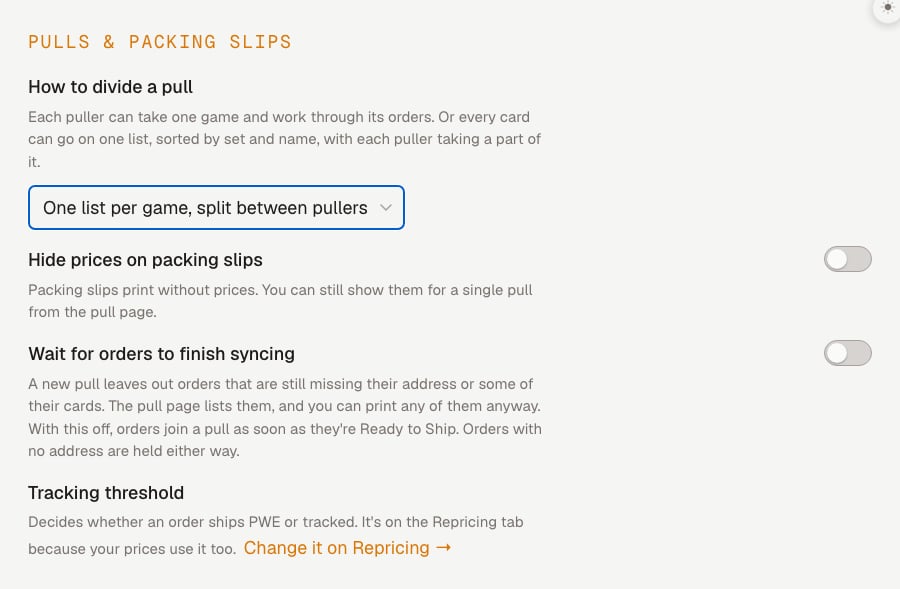
Step 2: Start a pull
Open your dashboard and go to Sales, then the Pulls tab. Start a pull the way you always do. Hoard makes one list per game. Each list has its own QR code, and no pullers are assigned yet. The Active Session card shows the games, such as “Lists: Magic, Pokemon. 0 of 2 lists done.” If one person can pull a whole game, you can skip to Step 4 for that game.Step 3: Divide a game
Click Divide a game on the Active Session card. The pull page opens at Lists by game. Open Divide a game between pullers below the lists. Each game has its own group of boxes. Tick the team members who will pull that game. Type anyone else in Other pullers, separated by commas.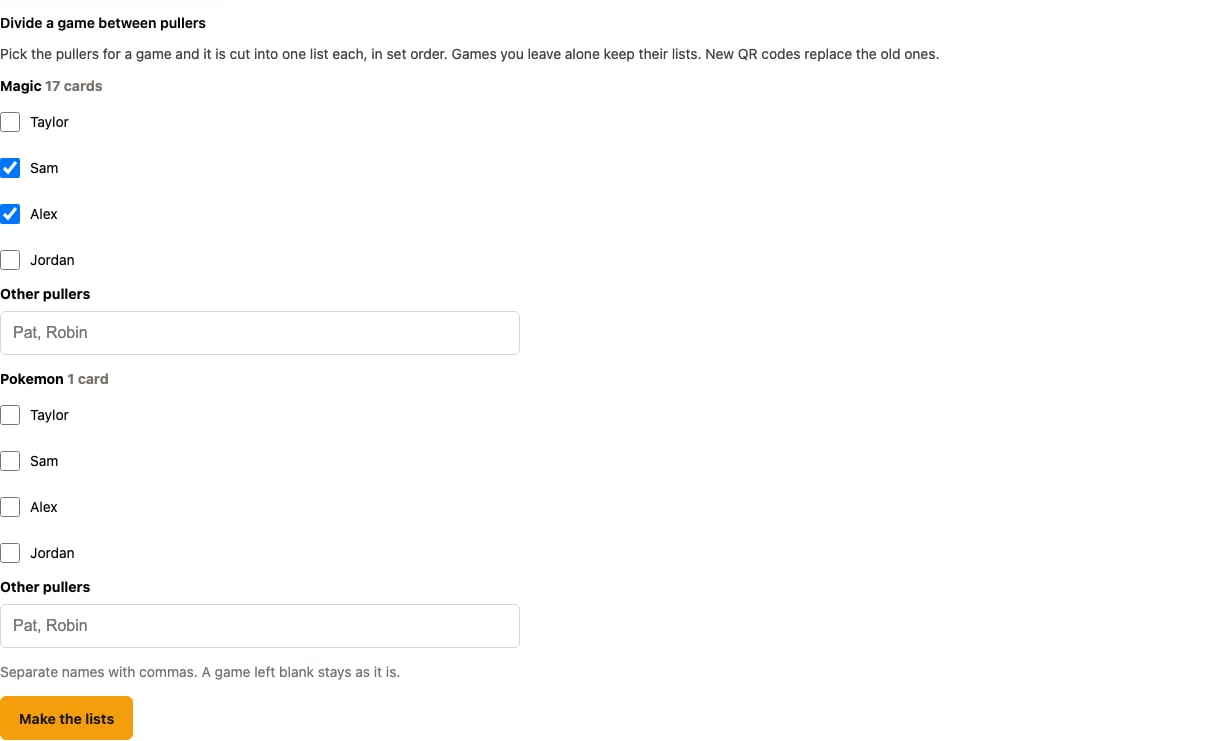
Step 4: Hand out the QR codes
Each list has a row with a QR code, a link, a card count, and the range the list covers. An undivided list shows as “Pokemon list”.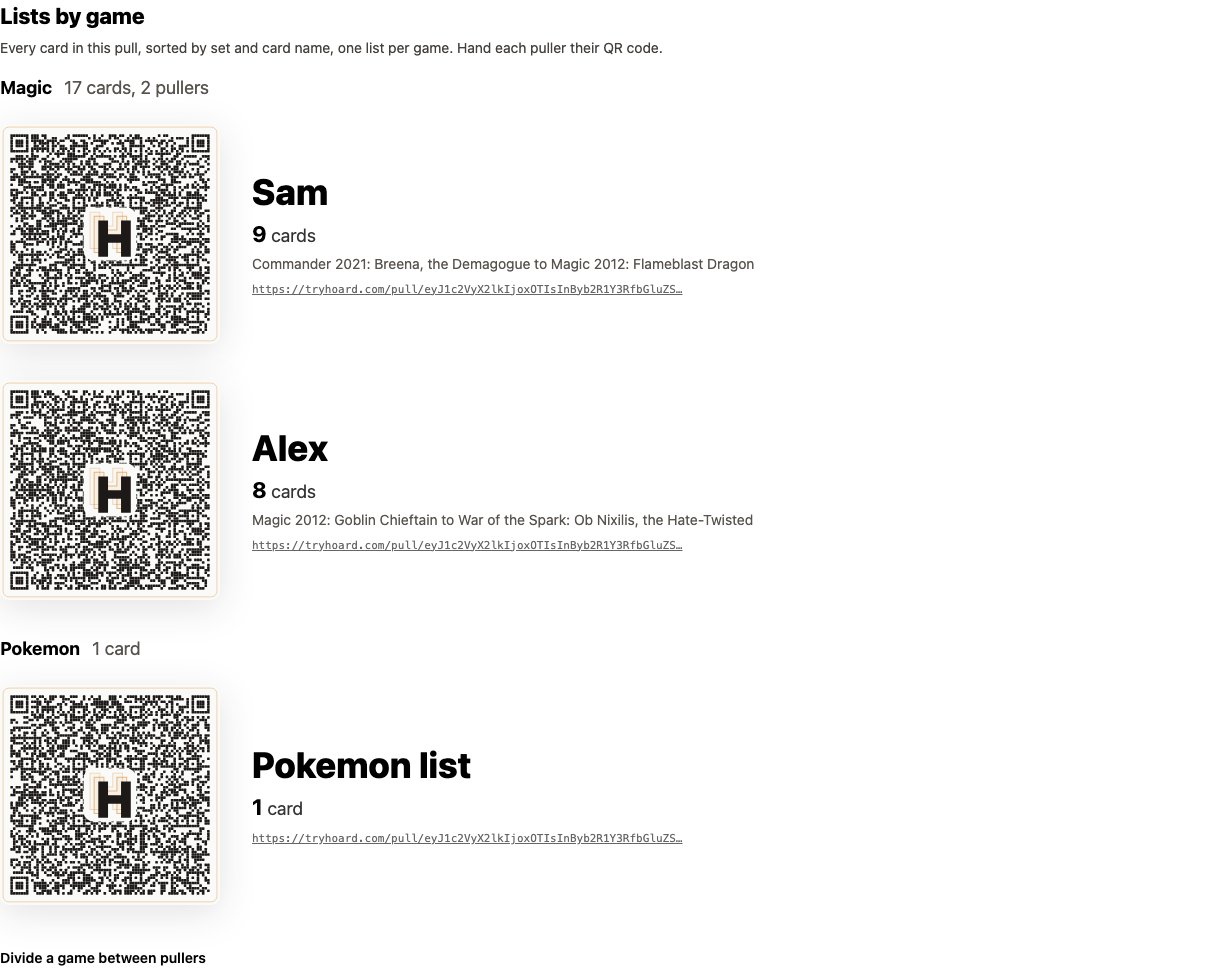
Step 5: Work a list
A puller scans their code. The sheet opens with their list, such as “Magic: Sam”. They do not need to sign in.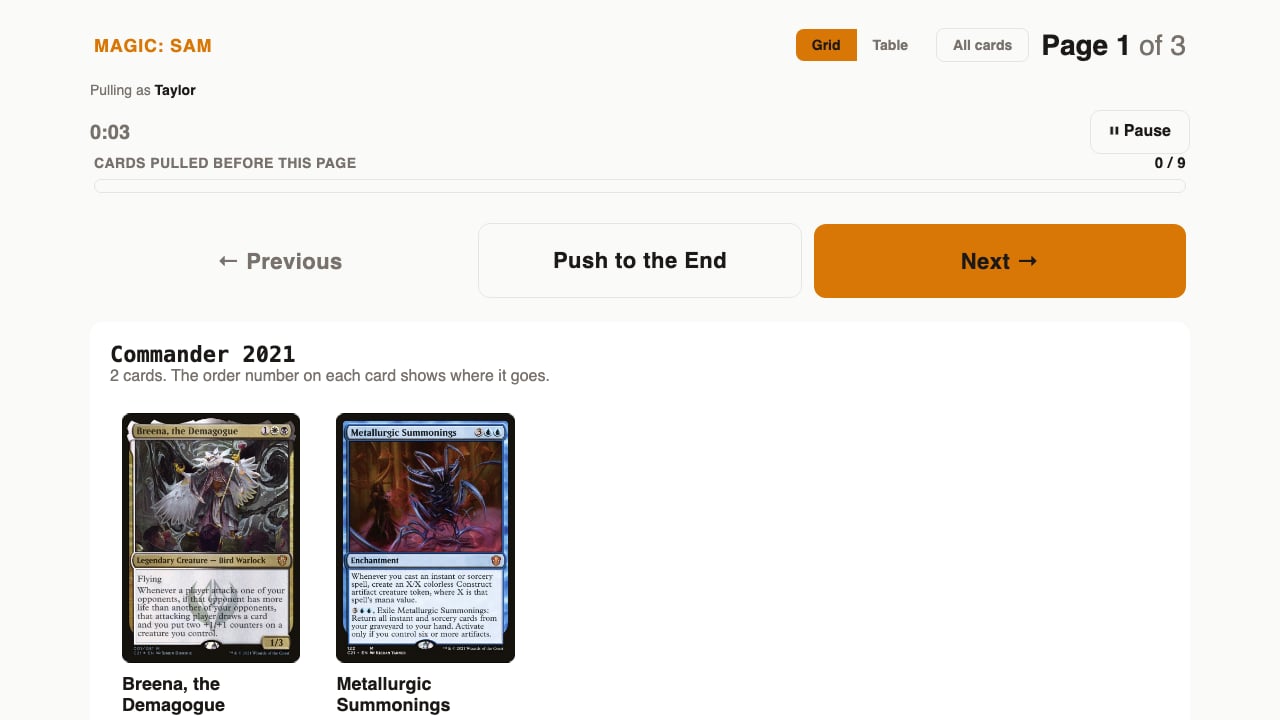
Step 6: Mark done
When the last page is pulled, the puller clicks Mark Magic: Sam done. The done screen shows the cards pulled and the time spent.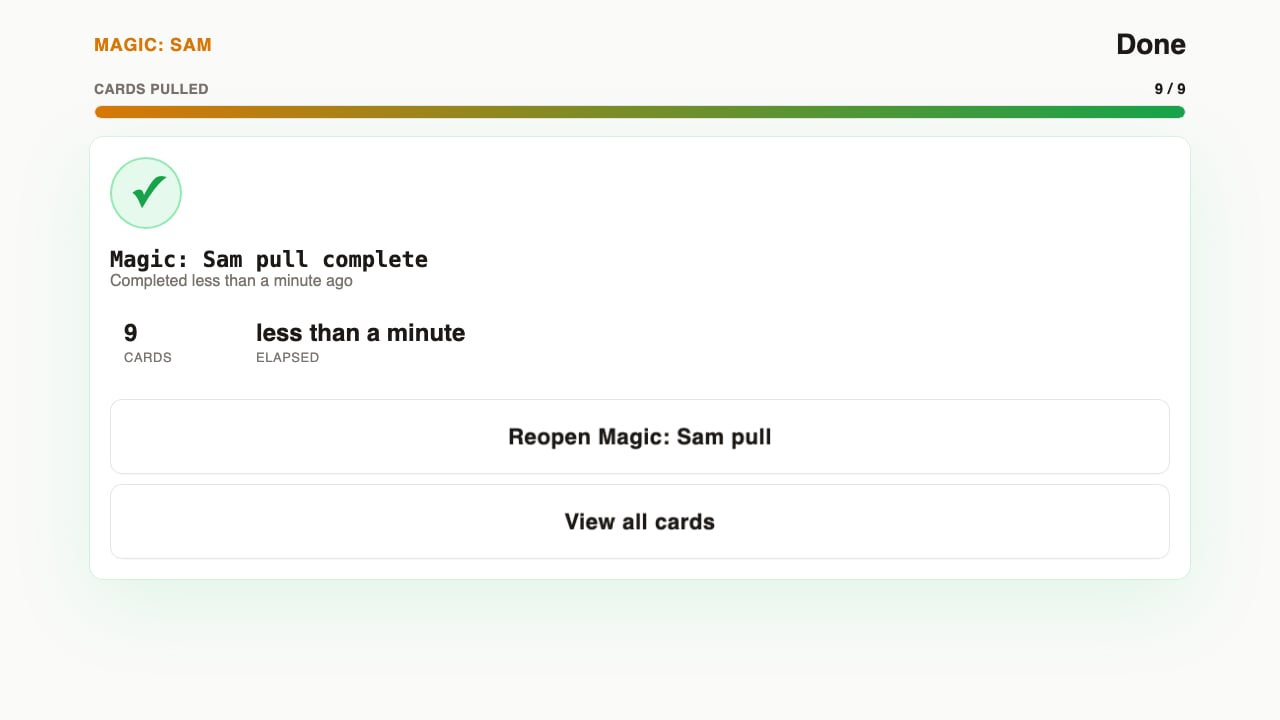
Step 7: Handle new orders
An order can arrive after the lists were made. Its cards show as Not on a list on the dashboard, and the pull page shows a warning. The pull stays open. The Active Session card says how many cards are on no list, and its button reads Add new cards. Click it, then open Divide a game between pullers and click Make the lists. Games you leave blank keep their pullers. Lists already marked done stay done, and their cards are left out. Making the lists again gives new QR codes, so hand them out. The old ones stop working.Packing slips
Packing slips stay per game. Find them on the pull page under Packing slips by game.Next steps
- Split-List Pulls covers every rule
- Visual Pull covers the game queue flow