

Where the buttons are
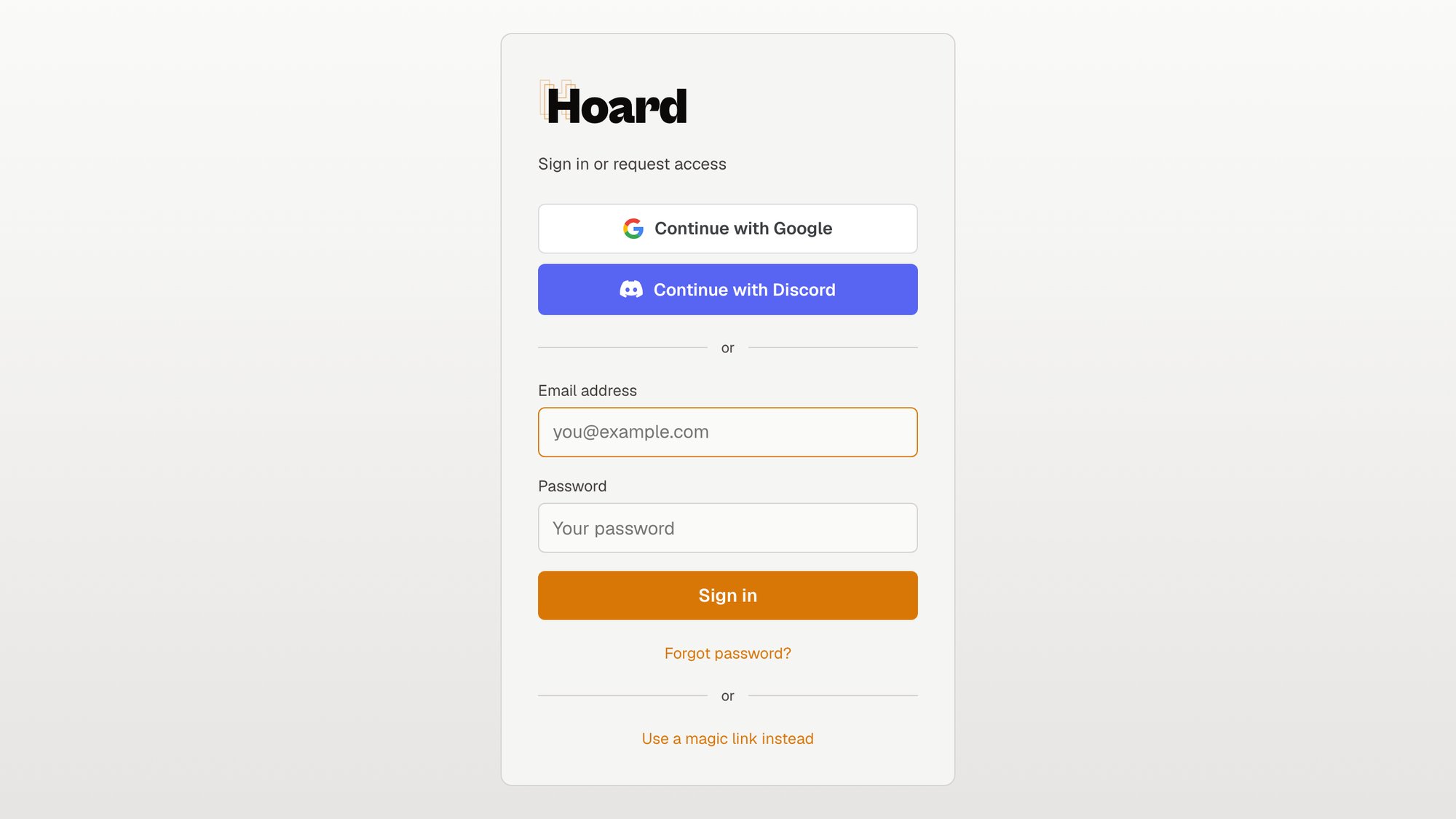
Both buttons sit on the sign-in page at/login, above an “or” divider and the usual email and password fields, alongside “Forgot password?” and “Use a magic link instead.”
What happens when you click
There are three outcomes, and which one you get depends on whether Hoard already knows your email and whether you’ve connected a provider before.You already have an account with Google or Discord connected
If you’ve signed in with that provider before, or you connected it from your settings, clicking the button signs you straight in and drops you on your dashboard. Nothing to confirm, nothing to type. This is the everyday case once you’re set up.You’re brand new to Hoard
If the email coming back from Google or Discord is one we’ve never seen, the button creates your free Hoard account and signs you straight in. You land on your dashboard, not on a confirmation page. Because Google or Discord already verified your email, you skip the “check your inbox and click the link” round-trip entirely. The provider gets linked to your new account at the same time, so every sign-in after this one is the single-click case above.Your email already has a Hoard account, but you haven’t connected that provider
If we already have an account on file for that email but you’ve never linked Google or Discord to it, we don’t quietly connect them for you. Auto-linking by email is exactly how account-takeover happens, so we route you to magic-link sign-in instead. Sign in by email there, and once you’re in, you can connect Google or Discord from your settings so it’s one-click next time. So the rule is: the first time, get into your existing account by email, then connect the provider deliberately from inside the app.A note on Google and verified emails
Google only proceeds when Google itself reports your email as verified. If for some reason Google hands back an address it hasn’t verified, Hoard won’t act on it; you’ll be sent to magic-link sign-in to get in by email. This keeps an unverified address from ever standing in for a real one.Connecting a provider from settings
Once you’re signed into your account, you can connect Google or Discord so future sign-ins are one click. Open your settings and use the connect option for the provider you want. This is the only way an account and a provider get linked, on purpose. The public buttons never mint a fresh link by themselves, an already-signed-in account has to ask for it. After it’s connected, going back to/login and clicking that provider’s button signs you straight in.