

How it works
- Go to Sales > Pulls on your dashboard and click Start Pull to snapshot the orders that belong in this pull
- Click Open Pull Sheet from the active session card. You can also use Open Pull Sheet on the active pull card on Today > Overview, or the link in your morning digest email
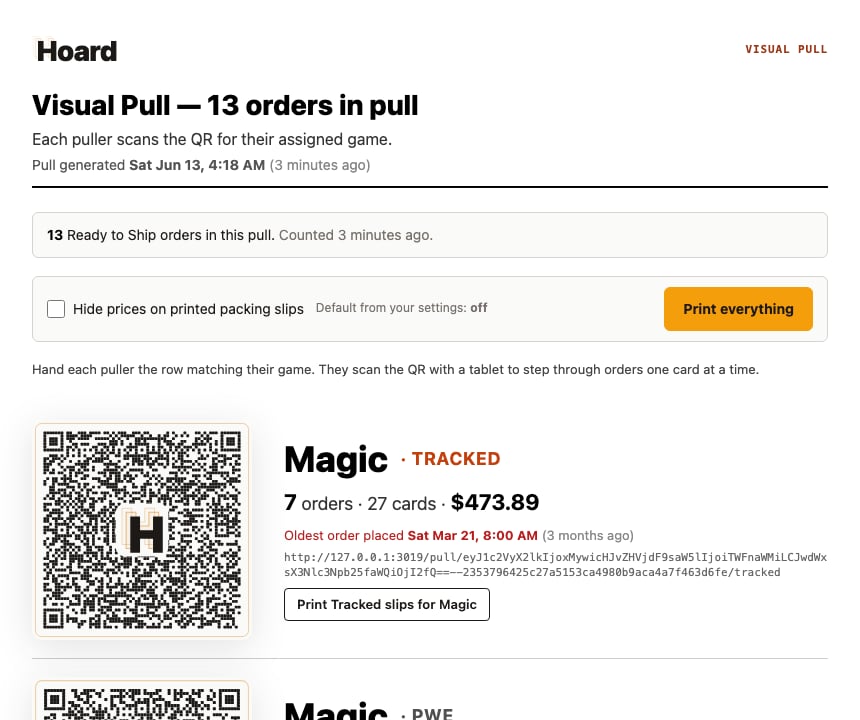
- A print-friendly page shows one row per game and shipping class, such as Magic · Tracked and Magic · PWE. Each row has its own QR code, order count, card count, dollar total, oldest-order time, expedited-versus-regular split, and Print slips link
- Games appear in a fixed order that matches a typical print sequence: Yu-Gi-Oh, Pokemon, Pokemon Japan, One Piece, Magic, then everything else alphabetically
- Print the page and hand each row to the employee pulling that game
- The employee scans the QR with any phone or tablet. No app install, no login required
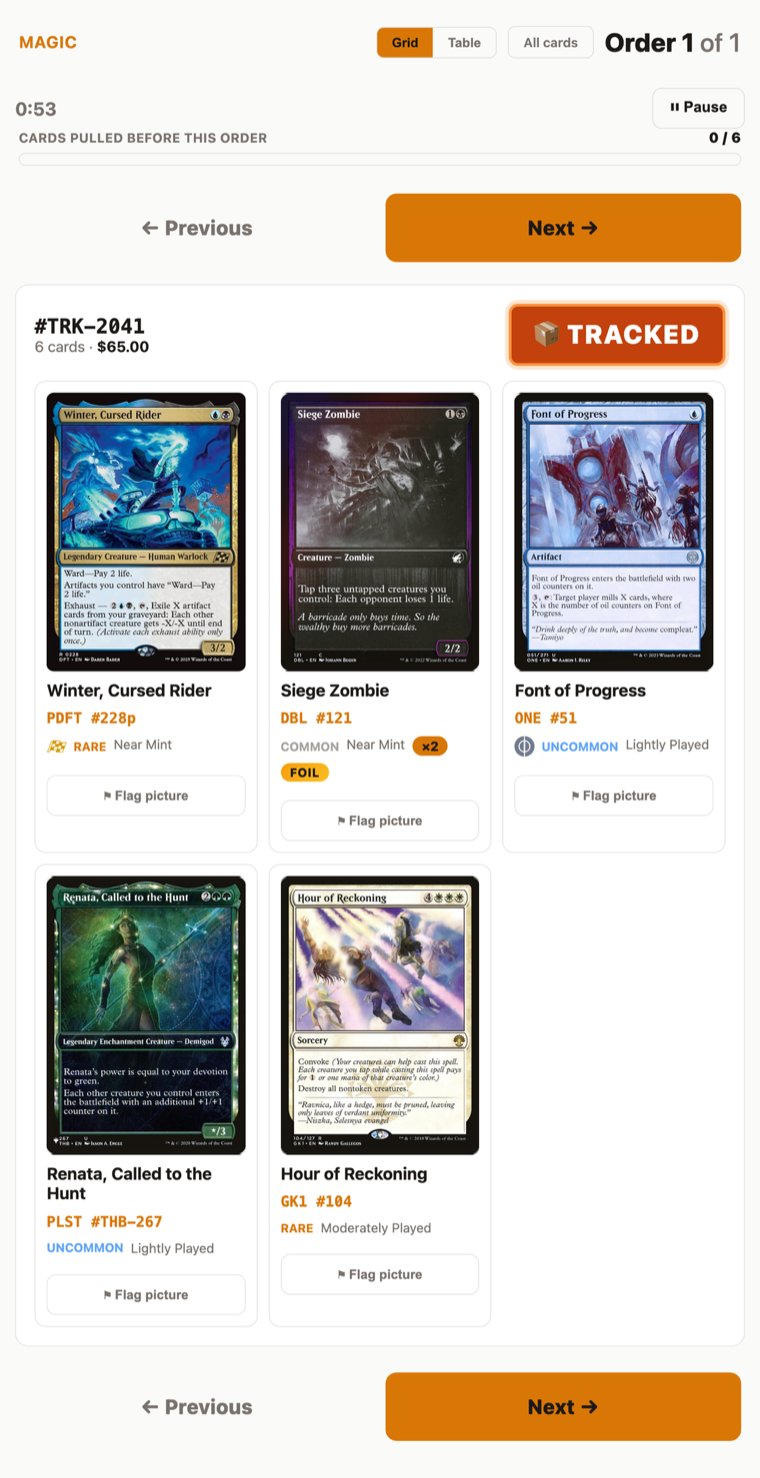
- They see the first order with card images, sorted by shipping priority. Pull the cards, confirm visually, tap Next
- At the end of that game’s QR queue, tap Mark done to record the finish time for that game
Pull sessions
A pull session snapshots the eligible orders at the moment you start it. That snapshot stays fixed for the pull, even if you mark orders as shipped on TCGplayer in the meantime. Your team can keep pulling from the tablet all day without orders disappearing mid-shift or new orders jumping into work that has already started. Why this matters: If you print packing slips from TCGplayer at 8:30 AM and mark everything shipped right away, the pull session keeps those orders visible on the tablet. Without sessions, the pull view would go empty as soon as Hoard syncs the shipped status. Starting a session: Go to Sales > Pulls on your dashboard and click Start Pull. This captures eligible open orders right now. The start-point presets and the start/end date fields are behind the Customize start time disclosure next to the button. If you visit the pull page (/pull) without starting a session first, you’ll see an empty state directing you back to the dashboard.
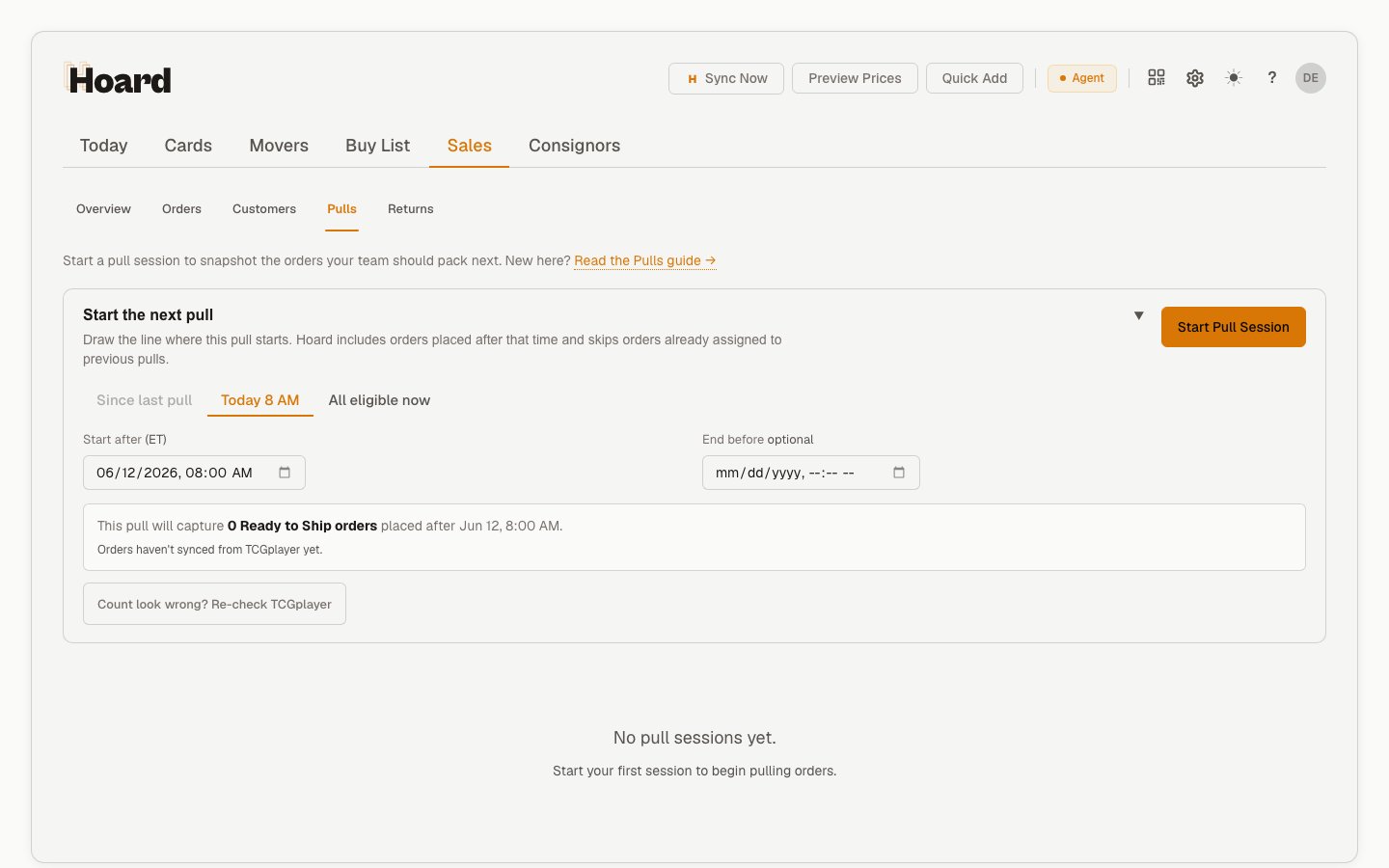
- You start a session manually from the Pulls subtab — it won’t create one automatically when you open the pull page
- Orders that arrive after the session starts are not added to that session. They missed the current pull and can be included in the next one.
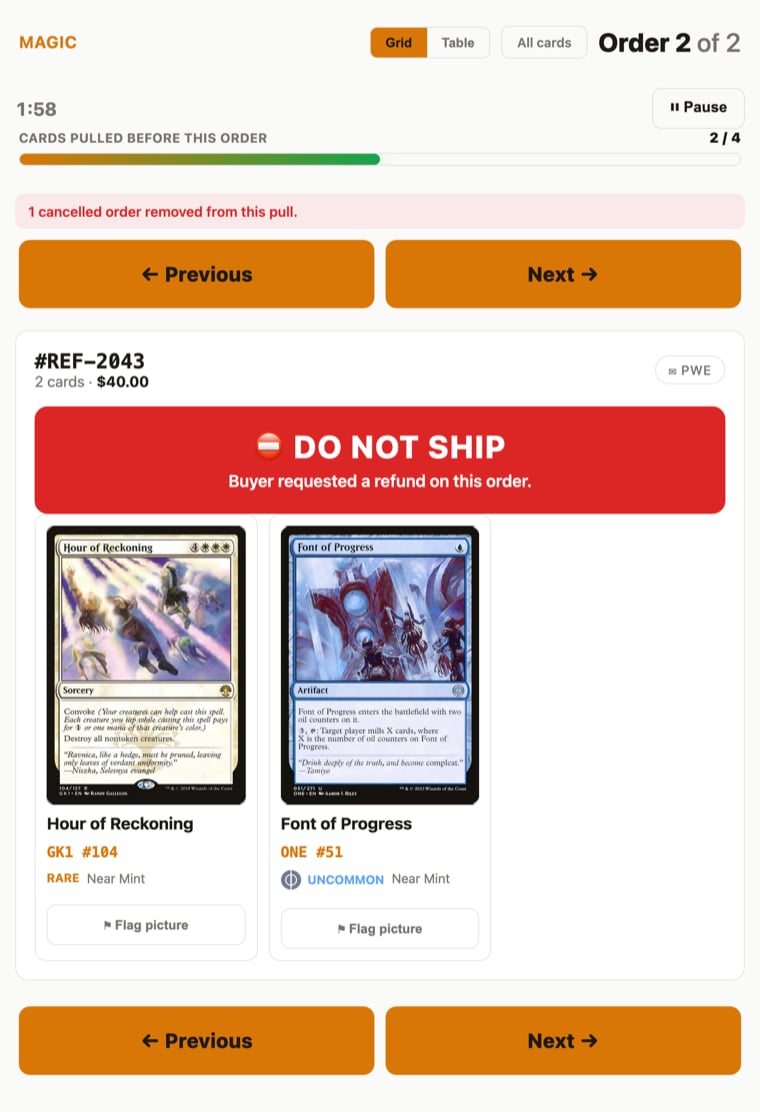
- If an order refresh finds that an active-session order was cancelled, that order is dropped from the pull and the tablet shows a “N cancelled orders removed from this pull” note. An order that comes back fully refunded stays in the queue with a review warning. Other changes, including orders you marked as shipped and partially refunded orders, leave the order in the queue with no warning.
- Orders you shipped over the weekend but never pulled are captured when you start a session on Monday
- Each active session lasts 24 hours by default, or you can end it early with the End Session button
- The Pulls subtab shows your active session, progress bar, order count, completion chips, and a history table with per-pull stats
- You can also create a session via the API:
POST /api/v1/pull_sessions
Orders that are still syncing
Orders arrive from TCGplayer in pieces: the order itself shows up first, and its shipping address and line items can land a little later. Hoard keeps half-loaded orders off printed paper and tells you exactly what’s still on the way.- The pull sheet names what’s loading. While a sync is still landing, the pull sheet shows a “still syncing” banner that says what’s in flight: items, shipping addresses, or both. Once it clears, reload to see the complete pull.
- Packing slips never print a blank Ship To. If an order’s shipping address (street and city) hasn’t finished syncing when you print slips, that slip is held out of the printed stack and the page shows how many were held and why. This protection is always on; held slips print normally once the address arrives. Orders from countries without postal codes are unaffected.
Hold orders until fully synced (optional)
If you’d rather keep not-yet-ready orders out of the pull entirely, turn on Hold orders until fully synced before print/pull in Settings > Repricing under My Shipping Rules. It’s off by default. With the setting on:- New pulls only capture fully synced orders. An order joins the pull once its shipping address and complete item list have landed.
- Held orders stay visible. The pull sheet and the start-pull preview show “N ready · M held”, with one row per held order and the reason next to it: “no address” or “items still syncing (3 of 9)”.
- Print anyway. A held order that’s only waiting on items has a Print anyway button that adds it to the active pull immediately. Use it when you know what’s in the order and don’t want to wait. Orders with no address can’t be forced into a pull; there’s nothing to print on the envelope until the address arrives.
- No babysitting required. A held order that finishes syncing on its own is captured by your next pull automatically.
Progress tracking
Hoard shows pull progress in three places:- Today > Overview shows the active pull card with a card-based progress bar and a View Active Session shortcut
- Sales > Pulls shows the active session with a per-game queue strip, such as Magic 46 / 64, Pokemon 34 / 42, or Lorcana Done
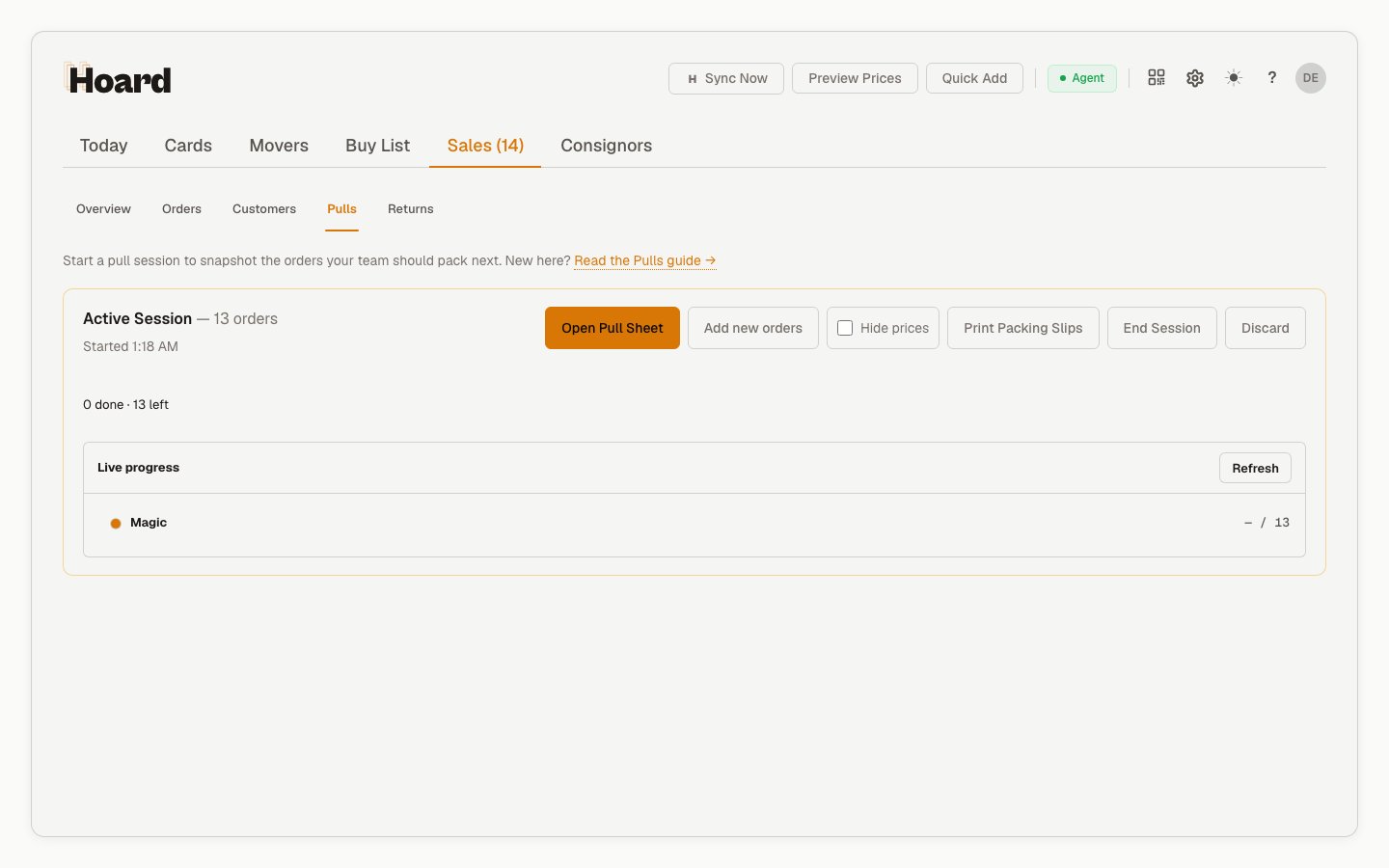
- The tablet pull view shows progress based on all cards in previous orders out of the full pull, not just the page the puller is currently viewing
What the puller sees
Each order shows:- Order number in large monospace text
- Card count for the order
- Shipping badge so they know how to pack it:
- EXPEDITED (red badge) for orders with expedited shipping
- TRACKED (orange badge) for orders above your tracking threshold
- PWE (subtle badge) for everything else
- Card images in high resolution (Scryfall for Magic, TCGplayer catalog for other games)
- Set code, collector number, and full expansion name (e.g., MKM #345 / Murders at Karlov Manor)
- Quantity badge when an order has multiple copies of the same card
- Variant badges for FOIL, HOLOFOIL, REVERSE HOLO, 1ST EDITION, and UNLIMITED
- Scryfall variant tags like Borderless, Showcase, and Extended Art appended to the card name when applicable
- Foil shimmer overlay on foil card images, the same rainbow effect as your dashboard binder
- Cross-game labels when a multi-game order is shown in one queue (see below)
Order sort
Orders on the tablet are sorted by shipping priority, then by date:- Expedited orders first (red badge). Oldest expedited order at the top.
- Tracked orders next (orange badge). Orders at or above your tracking threshold. Oldest first.
- PWE orders last. Oldest first.
- Deferred orders after active work. Deferred orders keep their relative deferred order so the worker can come back to them deliberately.
Card sort order
Cards within each order are sorted for shelf-walking efficiency:- Magic, Pokemon, Yu-Gi-Oh, and other games: grouped by condition (Near Mint first, then Lightly Played, Moderately Played, Heavily Played, Damaged), then alphabetically by set and card name within each condition
- One Piece: grouped by set code in a fixed walk order — main sets (OP01, OP02 …) first, then extra boosters (EB), premium boosters (PRB), promos (P-), and starter decks (ST) last — and sorted by collector number within each set (OP01-001, OP01-025, OP03-051) for physical shelf order
Game queues and multi-game orders
Each game gets its own pull queue with its own QR code. Games appear in a fixed order on the cover sheet: Yu-Gi-Oh, Pokemon, Pokemon Japan, One Piece, Magic, then any remaining games alphabetically. If a single order contains cards from multiple games (for example, a Magic card and a Pokemon card in the same order), the order appears in one queue only. It goes to whichever game comes first alphabetically. All cards from the order are visible, and items from other games get a small label (e.g., “POKEMON”) so the puller knows to coordinate with the person pulling that game. The order does not appear in the other game’s queue. One packing slip, one queue.Grid view vs table view
Toggle between two views with the Grid/Table button at the top of the page:- Grid view (default): card images with variant badges and foil shimmer. Best for visual confirmation while pulling.
- Table view: compact rows with a small thumbnail, quantity, card name, price, set/number, and condition. Looks like a packing slip. Best for cross-referencing against the printed slip in your other hand.
Viewing pull history in the Orders tab
On your dashboard under Sales > Orders, two new features help you track pull activity:- Ship column shows a badge (EXP, TRK, or PWE) for each order based on your shipping threshold
- Pull column links back to the pull session each order belongs to (blank if it was never pulled)
- Shipping filter dropdown lets you filter the orders list by PWE, Tracked, or Expedited
- Pull session filter dropdown lets you filter to orders from a specific pull session, with the date, time, and order count in the label
- Unassign removes an order from its pull after confirmation. Use it when a manager needs that order eligible for a future pull instead.
Refreshing orders mid-pull
The Refresh Orders button queues a focused order refresh for Hoard. It asks Hoard to fetch updated TCGplayer order data; it does not add new orders to the active pull. When the refresh completes, Hoard shows a “new data is available” banner. If any order already in the active pull changed in a way that needs review, the tablet queue keeps it visible and adds a warning.QR codes and security
Each QR code contains a signed token scoped to one game, one seller account, and one Pull session. No login is needed to view the tablet page, so treat printed QR sheets like operational access to that pull. QR codes are stable per session. A printed sheet stays scannable for 14 days from the moment the pull started; after that the link shows an expired page. You can scan yesterday’s printed sheet to inspect what was pulled, but it will still point to the original fixed session. Start a new session and print a new sheet for new orders. Once a pull ends, the tablet page becomes read-only. A pull ends when you end it with End Session, when its 24-hour window runs out, or when you start a newer pull. Card images and order details stay visible for reference, but the Mark done, Reopen, Push to the End, Pause, and Report a problem controls are removed from the page. Hoard also rejects those actions on the server, so a cached tab can’t submit them.Completion timing
Each game QR tracks its own start and finish. Opening the QR starts the timer, and the final Mark done screen completes that game’s queue. Hoard records elapsed time, orders, items, deferred orders, warning count, seconds per order, and seconds per item. These metrics are designed for ops reporting: average time per card, average time per order, and Pull completion trends over time. A puller can stop the clock with the Pause button at the top of the tablet when they step away, so breaks don’t inflate the per-order timing. Tapping Resume pulling starts it again.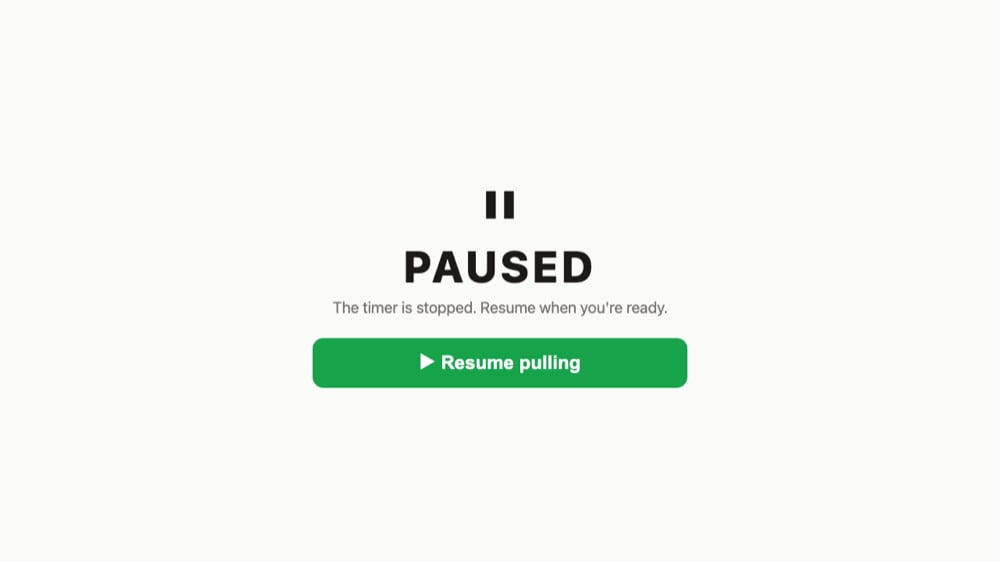
Where to find it
- Sidebar: Fulfillment, which jumps straight to Sales > Pulls
- Dashboard: Sales > Pulls > Start Pull, then Open Pull Sheet
- Daily digest email: Print pull sheet link in the Sales section (only appears when you have orders)
- Direct URL:
tryhoard.com/pull
Tips
- Two pullers, one game? They can both scan the same QR and navigate independently. The page doesn’t track who pulled what, so coordinate verbally or split by “I’ll do odds, you do evens.”
- Tablet stays on the order until you tap Next. If you put the tablet down, it remembers your position (saved in the browser’s local storage).
- No card image? The placeholder shows the card name in large text so you can still identify it. Images resolve through the same identifier chain as your dashboard, so if a card has an image in your binder, it’ll have one here.
- Late orders? Orders that arrive after the session starts are excluded from that pull. Start the next session when you are ready for them.
- Weekend orders? Orders that come in over the weekend are captured in Monday’s pull session automatically. If an order was shipped over the weekend without being pulled (rare), Monday’s session still captures it.
Visual Pull only changes how you pick orders. It doesn’t create, modify, or ship orders. Your TCGplayer packing slips and shipping workflow stay exactly the same.