

Before you start
You need:- A Hoard account
- A TCGplayer seller account
- A computer you can leave Hoard Desktop running on
You don’t need to babysit sleep settings. While Hoard Desktop is running, it holds your computer awake (
caffeinate on Mac, the equivalent power-management call on Windows) so it doesn’t drop out mid-sync. It only blocks system sleep, not your screen turning off, so it isn’t burning battery to keep a display lit. If the computer does go offline some other way (closed without power, forced shutdown), nothing is lost. Hoard just picks up the next time it’s back online.1. Download Hoard Desktop
Use the download for your computer:
The Mac installer is one download for both chip types.
2. Open Hoard Desktop
Open the file you downloaded.Mac
Download the signed Mac installer (beta). It works on both Apple Silicon and Intel Macs. The signed installer is currently in beta; the public download page may still offer an older standalone file.- Open the downloaded DMG.
- Drag Hoard Desktop into Applications.
- Open Hoard Desktop from Applications, then eject the disk image.
- Follow the setup screen to connect your Hoard account.
Windows
Open the Windows download. If SmartScreen appears, follow the Windows instructions. On Windows only, Hoard may open in a small terminal-looking window like the one below. That is normal. The signed Mac app runs from the menu bar without a Terminal window.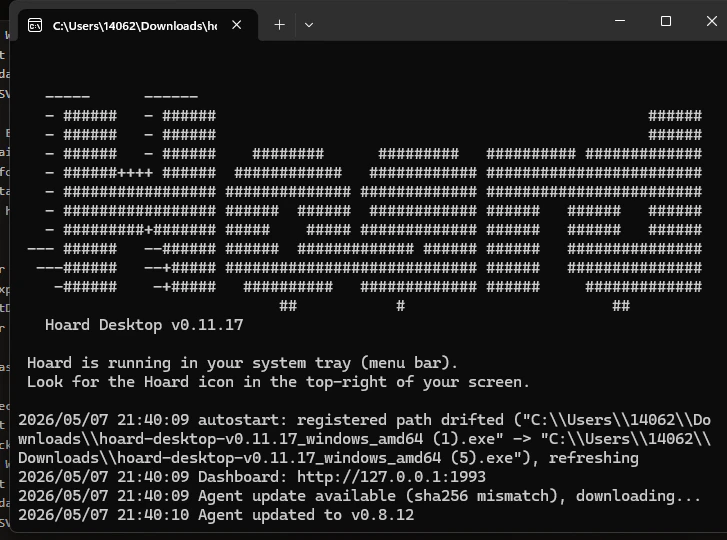
Hoard Desktop v...Hoard is running in your trayUpdate availableUpdated to v...
3. Find the Hoard icon
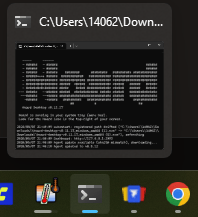
Hoard Desktop runs in your tray or menu bar. On Windows, the icon may be inside the small up-arrow menu near the clock.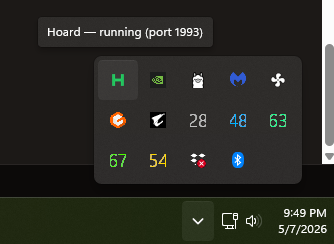
4. Open the Hoard tray menu
Click the Hoard icon to open the menu.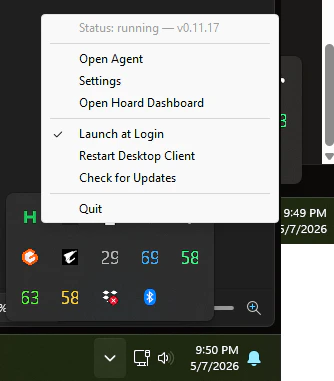
Click Open Agent Logs.
5. Understand the Hoard Agent page
The Hoard Agent page opens in your normal browser at an address like127.0.0.1:1993. This page is local to your computer.
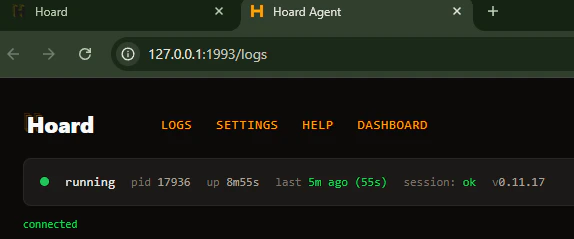

The buttons on the right are:
Only the buttons that apply to the current state are visible, so you will not see all of them at once. The screenshot above may show a different set of buttons than your page does.
6. Start your first sync
On the Hoard Agent page, click Sync Now. The button stays disabled while the request is in flight. It showsRequesting…, then Waiting for agent…, then Syncing… until the sync finishes. If it shows Request timed out, Hoard never picked the request up. Check that the status says running and try again.
Once it starts, the logs will move quickly. You may see lines for inventory, orders, sales reports, pricing, and uploads.
7. Log into Hoard’s TCGplayer browser
The first time Hoard needs TCGplayer, it opens a special browser window. This browser belongs to Hoard. It may look different from your usual Chrome browser. It may show a message at the top saying Chrome is being controlled by automation, or it may not have the normal search/address bar you are used to.
- Click inside the TCGplayer login page that Hoard opened.
- Log in with your TCGplayer seller account.
- Complete any CAPTCHA, two-factor check, or security prompt if TCGplayer shows one.
- Leave the browser open after you log in.
8. Leave Hoard’s browsers alone during sync
During the sync, Hoard may open additional TCGplayer windows or tabs for different steps.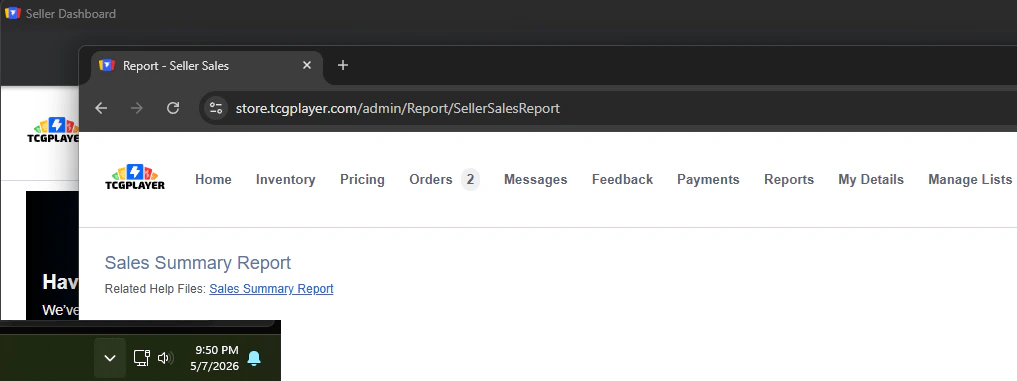
- Checking that you are logged in
- Exporting inventory
- Exporting orders
- Exporting sales reports
- Uploading price updates
- Close the windows
- Minimize the windows while a step is running
- Click buttons in TCGplayer unless Hoard is waiting for you to log in or complete a security check
- Use Hoard’s browser for normal browsing
- Type in Hoard’s browser after the login is done
9. Watch for a successful finish
When the sync finishes, the log shows a success line.
Done (success)Waiting — no sync needed right now
10. Check the Hoard dashboard
Open your normal Hoard dashboard from either:- The tray menu: Open Hoard Dashboard
- The Hoard Agent page: Dashboard
- Your browser:
tryhoard.com
What Hoard does during a sync
A full sync can include several steps:- Check that the TCGplayer session is still logged in.
- Export your current TCGplayer inventory.
- Upload that inventory to Hoard.
- Export recent orders.
- Upload orders to Hoard.
- Export sales or payment reports.
- Run Hoard pricing rules.
- Download price updates from the server.
- Upload the price updates to TCGplayer.
Review Mode and Full Sync
Some accounts run in Review Mode first. In Review Mode, Hoard can generate price update CSVs without automatically pushing them every time. The Agent page may show a REVIEW MODE badge and a list of recent exports. If price updates are ready, you may see buttons like:Uploading prices to TCGplayer requires a paid plan. On a free plan, both buttons are accepted, but no prices are uploaded. Always Push switches the account to Full Sync, which hides the REVIEW MODE badge and the recent exports list. Push Once leaves the account in Review Mode, so the badge and the list stay. Hoard still syncs your inventory, orders, and sales, but no price update file is saved for you to review.
What to do if something goes wrong
Hoard’s browser closed
Go back to the Hoard Agent page and click Restart Agent. Then click Sync Now again after Hoard is running.The log says login failed
The TCGplayer session probably expired or the login was not completed in Hoard’s browser. Click Reconnect to TCGplayer, then log into TCGplayer in the browser window that Hoard opens. If that button is not shown, click Restart Agent, then Sync Now, and log in when Hoard opens the browser.The page says stopped
If the logs say Hoard is retrying a startup connection, it will start automatically when ready. You can choose Pause Agent to cancel those retries. If you intentionally paused Hoard, click Resume Agent in the app or Start Agent from the tray menu. Use Restart Hoard Desktop only if the app itself is stuck.The page says error
Click Restart Agent. If it returns to error, open the Logs page and look at the last few lines. The error usually says whether it is a login problem, internet problem, or browser problem.The log says waiting
This is usually fine.Waiting — no sync needed right now means Hoard is connected and waiting for the server to ask it to sync.
The TCGplayer browser asks for a CAPTCHA or security check
Complete it in Hoard’s browser. After you finish, stop touching the browser and let Hoard continue.Safe habits
- Leave Hoard Desktop running while you want syncs to happen.
- Keep Launch at Login checked if this computer should sync automatically.
- Let Hoard’s TCGplayer windows stay open and visible while a sync is running.
- Use Open Agent Logs to check status instead of guessing.
- Use Restart Agent before trying anything complicated.
- Use your normal browser for your own work, and leave Hoard’s browser for Hoard.