What you’ll end up with
- Tracked and Expedited orders pushed into a dedicated ShippingEasy store, in pull order
- An estimated package weight on each pushed order, so you’re not typing one in by hand
- Tracking numbers that upload to TCGplayer automatically once you buy a label
- A short list of anything that needs a hand, so nothing silently gets stuck
Step 1: Before you start
You need a ShippingEasy account and a dedicated ShippingEasy API store connected in Settings → Integrations. That connection is a one-time setup: see Connect ShippingEasy for the three credential steps and how to create the store.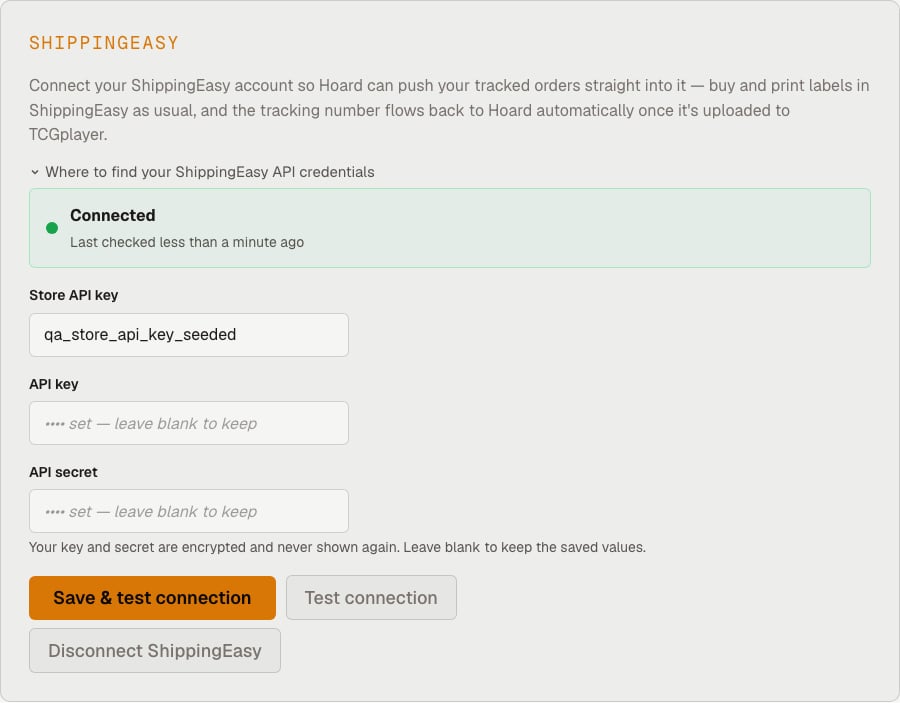
Step 2: Start a pull
Go to Sales > Pulls and click Start Pull, the same as any pull. Hoard sorts your open orders into one row per game, and each game gets a separate Tracked row and PWE row. Tracked orders are anything at or above your tracking threshold (default $50), plus every Expedited order regardless of total.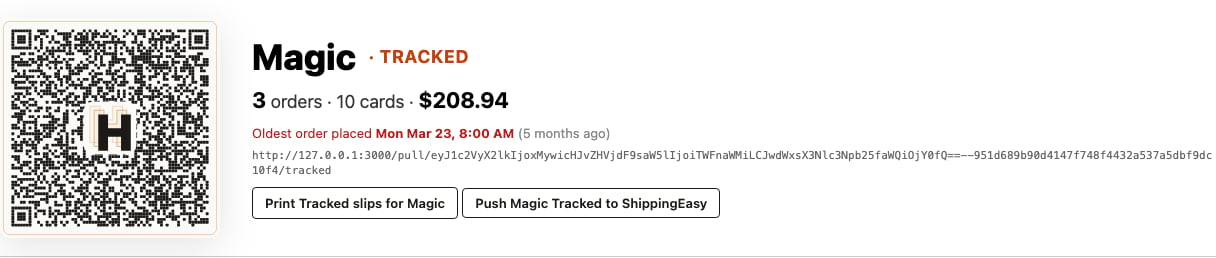
Step 3: Push the Tracked orders
You have four ways to push, depending on how much you want to send at once:- One game at a time. Each Tracked row on the Visual Pull page has a Push [Game] Tracked to ShippingEasy button next to its Print Tracked slips for [Game] link.
- Every game at once. Push all Tracked to ShippingEasy sits at the top of the Visual Pull page and pushes each game in the order it’s listed on the page.
- From the Pulls tab. The same Push all Tracked to ShippingEasy button appears on the active pull’s card under Fulfillment → Pulls.
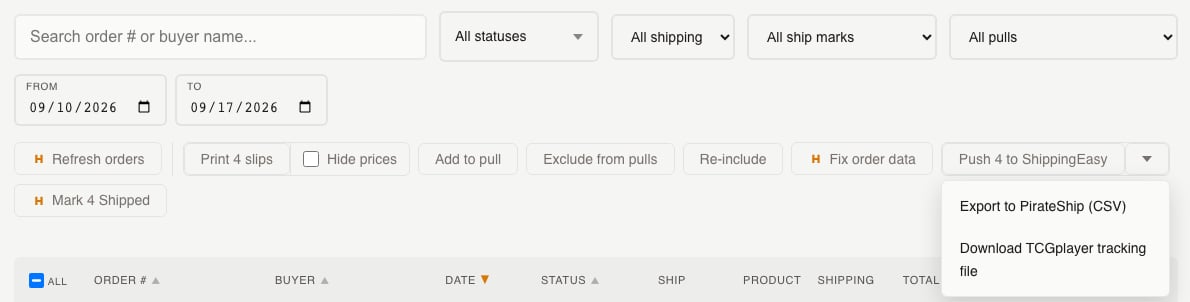
- A hand-picked batch. On the Sales > Orders tab, select the rows you want and click Push to ShippingEasy in the toolbar’s Labels control.
Step 4: What arrives in ShippingEasy
Orders land in ShippingEasy in the same order they appear in your Visual Pull, so your printed label stack should already line up with your pull slips. If your printer feeds the stack backwards, flip Reverse label print order on the ShippingEasy card in Settings → Integrations. Each order’s line items only include the copies that still ship. A fully refunded line is left off. A line with 10 of 20 copies refunded arrives as 10 copies. Hoard also sends an estimated package weight based on card count — see Shipping labels and tracking for the full table. The weight is blank for an order over 200 cards or one with sealed product or accessories; weigh those once they’re packed and enter the weight in ShippingEasy. You can change the weight on any order before buying its label.Step 5: Buy and print labels in ShippingEasy
Buy and print labels in ShippingEasy exactly as you do today. Nothing about that step changes — Hoard’s part ends at the push, and picks back up once a label exists.Step 6: Tracking comes back
Hoard checks ShippingEasy in the background every 10 minutes during the US day and hourly overnight. As soon as a label is bought, Hoard picks up the tracking number and carrier. If Auto-ship on TCGplayer is on (the toggle on the ShippingEasy card in Settings → Integrations), Hoard uploads that tracking to TCGplayer automatically, and the order flips to shipped. If the toggle is off, tracking still flows into Hoard, and you upload it yourself with Download TCGplayer tracking file, in the Labels control on the Orders tab (or next to the push-all button on the Visual Pull page).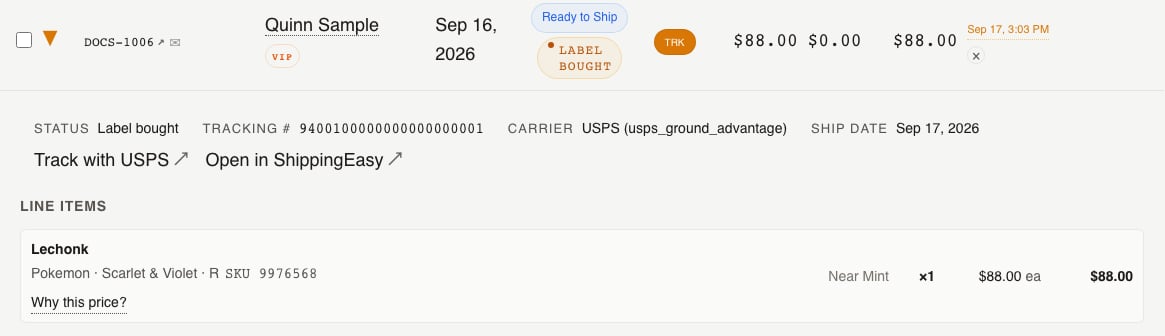
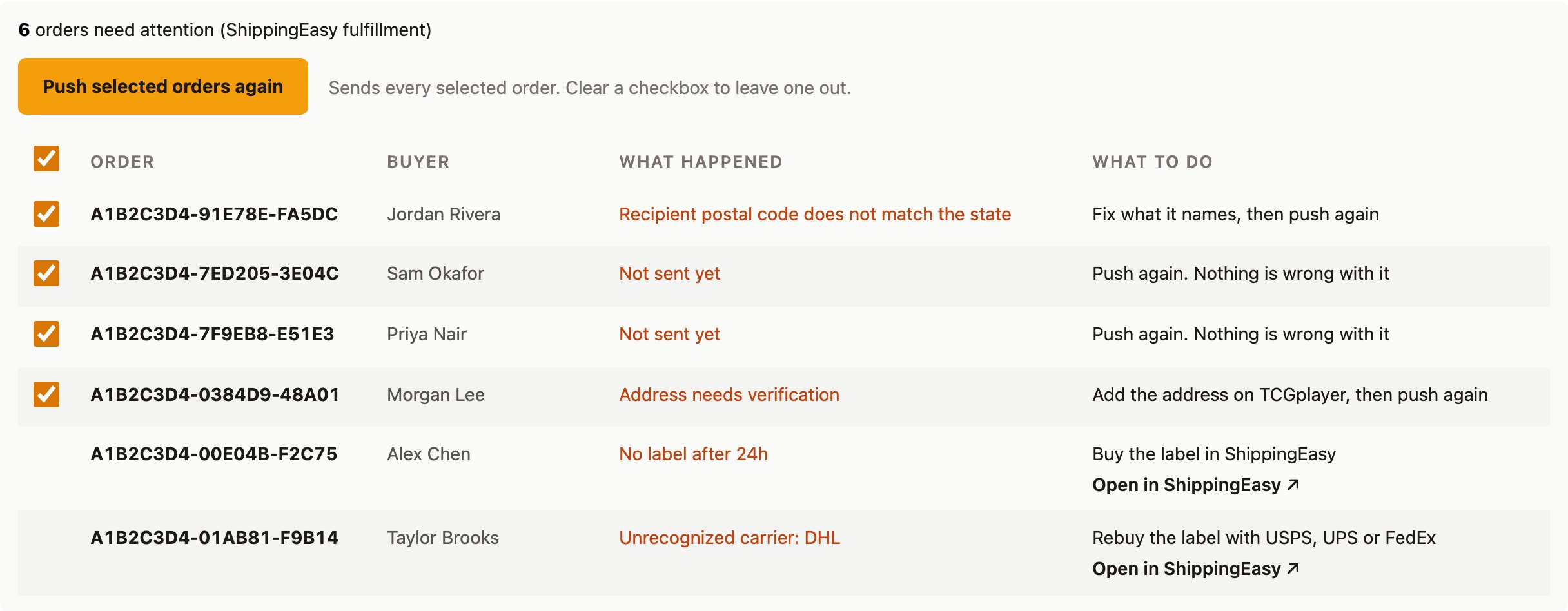
Step 7: Handle the needs-fix list
Anything that needs a hand shows up in a short list on the Visual Pull page, rather than failing silently. Each row names the problem: an address ShippingEasy couldn’t verify, a rejected push, an unrecognized carrier, a rejected tracking import, a cancelled label, or a refund that landed after you already bought the label (this one tells you to void the label in ShippingEasy).