

Price source
The price source is the starting point for all of Hoard’s pricing calculations. You pick which price to use as your base in Settings → Repricing.TCGplayer Market Price (default)
Market Price is TCGplayer’s volume-weighted average of recent completed sales for a given card and condition. It’s not the lowest listing and it’s not a simple average — it’s calculated from actual transactions, weighted toward more recent and higher-volume sales. This is what most sellers should use. It reflects what buyers are actually paying, not what one aggressive seller is listing at.TCGplayer Low
This uses the lowest currently listed price on TCGplayer (without shipping) as your base. When a card doesn’t have a low price available, Hoard falls back to market price automatically. Low is more aggressive than market price. Your target will usually be lower because it’s anchored to the cheapest available listing rather than the average sale price. This is useful for high-volume sellers who want to compete directly for the buy box, or stores that prioritize turnover over margin.TCGplayer Low + Shipping
Same as Low, but includes the seller’s shipping cost in the price. This gives a slightly higher base than raw Low because it factors in what a buyer would actually pay. Use this when you want to compete on total delivered price rather than card price alone.TCGplayer Direct Low
This uses TCGplayer’s Direct Low price as your base. When a card doesn’t have Direct Low available, Hoard falls back to market price automatically.Higher of Market / Low
This compares market price against the lowest listing and uses whichever is higher. The lowball guard runs first, so a suspiciously low listing is rejected before the comparison.Highest of Direct / Market / Low
Same as above with Direct Low added as a third input. Hoard takes the highest of the three. If a card has no Direct Low, the result is the same as Higher of Market / Low.PriceCharting Grade
This uses PriceCharting’s PSA grade price for the card’s condition as your base. It covers Pokemon and Pokemon Japan only. When PriceCharting has no usable price for a card that already has a current listed price, Hoard prices from your fallback source but never lowers the price below what it’s currently listed at. A card with no current price still gets one, from your fallback source. See PriceCharting grade pricing.Whichever source you pick here shows up as the Source column in the Cards table, with a per-row drill-down to compare against every other source. See The Source column for how to read it.
Matching a specific seller tier
Hoard doesn’t currently support pricing off only verified / “gold star” / level 4 etc sellers’ listings. Every price source above reads from the broader market data of all active listings (or Direct Low, where that’s the source), not a filtered subset of sellers. If that distinction matters to your strategy, it’s not available today; TCGplayer Low is the closest existing option, since it reads the single cheapest listing regardless of who’s selling it.When to switch
If you’re not sure, start with Market Price. You can always switch later and preview the impact with Preview Prices before anything goes live.
Per-rule price source
You can override the global price source on individual pricing rules. When creating or editing a rule in Settings > Rules, the wizard includes a Base price dropdown under Advanced Pricing. Set it to any of the options above, or leave it on “Use global setting” to inherit whatever you’ve chosen globally. This is useful when you want most of your inventory priced off market but specific segments priced differently. For example, you might price bulk rares off the lowest listing for competitive turnover while keeping everything else on market price.PriceCharting grade pricing
Off unless you choose it. PriceCharting grade prices come from eBay sold data rather than TCGplayer. There is no account-wide on/off toggle. PriceCharting only enters your pricing in one of two ways:- Pick PriceCharting Grade in the price source dropdown on Settings → Repricing. The grade price becomes the base for every card the source covers.
- Turn on Grade floor on an individual pricing rule. The grade price becomes a minimum for that rule’s cards, and your normal price source still supplies the base.
When the PriceCharting Grade source is selected and a card has grade data, the grade price becomes the base that your markup multiplier applies to. If PriceCharting doesn’t have data for a card, Hoard reprices it from your fallback source, but never lowers the price — an increase ships, a decrease holds at the current price. A card with no current price still gets one, from your fallback source.
Data coverage
PriceCharting currently covers Pokemon and Pokemon Japan only. The grade pricing data is imported weekly from PriceCharting’s bulk CSV, covering 83,000+ Pokemon cards with prices for each PSA grade level. Other games (Magic, Yu-Gi-Oh, One Piece, Lorcana) use your price source directly since PriceCharting data isn’t available for them yet.When to use it
Pick the PriceCharting Grade source if you sell Pokemon cards and want pricing based on eBay sold data for each condition. PriceCharting grade prices tend to be more accurate than TCGplayer market prices for Pokemon because they reflect condition-specific demand rather than averaging across all conditions. Stay on a TCGplayer source if you prefer TCGplayer’s own market data as your pricing baseline, or if you find PriceCharting prices don’t align with your selling experience.In the pricing breakdown
When PriceCharting is active, the rule tester shows it as a step in the pricing breakdown: “PriceCharting — PSA 9 grade price — $12.50”. This makes it clear when PriceCharting data is being used and which grade was selected.Grade floor on individual rules
Each pricing rule has a Grade floor toggle (“Won’t go below grade value”) under Advanced Pricing in the rule wizard. It is off by default. When enabled, matched cards will never be priced below their PriceCharting grade value, even if your formula would set a lower price. This works independently of the rule’s base price — a rule can use TCGplayer Market as its base but still enforce a grade floor as a safety net.Pricing formula
Shipping cost adder
Off by default. When enabled in Settings → Repricing, cards above your tracking threshold get an additional shipping cost added to the target price. The default amount is $5.49 and the default threshold is $50:.49.
When to use it
Turn it on if you’re eating shipping costs on expensive cards and want the price to reflect that. Turn it off if you already factor shipping into your markup percentage, or if your buyers pay shipping separately.What gets repriced
During each sync, Hoard compares your current listed price against the calculated target:- Underpriced — Your price is below target. Hoard updates it.
- On target — Your price matches the target. No change.
- Overpriced — Your price is above target. Hoard can adjust downward (configurable).
Price floor (hard floor)
Minimum Card Price on Settings → Repricing is the absolute lowest Hoard will ever price a card, no matter what the market says. Set it anywhere from $0.01 to $100.00. For example, if you set a $1.00 floor, Hoard will never reprice a card below $1.00 even if the market price drops to $0.25. This is useful for covering your shipping and handling costs on low-value cards. An individual pricing rule can set its own floor with the Floor ($) field under Advanced Pricing in the rule wizard. Leave it blank and the rule uses your account’s Minimum Card Price.Avoid the Direct fee gap
Off by default. A per-rule toggle for TCGplayer Direct sellers. TCGplayer Direct’s fees have a dead zone: a card priced anywhere from $2.50 to $3.24 puts less money in your pocket than the same card at $3.25. The Direct fees on that band cost more than the extra revenue, so listing in it is always worse than listing at $3.25. Turn on Avoid the Direct fee gap on a pricing rule and Hoard bumps any matched card whose final price lands in that band up to $3.25:What to know
It runs last, on the final computed price, and only ever raises a price — so it never fights your floor or “never go down” (those raise prices too).The bump deliberately overrides change caps and sale discounts. If a weekend sale would drop a card into the gap, it lands at $3.25 instead, because for a Direct seller the gap costs more in fees than the discount saves. The most it can ever move a price is +$0.75, and only within the $2.50—$3.24 band.
Lowest listing awareness
Off by default. The toggle is labeled Stay near the lowest listing. When enabled, Hoard checks whether the lowest listing on TCGplayer is higher than your calculated target. If it is, Hoard prices near that listing instead of dropping all the way to your formula.Hoard has no fixed-cent undercut setting. Choose Match exactly (0% below), or 5%, 10%, 15%, or 20% below the lowest listing. These choices apply when the lowest-listing check raises the formula target; later pricing protections still apply.
How it works
- Hoard calculates your target price normally (price source x markup).
- It checks the lowest listing on TCGplayer for that card.
- If the lowest listing clears the lowball guard below, and is higher than your target, Hoard prices a tick under the lowest listing instead.
- If the lowest listing is flagged as a lowball, Hoard ignores it and uses your normal target.
How close to the lowest listing
The control is labeled How close to the lowest listing. The default is 5% below. The smaller the number, the closer you sit to the lowest listing.
The Stay Competitive template sets 1% below, which lands a tick under the lowest listing. That value comes from the template, not the dropdown.
Ignoring unrealistic listings
TCGplayer sometimes has listings that are clearly mispriced — a $50 card listed at $5, or someone dumping inventory below cost. The Ignore suspiciously low listings block on Settings → Repricing controls what Hoard does about them. It is on by default and has two inputs:- Skip a low when it’s under N% of market. Default 50%. Range 5% to 100%. Lower it to catch only extreme lowballs.
- Only for cards worth at least $X. Default $5.00. Below this market value the low price is trusted as a real listing, so a $0.50 low on a $3 card is used rather than ignored.
When to use it
Turn it on if you want to stay competitive without leaving money on the table. This is especially useful with a low or zero markup — it keeps you near the floor without going under it. Turn it off if you’d rather let your markup formula determine prices regardless of what others are listing at.Self-bidding protection
Always on. Separate from the lowest-listing-awareness toggle above. This one fires when you are already the lowest listing on TCGplayer for a card. The problem it solves: if you’re the only seller (or the cheapest seller) for a card and your formula has a markup, the next sync says “market price went up because I raised my price, so my new target is even higher.” That’s a feedback loop — your markup bids you against yourself, and your price drifts upward every sync with no buyer in sight.How it works
Before applying never-go-down or change caps, Hoard checks two things:- Are you the lowest listing? Your current marketplace price is at or below the TCGplayer Low price for that card, and the gap is within $0.25 (you’re either the floor or you’re tied with someone within a quarter of you).
- Are you genuinely underpriced? Your formula target is more than 2× your current marketplace price. This is the escape hatch — if you’re sitting way below where you should be, the protection releases so the price can rise.
What you see
When this fires, the pricing breakdown shows a step labeled:Self-bidding protection — You’re the lowest listing, holding at currentIf you don’t see that label on a card, the protection didn’t fire and your normal formula ran through.
Why $0.25?
The “within 25 cents” tolerance exists because TCGplayer Low is calculated from listings ex-shipping, and your own listing might land a few cents above the absolute floor for rounding reasons. A strict equality check would miss the common case where you’re 19.97. The 25-cent buffer catches that without accidentally protecting cards where you’re a real dollar above the cheapest competitor.When this is and isn’t what you want
This is what you want for: bulk cards where you’re the sole seller, niche product lines where supply is thin, anything where “market price” is really just an echo of your own listing. This is not what you want for: a card you’ve intentionally underpriced to clear (set a temporary sale rule instead) or a card you genuinely want to raise (in which case the 2× escape hatch handles it for you automatically). You can’t turn this layer off from settings — it’s always on. If you need a card to escape it, edit the price manually on TCGplayer and Hoard will adopt the new baseline on the next sync.Custom listing price updates
On by default. This controls whether Hoard includes your TCGplayer photo listings and custom listings in pricing calculations and price exports. Photo listings and custom listings are special TCGplayer listings with real listing IDs — things like graded cards, signed cards, or cards with photos attached. They’re different from your regular synced inventory because they were created manually on TCGplayer rather than imported via CSV. When this is on, Hoard treats these listings like any other card in your inventory. They get priced by your formula, matched against pricing rules, and included in price update exports. Price increases apply normally. Price decreases do not. Hoard can’t confirm that a photo listing isn’t a graded slab matched to the raw catalog product, so every would-be decrease on a photo or custom listing is held for review instead of being pushed. Held decreases appear in your review list labeled “Photo listing — confirm before lowering”. When this is off, Hoard skips them entirely. Their prices stay wherever you set them manually on TCGplayer.Cards that come in more than one finish
Because a photo or custom listing was entered by hand, it has no barcode, so Hoard can’t always tell exactly which version of a card it is. That matters for cards printed in more than one finish — a foil and a non-foil with the same name can be worth very different amounts. Hoard handles this without guessing. When it has real prices for each finish, it prices your listing against the finish closest to what you listed it at. When it can’t tell reliably, it holds your price as-is rather than risk applying the wrong finish’s market price. So a hand-entered listing can stay at your price even with this setting on — that’s Hoard declining to touch a price it isn’t sure about, not a missed update. To pull up all your custom and photo listings in one place, searchis:custom in your card list.
When to turn it off
Turn it off if your custom listings have prices you set deliberately and don’t want Hoard to touch. For example, if you have a graded PSA 10 card listed at a specific price based on the grade, Hoard’s formula (which doesn’t know about grades) would reprice it based on the ungraded market price. Leave it on if your custom listings are just regular cards with photos and you want them priced like everything else.Never decrease prices
Toggle Never lowers price in Settings → Repricing to prevent ordinary formula reductions when the market drops. Temporary-sale discounts apply afterward and can still lower a price. This is useful if you prefer to hold value and sell at your own pace rather than chase the market down.Price change safety
Disabled by default. Price change caps limit how much any card’s price can change in a single sync. This prevents runaway price swings from buyouts, bot wars, or bad data. You set two separate caps:- Cards $5 and above — a maximum percentage change per sync (e.g., 12%)
- Cards under $5 — a separate cap for cheap cards (e.g., 50%)
You can set separate maximum increases for each price band. If an increase limit is blank, Hoard uses the corresponding decrease limit. Buyouts and rising sales do not remove these limits. When Hoard has a recorded price-change anchor, it limits cumulative movement over a rolling one-day period; repeated syncs do not reopen that allowance. Without a usable recorded anchor, the cap uses the current price and acts as a per-sync limit.
Hold vs clamp
When a price change exceeds your cap, you choose what happens:- Hold — the price doesn’t change at all. Hoard keeps the current price and waits for the next sync to see if the market settled. This is the safer option.
- Clamp — Hoard moves the price, but only by the maximum allowed percentage. A 12% cap on a $10 card means the price can move to $11.20 at most (or down to $8.80), even if the formula says $15.
See it before you save
Settings → Repricing ships a live Hold-vs-Clamp preview alongside the velocity scenario cards. The example walks through a 25 and shows you exactly what each mode would do — hold leaves the card at $20 and waits, clamp limits the move to the available allowance. A recorded anchor keeps later syncs within the same period’s allowance. Toggle between Hold and Clamp in the UI to see both side by side; the preview updates without saving anything, so you can experiment.When to use caps
Caps are useful for sellers with large inventories where a single bad data point could cascade into hundreds of price changes. They’re also good insurance against buyout spikes — someone buys out a card, the market price jumps 300%, and without caps your whole inventory of that card gets repriced to a level that crashes back down the next day. Every Quick Start template now ships with caps on by default. Charge a Premium and Stay Competitive use hold mode with tighter caps (15% and 20% for staples, 10% and 15% for cards under $5). Move Product and Win the Buy Box use clamp mode and let cheap cards swing freely (50%) while still capping staples (25% and 30%).Example
A card is currently priced at $20. Your cap is 12% in hold mode.- Market moves up 8%: target is $21.60. Within the cap. Price updates normally.
- Market moves up 30%: target is $26.00. Exceeds 12%. Hold: price stays at $20. Clamp: price moves to $22.40 ($20 + 12%).
- Next sync, while the recorded $20 anchor remains in the period: the upward ceiling is still $22.40. Without a recorded anchor, the fallback uses the new current price and can allow another increase.
Auto-push safety (batch-level)
Per-card caps stop a single card from moving too far in one sync. Auto-push safety is the next layer up: it stops a whole batch from shipping silently when the batch is bigger than your usual. Before your agent pushes the pending changes to TCGplayer, Hoard checks three numbers against the batch:- Percentage of inventory touched. Default 10%. A batch that changes prices on more than 10% of your listed cards trips the hold.
- Aggregate dollar magnitude. Default $1,000, or 1% of your store’s listed value if that is larger. The sum of absolute price changes across the batch.
- Large-swing count. Default 100 cards, or 2% of your book if that is larger. The number of cards in the batch where the change is greater than 10%.
What the hold looks like
You get an email naming the threshold that was hit (“Touches 12.0% of inventory (120 of 1000 cards), above your 5.0% auto-push threshold”), the cards-changed count, the aggregate dollar amount, the large-swing count, and a “Review and approve” button that drops you on the dashboard banner. You only get one email per held batch. If the next sync still trips the same threshold, Hoard stays quiet. The counter resets the next time a batch ships cleanly.Approving a held batch
When auto-push is paused, the dashboard shows a banner with the same numbers from the email and two options:- Approve this batch — clears the hold and queues the push so your agent sends these prices to TCGplayer on its next poll. Use this when you’ve reviewed the batch and want it to ship as-is.
- Adjust thresholds — opens Settings → Repricing so you can change the limits before the next sync runs.
Customizing the thresholds
Settings → Repricing → Auto-push safety:- % of inventory touched — default 5%. Lower it for a tighter leash; raise it if your normal sync touches more than 5% (common for sellers under a few thousand cards or after a market shift).
- Aggregate price change — default $500. Raise it if you’re a high-volume seller whose typical sync sums to more than $500 in absolute price moves.
- Cards moving more than 10% — default 50. Raise it if you regularly see clusters of large swings (set rotations, banlist days, hype waves).
How this differs from per-card caps
The two are independent. Per-card caps stop a single card from moving more than 12% (or whatever you set). They apply during the formula calculation, before the change lands in your pending list. Auto-push safety stops the whole batch from shipping. It applies after the pending list is built, before the agent is allowed to push it. A batch can pass per-card caps (every individual change is small) and still trip auto-push safety because the aggregate touches too much of your inventory at once.Sale-expiry safety
When a temporary sale rule expires, the post-sale prices snap back. That snap-back is checked against your per-rule aggregate limit. If the aggregate impact crosses your per-rule limit, the post-expiry reprice is held and you get an email. The sale rule itself still expires on schedule, so it stops repricing your cards. Only the price commit waits. The usual trigger is a sale that scoped wider than you remembered. A 40%-off rule you thought applied to “Magic rares” but actually applied to all rares will snap back by the same wide margin on expiry. The floors check catches the snap-back before the prices ship.Market price fallback
When Market is your selected source, it supplies the baseline for your pricing formula. Sometimes TCGplayer doesn’t have market data for a card (new releases, low-volume cards, etc.). When that happens, Hoard falls back through this chain:- TCG Market Price — the primary source, used whenever available
- Lowest listed price + shipping — if there’s no market price, Hoard looks at the lowest currently listed price on TCGplayer (including shipping) as a proxy
- Previous sync’s market price — if neither of the above is available, Hoard uses the last known market price from your previous sync
- Qualified PriceCharting evidence, when loaded for a supported pricing source — a usable grade price, or ungraded price, can fill the remaining gap
Price change tracking
The sync activity table on the Dashboard shows:- Repriced — How many cards Hoard updated prices on during this sync
- Listed Value Change — Change in the listed value of the inventory you hold, not realized sales
Why did Hoard choose this price?
Open an order in Sales → Orders, expand its cards, and select Why this price? When a calculation was saved, open why to see the starting price, settings and adjustments that produced the final amount. A matching set this sale row connects a recorded decision to the sale price. These are the figures recorded when the decision was made. Today’s market or settings may be different. A saved pricing decision also does not, by itself, confirm that the marketplace update succeeded. Price auditing must be enabled for your account for eligible decisions to be captured. Older decisions, manual prices or changes without a saved calculation may have no breakdown. Missing history does not prove Hoard never changed the price, and turning auditing on cannot recover earlier decisions. If the exact sale price is still unavailable, Hoard cannot reliably mark the decision that set it.Velocity pricing
Hoard can use quantity history to protect recent movers from an enabled stale-price reduction, or gradually reduce cards with no observed quantity decrease. Recent movement never adds a markup. These settings are off in the unset-account defaults; a Quick Start template can enable them. See Inventory movement and stale pricing for details.Pricing rules
Pricing rules let you price slices of your inventory differently from your global strategy. Use them when a group of cards needs its own multiplier, price source, floor behavior, or temporary sale. Rules are best for groups, not one-off exceptions. If you want one specific card to stay at an exact price, use a price lock instead.Your strategy vs. a rule — these are two different things. The Pricing strategy you set on Settings → Repricing is global: it applies to every game and every card by default, with no scoping of its own. A rule is what you use to carve out an exception (one game, one set, one price band), and rules only affect the cards their query matches. A rule with no game filter (or “All games” selected) still runs against your entire inventory, not just the game you were thinking about when you built it. If a rule isn’t doing what you expect, check its Matches query first. A broader match than intended is the most common surprise.
How to make a rule
Open Settings > Rules and click Add Rule. The visual wizard can target common slices like game, set, rarity, product type, current listed price, quantity, and card name. Use Add filters when you need game-specific fields like Magic card type, color, mana value, card text, keyword, format, or special flags. Product type is also in Add filters, so you can make rules for singles, sealed product, accessories, or other product groups. Markup, base price, floors, and velocity live in a separate disclosure called Advanced Pricing. For more control, use the Search query field and enter the same search syntax you use in the Cards table. For a walkthrough, see Pin and price Reserved List cards. The example is Magic-specific, but the workflow applies to any rule. If you have no rules yet, the page starts you with a few templates matched to your games. Each one opens the builder pre-filled, so you can review and adjust it before it goes live.Apply a rule to every game
Most rules are scoped to one game. When you want the same rule for every game in your inventory — for example, protect anything over $50, or hold a floor on penny cards — pick All games in the game selector. Hoard saves one rule that applies across all games instead of one rule per game, and shows the match count so you can confirm before it goes live.Duplicate a rule
To reuse a rule, expand it and click Duplicate. Hoard opens the builder pre-filled with a copy, so you can change the game or filters and save it as a separate rule. This is the fastest way to apply the same idea to several games: duplicate, switch the game, save. Because a rule is identified by the cards it matches, two rules cannot share the exact same query. If you duplicate a rule and save it without changing the game or filters, Hoard asks you to change the scope first.Current listed price filters
The price filter in a rule means the card’s current listed price in your inventory. It does not mean the target price Hoard will calculate, and it does not mean TCGplayer Market Price. For example,price<2 matches cards you currently have listed below $2. Hoard then applies the rule’s pricing settings to those matched cards.
Rule order and overlap
Rules are evaluated from top to bottom. The first enabled rule that matches a card wins. Lower rules never get a chance to change that card unless the higher matching rule is disabled, deleted, or moved below them. Use this to put specific rules above broad rules:game:pokemon set:"Base Set"at 1.30xgame:pokemonat 1.10x- Default pricing for everything else
Rule queries
Rule queries use the same search system as the Cards table. You can combine inventory fields, game filters, and card metadata:Rule health
The rules list flags rules that deserve a second look:- No effective listings means the rule is not changing anything right now. It may match zero cards, or every matching card may already be caught by a higher rule.
- Some overlap means the rule shares cards with a nearby rule.
- Overrides lower rules means the rule blocks cards from reaching rules below it.
- Matches most cards means the rule catches a very broad slice of inventory.
Testing a card
Use Test a card on Settings > Rules before you trust a new rule. Search for a card in your inventory and Hoard shows:- which rule matched
- which lower rules were skipped
- whether default pricing was used
- the base price source
- the multiplier or discount
- floors, locks, and other safety layers
- the final target price
Price locks versus rules
Use a price lock when you want one listing to stay at an exact number. Locked cards are skipped by sync, Preview Prices, and pricing rules. Use a rule when you want a repeatable strategy for a group of cards. For example,is:reserved, game:pokemon_japan cond:"Lightly Played" v:masterball, or price>100. Older condition: queries still work, but cond: is the preferred condition operator.
See Lock a card’s price for the per-card workflow.
Temporary sales
Temporary rules are normal rules with an expiration time. The duration only controls how long the rule stays active; it does not automatically turn a markup into a discount. To run a sale, set a negative price adjustment, such as-10%, and choose a duration. For example, a 10% sale on game:pokemon price<10 discounts only those matched cards. When the sale ends, Hoard returns to your permanent rules and default pricing.
Positive adjustments raise target prices. Negative adjustments discount them.
See Temporary sales or Run a sale for details.
Common mistakes
- Put narrow rules above broad rules.
game:pokemon set:"Base Set"should be abovegame:pokemon. - Do not use rules for exact one-card prices. Lock the card instead.
- Disabled rules do nothing, but they stay in your list so you can turn them back on later.
- The Default row is not a rule. It is what happens when no enabled rule matches.
- Rules change target prices on the next sync or Preview Prices. They do not instantly edit TCGplayer by themselves.
Pricing strategy
Configure in Settings → Repricing. Pick a Quick Start template (Charge a Premium, Stay Competitive, Move Product, or Win the Buy Box), then tweak individual levers below the comparison table. The page has a sticky footer with a live preview and two save actions:- Save — writes the new strategy. Applies on your next sync.
- Save & recalculate — writes the strategy and immediately previews the new prices against your real cards.
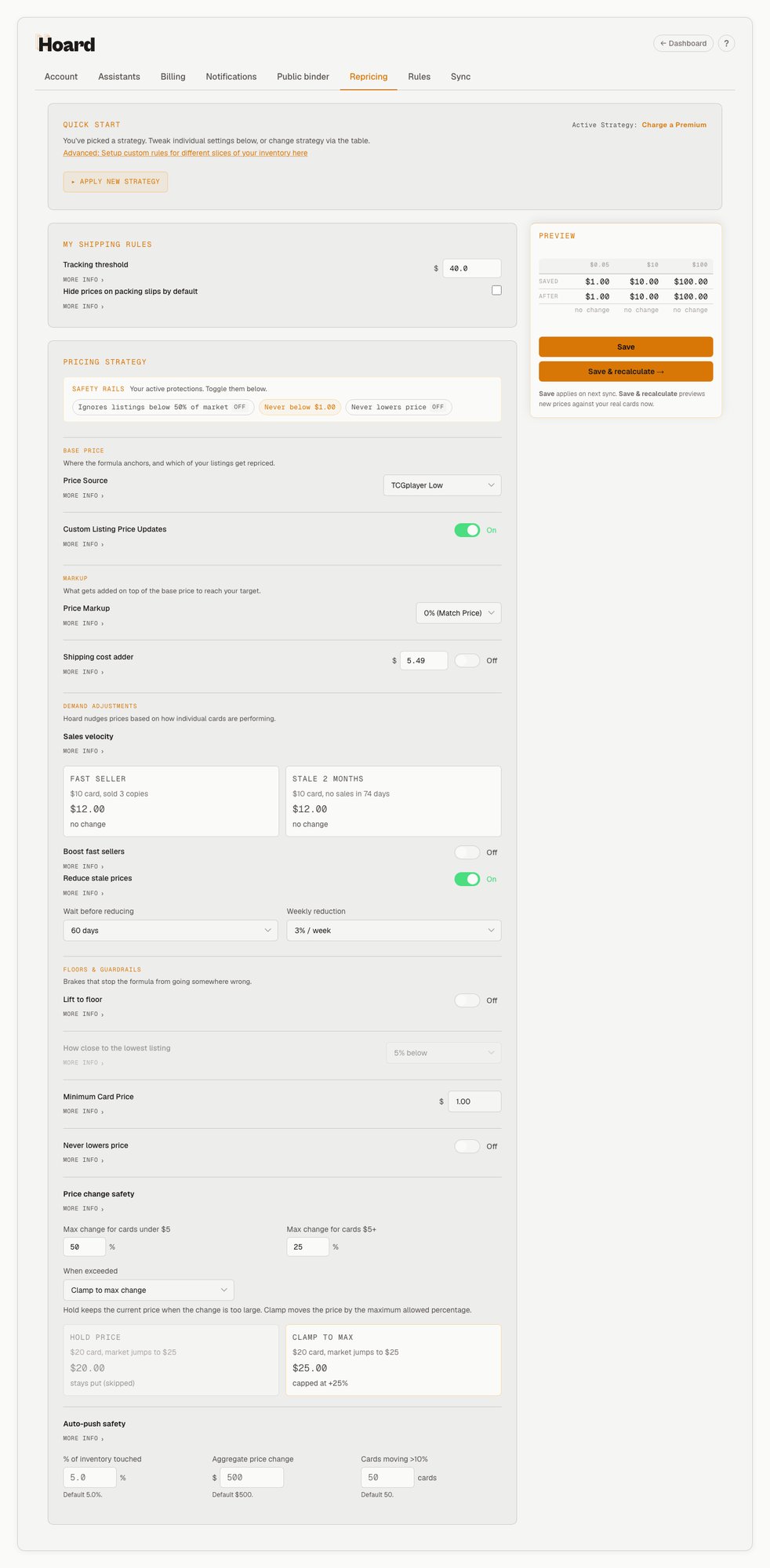
Hoard never changes your prices without your consent. You control the strategy, the schedule, and can pause auto-sync anytime from Settings. If a sync applies prices you’re not happy with, you can roll back to previous prices from the Sync Log.