

Import scans
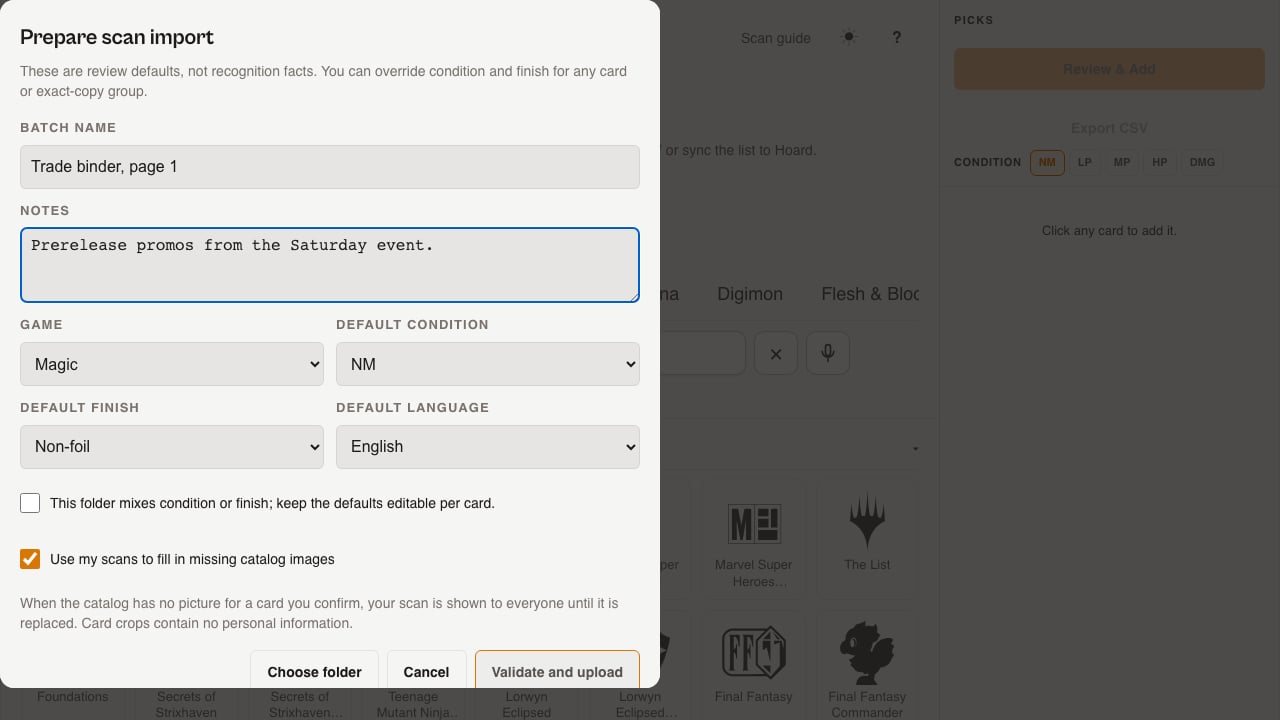
Go to/collect and click Import scans. This opens the Prepare scan import dialog:
- Batch name — defaults to “Scan import M/D/YYYY,” but you can name it something you’ll recognize later, like “Trade binder, page 1.”
- Notes — any context you want attached to this import.
- Game, finish, language — suggestions follow these settings. Scan different finishes or languages in separate folders.
- Condition — the starting condition for each card. You can change it during review.
- “Use my scans to fill in missing catalog images” — on by default. When the catalog has no picture for a card you confirm, your scan is shown to everyone until it’s replaced. Card crops contain no personal information. Turn this off if you’d rather not contribute images.
- Choose folder, then Validate and upload.
Processing your scans
For games Hoard currently processes in the cloud, nothing needs to be installed:/collect shows “Processing your scans…” and matching happens against your card photos without any local software running.
For other games, your Hoard Desktop agent does the matching, so it needs to be online. If /collect says “Your desktop agent looks offline — scans will process once it reconnects,” open Hoard Desktop and let it reconnect. The batch picks up automatically once it does.
Either way, you can close the tab once upload finishes and come back later; processing keeps going without the tab open. Matching only produces suggestions for you to review, it never writes anything to your inventory on its own. Nothing is added to Hoard until you click Accept, and nothing leaves review until you add it to staging.
Your scans
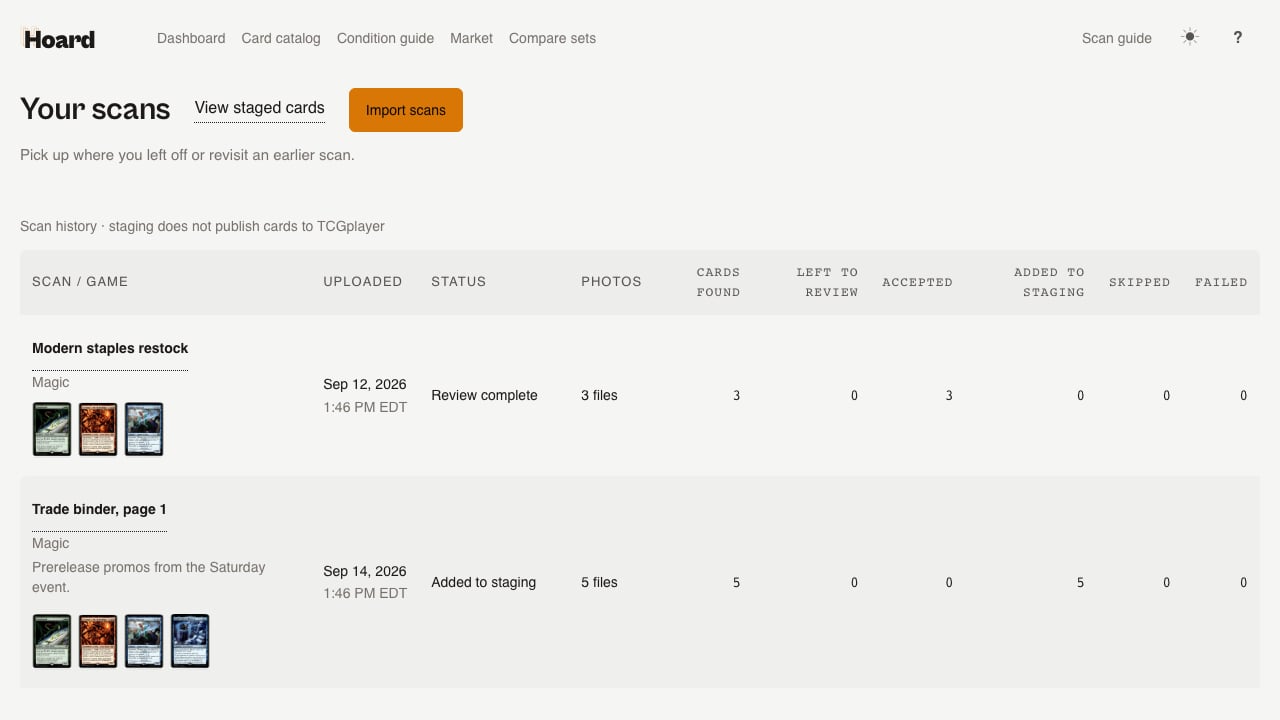
/collect/scans, also linked as “Your scans” from /collect, lists every import you’ve uploaded, newest first. Its own Import scans button links back to the same dialog on /collect.
Each row shows up to four card-crop thumbnails, the import’s name and any note, and:
- Uploaded — when the batch came in
- Status — Queued, Processing, Ready to review, Review complete, Added to staging, Undone, Cancelled, or Failed
- Photos — how many files you uploaded
- Cards found, Left to review, Accepted, Added to staging, Skipped, Failed
Cancel or archive a scan
Each row has a ⋯ menu under the import’s name with its other actions:- Cancel scan appears while any part of the import is still uploading, queued, or processing. It stops the remaining work so your next scan can start, keeps the cards already found, and moves the import to your archived scans. A cancelled scan can’t be restarted or edited; import the photos again if you change your mind.
- Archive appears once an import has finished. It only hides the import from this list. Accepted cards, staged inventory, and the staging receipt are untouched.
- Price sheet opens the import’s price sheet once it has cards.
- Delete appears on an import that was never added to staging. It removes the import’s photos, crops, and matches from Hoard for good; you’ll confirm first. An import that has a staging receipt can only be archived, because the receipt is what makes undo possible.
The review page
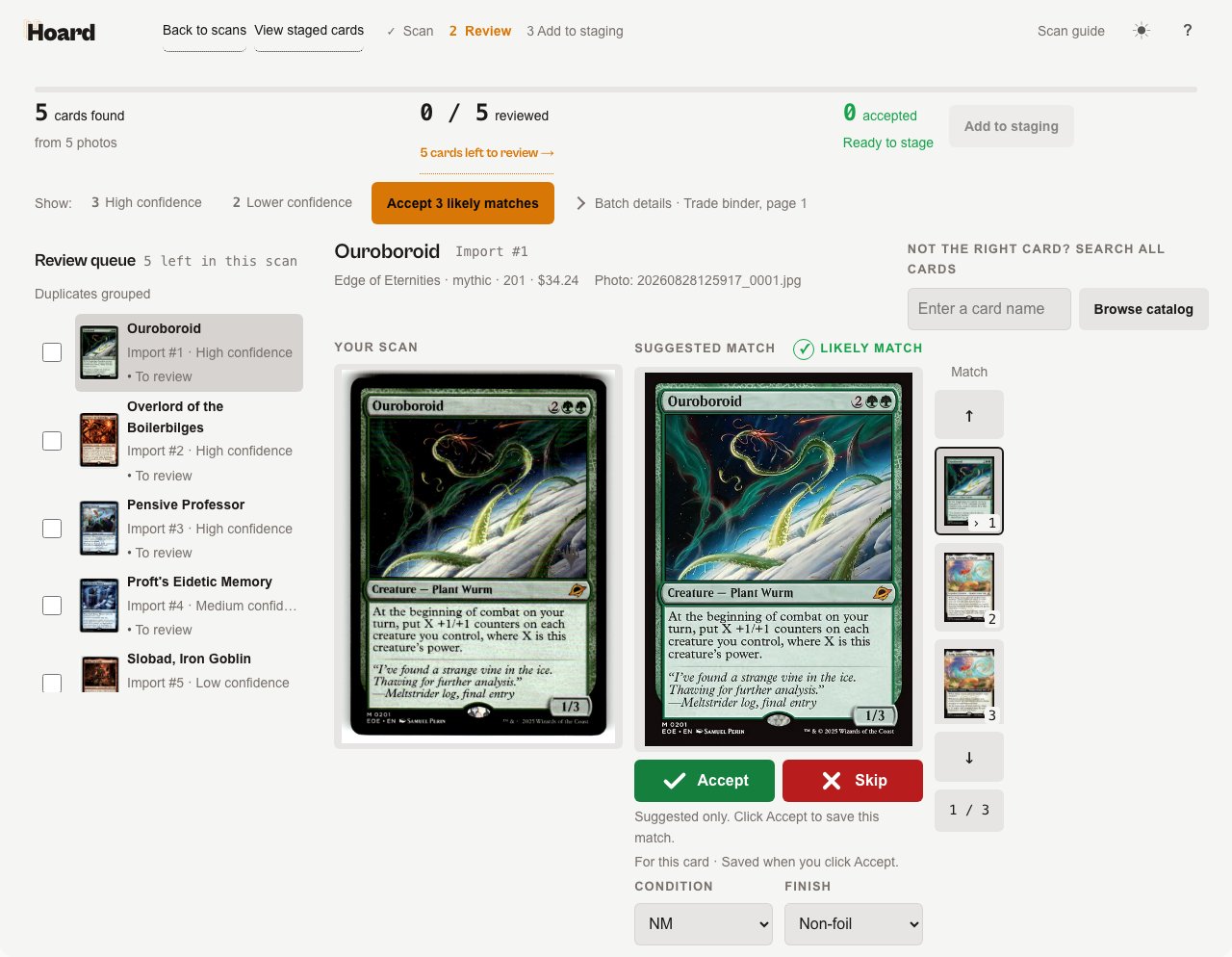
Open a batch to reach its review page. The header shows Back to scans, View batch cards, a step indicator (”✓ Scan · 2 Review · 3 Add to staging,” which becomes ”✓ Staging receipt” once you stage), the Scan guide, a theme switch, and help. An import of more than 500 photos is reviewed in parts of up to 500. A Part 1 of 2 bar above your progress shows the photo range of every part (“Photos 1–500,” “Photos 501–800”) and links to each one, and the bottom of the review queue links to the next part. The review counts on the page are for the part you’re in; the Add N to staging (all parts) button counts accepted cards across every part that is ready, so you can stage the whole import from any part. Below that, three groups track your progress:- N cards found — from N photos
- R / N reviewed, with an “N cards left to review →” link that jumps to the first unresolved card (this becomes ”✓ Review complete”). When you’ve skipped cards, a View N skipped cards → link steps through them one at a time so you can accept one after all
- A accepted — Ready to stage, with Add N to staging beside it (disabled until at least one card is accepted; becomes “A staged · B ready” after you stage)
Queue and editor
The Review queue · N left in this scan panel on the left lists one row per card: a crop thumbnail, the card name, “Import #N · High/Medium/Low confidence,” and its state (To review, ✓ Accepted, or Skipped). A checkbox on each row lets you select several cards at once for the same action. Scans matched to the same card are grouped together in the queue. The editor on the right is titled with the card name and “Import #N,” with a meta line for set, rarity, number, price, and the source photo’s filename. Two columns compare Your scan against the Suggested match, with a badge on the suggested side:- ✓ LIKELY MATCH (green)
- ? POSSIBLE MATCH (orange)
- ! LOW CONFIDENCE (rose)
- Verify printing (when other printings share the card’s number, such as a Tournament Pack and a Winner Pack, or for rarity-family suggestions, see below)
If none of the candidates are right
The right column, labeled “NOT THE RIGHT CARD? SEARCH ALL CARDS,” gives you a quick name search with six inline results. If your card still isn’t there, click Browse catalog.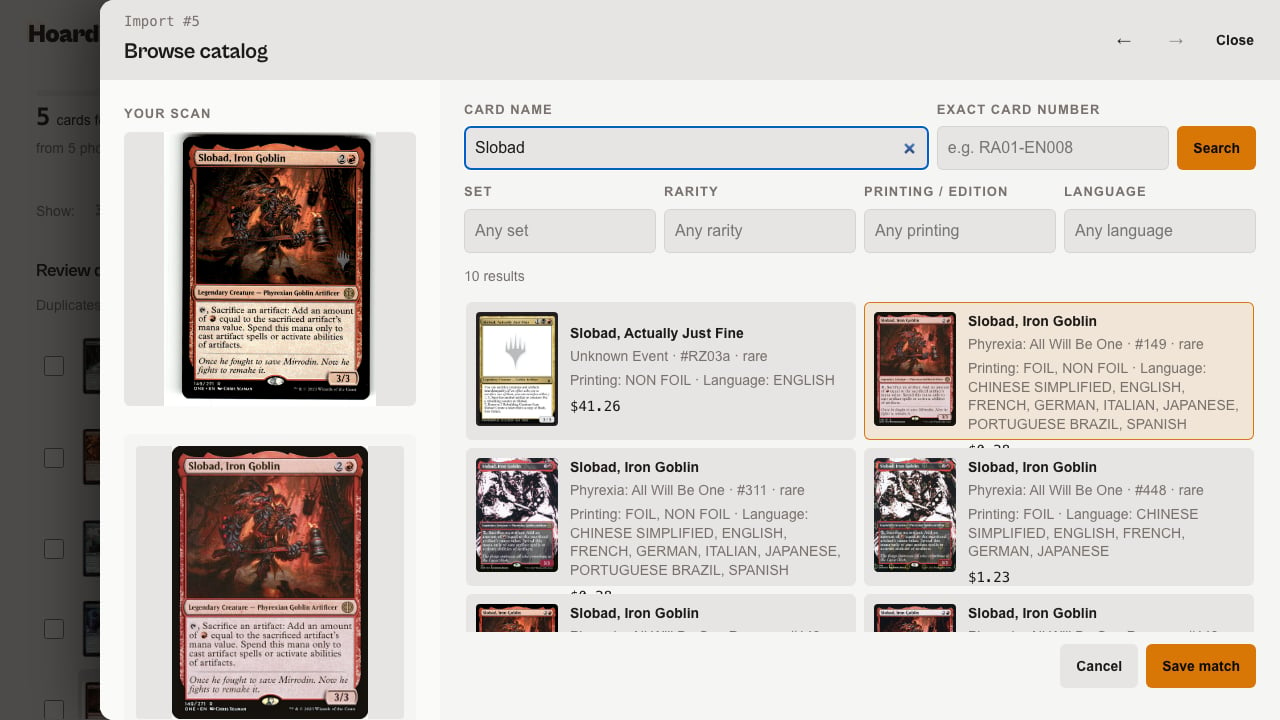
Duplicates and multi-select
When several scans are matched to the same card, Hoard groups them into one queue row (“40 copies”) so you can review once and accept them together. A photo that segments into two boxes of the same card is not a copy: the smaller box is skipped as “overlapping crop” before review, so it can’t be counted twice. Open Compare all N scans full size to see every copy beside the suggested card, and untick any scan that isn’t the same card; unticked scans stay in the queue for their own review. Hovering a copy in the Review N copies list shows that scan in the Your scan frame. If some copies matched below high confidence, the group says so and asks you to check each scan before you accept, because another printing can look almost the same. Picking a different card than the suggested one accepts only the scan you’re looking at. The row checkboxes in the queue are there for anything else you want to select and act on together.Browser back and forward
Your browser’s back and forward buttons step between cards you’ve already viewed on the review page, without changing the URL.Confidence bands, not percentages
Hoard shows a confidence band, never a raw score.92% would suggest precision the underlying matching doesn’t have, so instead you get:
- Likely match — Hoard is confident and this is bulk-eligible.
- Possible match — a plausible candidate, but not confident enough to call it likely.
- Low confidence — a weak top candidate, or nothing matched at all.
- Needs identification — no reliable match. Nothing is preselected, but the closest suggestions stay in the Match strip. One Piece scans with a weak visual match land here.
- Verify printing — the card is right, but the specific printing needs your eye. These never bulk-accept even inside a batch of otherwise-likely matches. When other printings share the card’s number, the Match strip lists every printing of that card first, including ones the matcher didn’t suggest.
Adding accepted cards to staging
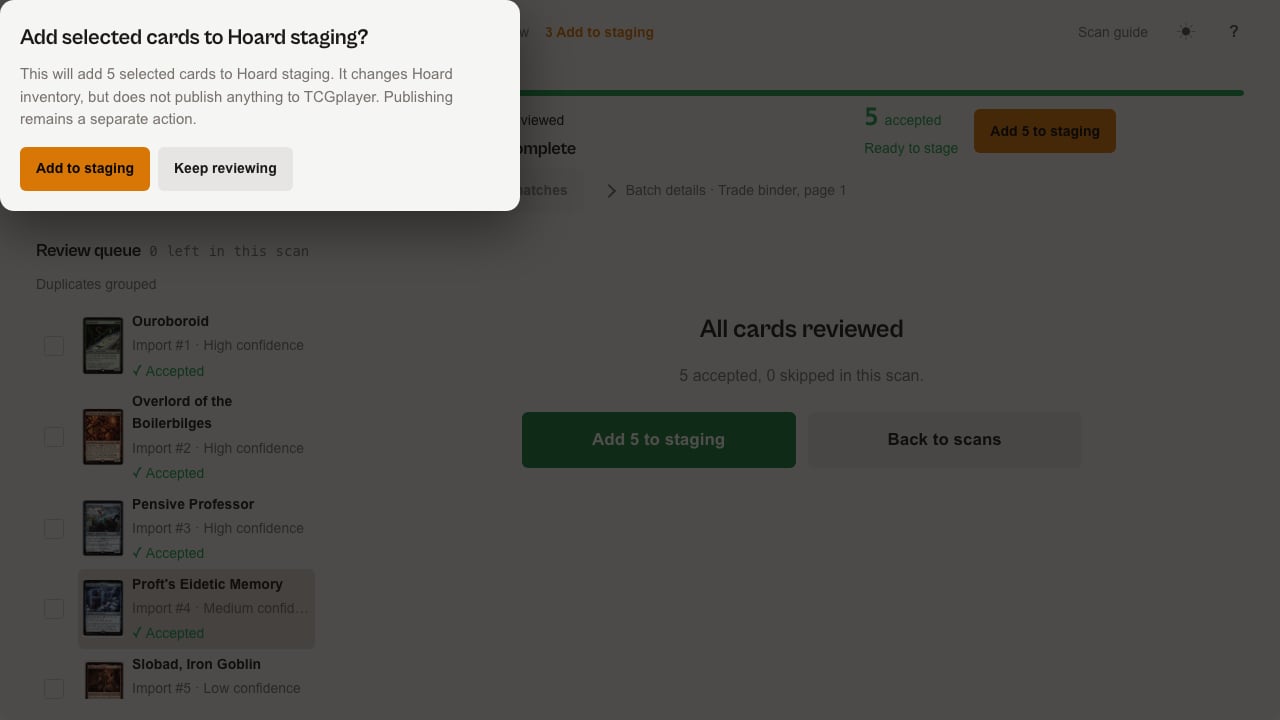
Accept and Skip never touch your inventory by themselves, they only save your review decision. Click Add N to staging once you’ve accepted everything you want, and confirm in the dialog. On an import with several parts the button reads Add N to staging (all parts) and stages the accepted cards in every ready part at once; a part still processing is left for later.“Add selected cards to Hoard staging? This will add N selected cards to Hoard staging. It changes Hoard inventory, but does not publish anything to TCGplayer. Publishing remains a separate action.”Choose Add to staging to go ahead, or Keep reviewing to back out. Accepted items become unpublished staged inventory priced with your current rules; anything skipped or still undecided is left out.
Scan guide
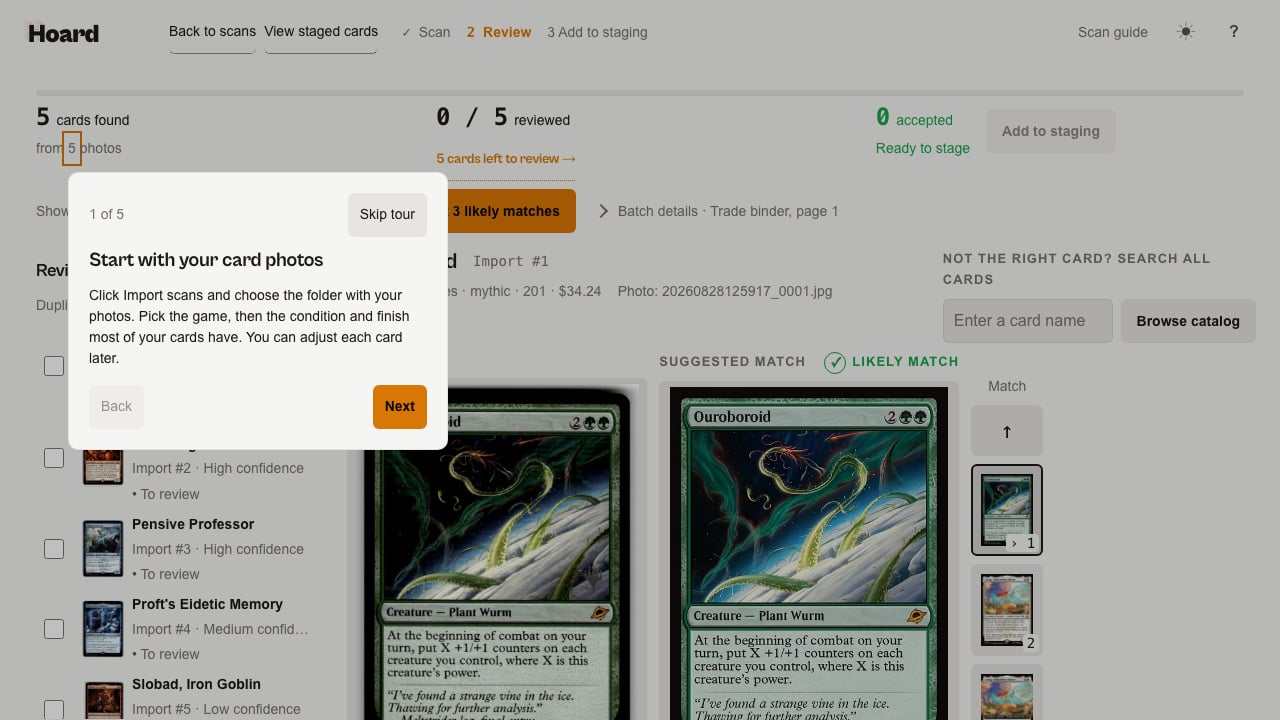
A five-step tour, “Start with your card photos,” “We’ll find the cards for you,” “Give these a closer look,” “Looks right? Accept it,” “Ready to add your cards?”, walks you through the flow the first time you attempt an upload. Dismissing it is remembered in your browser. You can reopen it any time from the header on/collect, /collect/scans, or the review page.
Tips
- For supported games, you don’t need Hoard Desktop open. Cloud processing means the upload alone is enough to get matching started.
- If it says your desktop agent looks offline, open Hoard Desktop. The batch starts once it reconnects; you don’t need to re-upload anything.
- Space cards out in flatbed photos. Touching or overlapping cards in one photo can get skipped as a group.
- A Low confidence badge with no candidates isn’t broken. It usually means the catalog doesn’t have that card yet, or the photo didn’t segment cleanly. Manual search and Browse catalog still work.
- Spot-check the first batch on a new game. Coverage varies by game, so a quick look at your first few Likely matches tells you whether that game’s matching is dialed in yet.
- Photo quality matters more than photo count. A well-lit, in-focus photo with the card filling most of the frame matches better than a distant or blurry one.
- You can leave and come back. A batch isn’t lost if you close the tab mid-review. Find it again from Your scans and pick up where you left off.