

When you need a key
If you use Claude, ChatGPT or Codex, you do not need a key. Connect your assistant in Settings > Connected apps > Connect your assistant. See Connect to Claude, Connect to ChatGPT or Connect to Codex. Make a key when you want your data somewhere else, like a Google Sheet that holds your inventory, or a script you run yourself. The key on Settings > Account is a different thing. That one belongs to the Hoard Desktop agent. It does not work for store data.Create a key
1
Open the API keys card
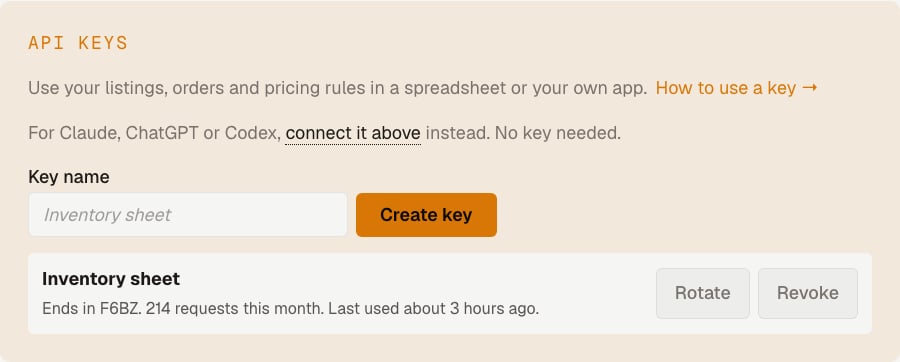
Go to Settings > Connected apps and find API keys. Only the store owner can create keys.
2
Name it
Type a name you will recognize, like “Inventory sheet”. Click Create key.
Use your new key
After you create a key, Hoard shows three steps.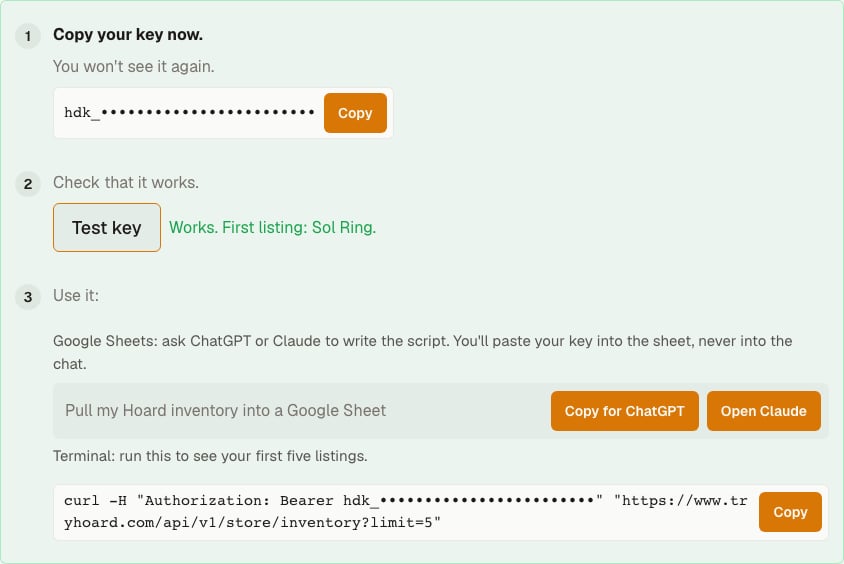
1
Copy the key
The key starts with
hdk_. Hoard shows it once. Save it in a password manager before you leave the page. If you lose it, rotate the key to get a new one.2
Test key
Click Test key. Hoard reads one listing and tells you the result.
3
Use it
Pick the Google Sheets path or the curl path below.
Google Sheets
You do not write any code. An assistant writes it for you.- In step 3, click Copy for ChatGPT, or Open Claude. The prompt asks for a Google Apps Script that pulls your inventory into the sheet.
- Paste the prompt into the assistant. The assistant writes the script and walks you through it.
- In Google Sheets, open Extensions > Apps Script and paste the script.
- In Project Settings > Script Properties, add a property named
HOARD_API_KEY. Paste your key as the value. - Run the script and approve the permissions Google asks for.
curl
Step 3 also shows a ready curl command with your key filled in. It looks like this:What each endpoint returns
All endpoints useGET. Send your key as Authorization: Bearer hdk_.... The base address is https://www.tryhoard.com.
Inventory
/api/v1/store/inventory returns your live listings. Listings with a quantity of zero and Quick Add placeholders are left out.
Orders
/api/v1/store/orders returns your TCGplayer orders, newest first. Add placed_since with an ISO date and time to get only recent orders.
Orders can change after they are placed. Refunds and late line items show up on later reads. Re-read the last few weeks each time you sync, and replace the orders you already have.
Orders do not include buyer names, addresses, feedback or tracking numbers.
Pricing rules
/api/v1/store/pricing_rules returns your rules in priority order. Each rule has a label, a query, a status (active, disabled or expired), a price source, a multiplier, and its floor and velocity settings. It does not include sample cards or prices.
Sync status
/api/v1/sync/status returns the state of your sync.
Paging
Addlimit to set the page size, from 1 to 500. The default is 100. Each response includes next_cursor. Send it back as cursor to get the next page. Stop when next_cursor is null.
A cursor only works for the store and endpoint that made it. Anything else returns 400 invalid_cursor.
Rotate or revoke a key
- Rotate gives you a new key. The old one stops working right away.
- Revoke turns the key off for good.
Limits
Each key has a per-minute limit based on your plan. If you go over, Hoard returns429 rate_limited with a Retry-After header that says how many seconds to wait.
What is not included
- Market, low or comp prices
- Other sellers’ data
- Buyer details
- Mana Pool data. These endpoints cover your TCGplayer store.
- Changing prices or listings