

Start with a Quick Start template
Go to Settings > Repricing. The top of the page shows four Quick Start templates side by side. Click any column header (or the per-column Apply button) to apply that template. Once a strategy is active, the table collapses by default; the amber Apply New Strategy button expands it again.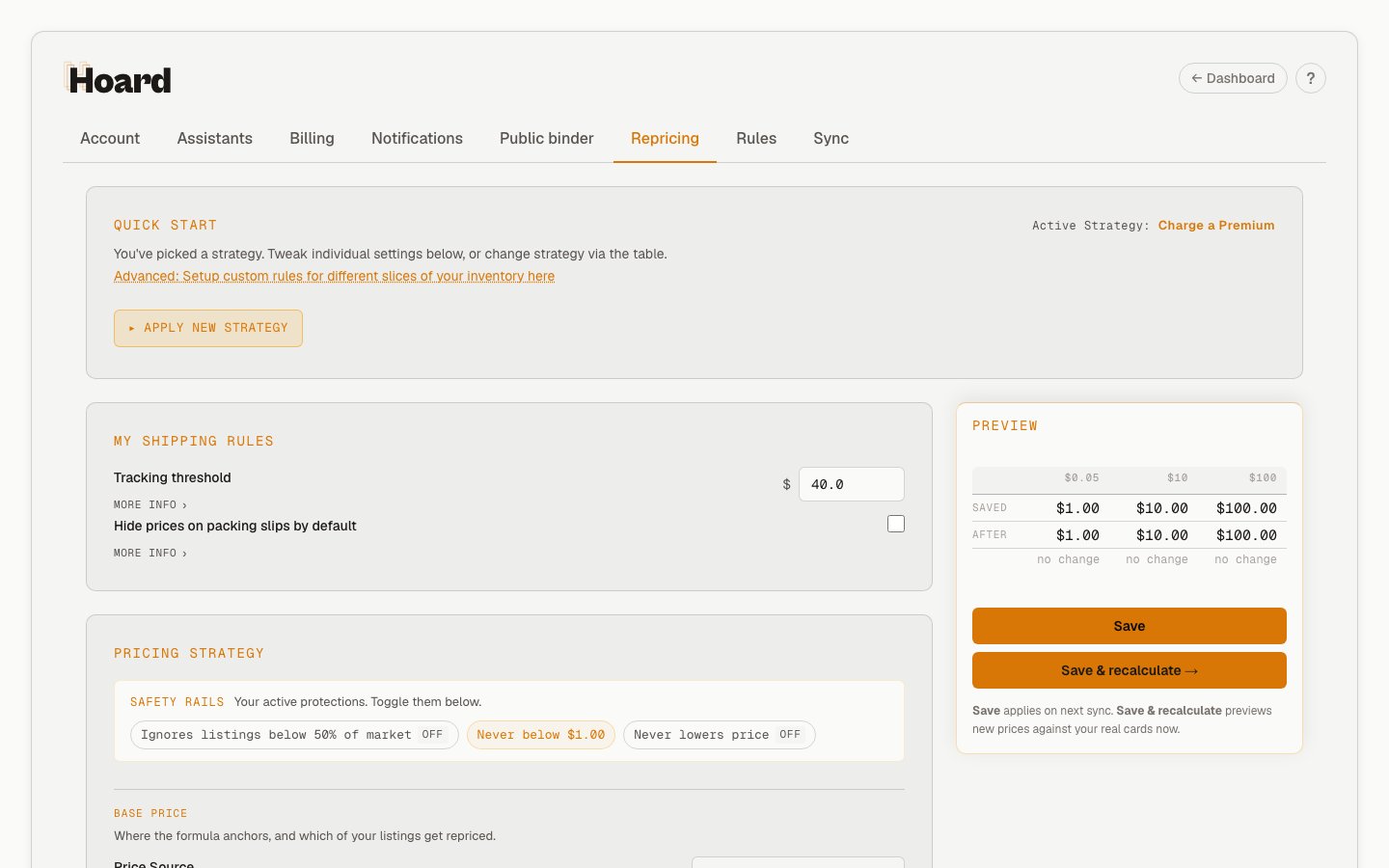
Charge a Premium
Best for: patient sellers who’d rather miss a sale than leave money on the table. What it sets:- 5% markup above market price
- Never lower prices — off, which is required for the decay below to fire
- Match a qualifying lowest listing — stay-near-lowest can raise a target to that listing. For market prices of $5 or more, listings at or below 50% of market are ignored as lowball outliers. Later pricing steps still apply.
- Velocity decay — holds firm for 90 days, then drifts down 1% per week when there has been no observed quantity decrease
- 15% change cap on staples, 10% on cards under $5 — hold mode, so big swings get skipped instead of partially absorbed
Stay Competitive (recommended for most sellers)
Best for: matching the market without leading the race. What it sets:- Market price × 1.0 — your target equals market
- Never lower prices — on
- Undercut by 1% — stay-near-lowest. Lands a tick below the lowest listing so you win the tie without starting a race to the bottom.
- 20% change cap on staples, 15% under $5 — hold mode
Move Product
Best for: clearing inventory. What it sets:- Low price × 1.0 — your target equals the lowest listing
- 25% change cap on staples, 50% on cards under $5 — clamp mode, so cheap commons swing freely
- Velocity decay — stale cards (sitting 60+ days) get a small weekly drop
Win the Buy Box
Best for: aggressive sellers who want the buy box. What it sets:- Low + shipping × 0.98 — priced just under the lowest listing including shipping
- 30% change cap on staples, 50% on cards under $5 — clamp mode
- Protect recent movers — skip stale reductions for recent quantity movement, without extra markup
The individual settings
After applying a Quick Start template, you can adjust each setting individually. Here’s what each one does and when you’d change it.What “market price” means
Throughout Hoard, “market price” refers to TCGplayer’s Market Price field, which is their volume-weighted average of recent sales for a given card and condition. It’s not the lowest listing and it’s not a simple average. TCGplayer calculates it from actual completed transactions, weighted toward more recent and higher-volume sales. This is the number you see in the “MARKET” column on the Cards tab, and it’s the starting point for all of Hoard’s pricing calculations.Price Markup
A percentage added on top of that market price. This is the base of your pricing strategy.Shipping cost adder
This setting sits in the Pricing Strategy card. The threshold it reads from is set under My Shipping Rules. Adds a configurable amount (default 50). This covers the cost of tracked bubble-mailer shipping that high-value orders typically require. Turn it on if you’re eating shipping costs on expensive cards. Turn it off if you include shipping in your listed price already. See Shipping cost adder for details.Never lowers price
When ON, Hoard blocks ordinary formula reductions when the market drops. A temporary-sale discount applies later and can still lower the final target. The setting protects ordinary repricing from:- Bot-driven price crashes (someone lists 100 copies at 50% off)
- Temporary market dips that recover within days
- Flash sales by other sellers that don’t reflect real value
Minimum Card Price (Floor)
The absolute lowest price Hoard will set for any card. Nothing goes below this number, regardless of what the market says.
Why 1-2 cards in your store makes your store attractive for bundled orders, even if those cards individually have slim margins. The floor keeps those cards from pricing at $0.05 where they’d cost you money to ship.
Per-card rules (optional)
The settings above apply to your entire inventory. If you want certain cards priced differently, you can set up per-card pricing rules using bookmarked searches. For example:- Magic: Reserved List cards at 1.50x (they only go up)
- Pokemon:
r:"Illustration Rare"at 1.30x, orgame:pokemon_japan v:masterballat a premium for Master Ball Pattern cards - One Piece:
game:"one piece" v:mangaat a premium for manga-art printings - Any game: Cards from a hot set at 1.30x, or bulk cards at 0.80x to move them faster
How the layers work together
When Hoard prices a card, it runs through these steps in order:- Start with price source — a qualified sales anchor, when selected and supported by evidence, or your chosen base price (Market, Low, Low + Shipping, Direct Low, Higher of Market / Low, Highest of Direct / Market / Low, or PriceCharting)
- Apply markup — multiply by your markup percentage (e.g., base x 1.20 for 20%)
- Reference floors — if enabled, check against the lowest listing on TCGplayer and an eligible PriceCharting floor
- Check the minimum — if the result is below your minimum card price, bump it up
- Shipping adder — if the card is above your tracking threshold, add shipping cost
- Self-bidding protection — if you’re already the lowest listing on TCGplayer (within 25 cents of the floor), hold at your current price so the markup doesn’t bid you against yourself. Releases automatically if your formula thinks you’re more than 2× underpriced. Always on, can’t be turned off. See Self-bidding protection.
- Inventory movement — recent quantity movement can protect a card from an enabled stale reduction; otherwise stale cards can gradually reduce after the waiting period. It never adds a markup. See Inventory movement and stale pricing.
- Never go down — if enabled, don’t let the price drop below your current listing
- Change caps — if enabled, limit the move using the available allowance
- Temporary sale — apply an active discount, then reapply the hard minimum
- Direct adjustments — apply the Direct minimum when eligible and the optional rule-level fee-gap adjustment; these can raise a capped result
After you change settings
The pricing footer is sticky and bundles a live preview alongside two save buttons:- Save — writes the new strategy. It applies on your next sync.
- Save & recalculate — writes the strategy and immediately previews new prices against your real cards.
Tips
- Start conservative. Stay Competitive is a safe default for most sellers. You can always loosen later.
- Check the competitive position report after a sync. If too many cards are in “20%+,” your markup might be too high. If everything is “At or Below Target,” you might have room to raise it.
- Never go down + high markup = slow sales. If you set a 30% markup and turn on Never lowers price, ordinary formula reductions are blocked; temporary sales can still lower prices. That’s fine for Reserved List staples, but it’ll strand bulk cards at prices nobody will pay.
- Review once a week. Pull up the Movers tab and the competitive position report. If the market moved significantly, your settings might need a nudge.