

Opening the detail panel
Click any card in grid mode. A panel slides in from the right with the card image, full card text, pricing breakdown, and links to your TCGplayer listing. The panel stays open while you browse, so you can scroll through your inventory and click different cards to inspect them. The card you first clicked is your “primary” and sticks around until you click it again to dismiss it. When the panel opens, Hoard re-fetches that card from the canonical detail endpoint in the background. The first render is instant from the table or binder row you clicked, then the panel updates if a price lock, target price, PriceCharting value, back-face image, legality, or frame detail changed since the list loaded. Card facts such as EDHREC rank, Game Changer status, game-specific stats, and format legality sit with the card name and rules text. One navigation row below that area switches between History, Comps, My Copies, and QR, so there is no second set of nested tabs to work through.- History holds the pricing breakdown, price controls, price trend, and recent sales.
- Comps builds an in-person negotiation plan from current market evidence.
- My Copies holds ownership, list membership, and the per-copy breakdown for grouped cards.
- QR holds the sticker visibility override and View QR page link.
Pricing breakdown
The panel shows your current price, the lowest listing on TCGplayer, market price, your target price, the gap, and potential upside. This is the same data as the table columns, but laid out so you can see everything at once without scrolling sideways. Pokemon and other PriceCharting-backed rows show the same PriceCharting link, ungraded price, sales volume, and grade-price data whether you opened the card from table view, binder view, or a stacked-card row.Comps
For a single card with a usable market comp, Comps puts four numbers together for an in-person deal:- Market — Hoard’s honest current evidence mark, preferring trustworthy same-condition recent sales
- Ask — the opening number you quote
- Happy — the price you would feel good accepting
- Hard floor — the number below which you walk away
Recent sales
In History, a Recent sales list shows the last 10 tracked TCGplayer sales for this card, newest first: date, condition, and the all-in price (item plus shipping), so you’re looking at what a buyer actually paid, not just an ask. The pricing receipt keeps the decision and baseline context without repeating the same five sale rows above this list.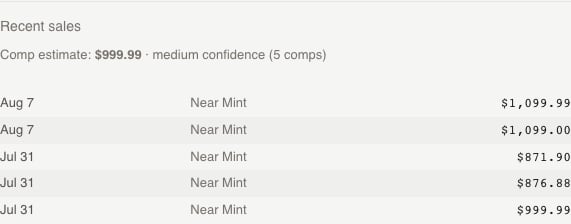
Price controls
Below the pricing breakdown, single cards show two explained Price controls rows: Automatic pricing and Market tracking.- Follow Market / Mute — a two-way switch for how automatic repricing treats this card. Follow Market (the default) lets the engine reprice it with the market. Mute skips the card in every automated price pass — your price stays put until you change it by hand or unmute. Muting is lighter-touch than price locking: a lock pins the exact price and blocks all writes, while mute just opts the card out of automation.
- Watch / Watching (eye icon) — keeps the card’s market data fresh on a fast schedule and surfaces spikes and buy-outs the morning they happen. A manual watch reads Watching since Aug 6 below the controls, while an automatic watch names the reason. See Market depth and watching.
- Keep above market / Keeping above market — allows automatic increases but prevents automatic price drops for this card. Turn it off when you want decreases to follow the market again.
Comparing two cards
Click a second card while the panel is open and you get a side-by-side comparison. Both cards’ pricing appears in a table with a diff column showing the spread. This is useful when you’re trying to decide whether to price two printings of the same card differently, or checking how a foil stacks up against the non-foil. How it works:- Your first card stays as the “primary” until you dismiss it
- Every new card you click replaces the comparison slot
- Click your primary card to remove it (the comparison card takes over)
- Hit Undo if you accidentally replaced a comparison you wanted