

What you need
The import runs through your desktop agent, so before you start:- The Hoard desktop app has to be open and connected.
- You have to be logged in to TCGplayer in that app, since Hoard reads your MassPrice rule pages the same way it reads the rest of your store.
- MassPrice has its own sign-in, separate from your TCGplayer store login. If you’re not signed in to MassPrice, Hoard opens the MassPrice sign-in page in the desktop app’s browser window when you start the import. Sign in there and the import carries on by itself. If you don’t sign in within a couple of minutes, the import stops and you can run it again once you have.
Where to start it
Open Settings → Rules and scroll to the MassPrice Import card at the bottom of the page. Click Import My MassPrice Rules. If you told us at signup that you use MassPrice, the Today tab also shows Bring your Mass Price rules into Hoard with a button that takes you there. The card’s sub-label reminds you it needs the desktop app open, and that Hoard opens the MassPrice sign-in page for you if you’re not signed in there.The three steps
The import has three steps: waiting, review, and acceptance.Waiting
Hoard asks your desktop agent to read your MassPrice rule pages. While that happens you’ll see “Waiting on your Hoard desktop agent to read your MassPrice rules…” with a Refresh link. The agent reads the pages, sends them back, and Hoard parses and maps them on its end. This step waits on the agent’s normal work cycle, so give it a moment. If it can’t reach your rules, you’ll get a Try Again button. A request that’s been sitting for 30 minutes expires, so if you walk away and come back much later, just start it again.Review
Once your rules come back, the card turns into a review list: every MassPrice rule Hoard found, laid out as a proposal you can accept or leave behind. The header tells you how many can import, e.g. “9 of 12 rules can import.”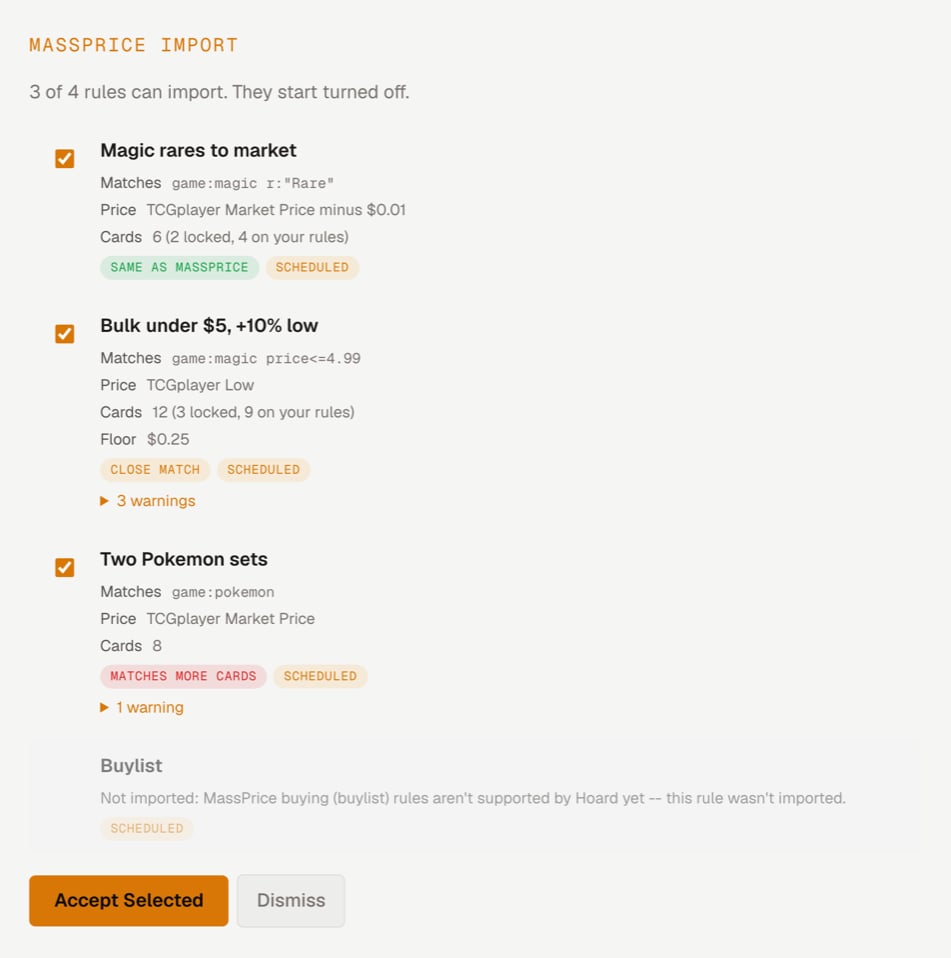
- A checkbox, checked by default. Uncheck any rule you don’t want to bring over.
- The rule name, carried over from MassPrice so you recognize it.
- Matches — the Hoard search query the rule translated into, or “(every card)” for a rule with no filter. This is the same query language your other pricing rules use, so you can read exactly which cards a rule will touch.
- Price — the price source Hoard will pull from, plus a
±NN%markup when the rule marks up or down, or “minus $0.01” for a rule that undercuts by a penny. - Cards — how many of your cards the rule matches. Cards you locked, and cards already priced by one of your Hoard rules, are counted in brackets because the import won’t change them, e.g. “120 (4 locked, 30 on your rules)”.
- Floor — the hard floor, if the rule sets one.
- How close the match is:
- Same as MassPrice: everything carried over.
- Close match: same cards, but the price works a little differently (see the warnings).
- Matches more cards: a filter couldn’t come across, so the rule reaches cards it didn’t in MassPrice.
- A “Scheduled” badge on rules that were running on a schedule in MassPrice, so you can tell your live rules apart from ones you’d parked.
- Warnings — an expandable “N warning(s)” list when Hoard had to approximate something. Open it before you accept, since it tells you where the import isn’t a perfect one-to-one copy (see the mapping limits below).
Accept
Accepting creates your selected rules in Hoard, in the priority order shown in the review. The confirmation names how many rules were imported.Imported rules arrive off
Every rule the import creates starts disabled. Nothing you import can change a price until you turn it on, so an import can never surprise your store with a reprice you didn’t look at. To turn them on, you have two paths:- One at a time. Each imported rule sits in your rule list disabled, with a “From MassPrice” pill next to it for the first 7 days. Enable the ones you want the same way you’d enable any rule.
- The exact ones at once. An Enable imported rules (N) button appears above your rule list. It turns on only rules that were running on a schedule in MassPrice and came across as Same as MassPrice. Every other imported rule shows a Preview first pill and stays off until you preview it and turn it on yourself.
What doesn’t come across, and why
MassPrice and Hoard don’t price cards in exactly the same way, so some settings map differently or aren’t imported. The review warnings call these out per rule; here’s the full list.- Buylist and buying rules aren’t imported. Hoard prices what you’re selling. Buylist rules are skipped with a reason shown on the row.
- “My Current Price” rules import as floor-only. A MassPrice rule priced off your own current price becomes a floor in Hoard (or is skipped if it had no minimum), since Hoard prices from market evidence, not from your existing price.
- Flat-dollar modifiers are dropped, except a penny. Hoard marks up and down by percentage only (-50% to +900%). A rule that subtracts $0.01 comes across with one cent below turned on; any other flat amount comes across without it.
- Specific finishes widen to all foils. Hoard’s
foil:filter is yes or no, so a rule for Reverse Holofoil or 1st Edition matches every foil. Those rules are marked Matches more cards. - A rule spanning several sets imports without a set filter, with a warning. Hoard can’t safely fold several MassPrice set names into one imported filter, so a rule that covered multiple sets or groups comes in unscoped. The warning tells you to add the set filters you want by hand.
- First match wins, not a daily chain. MassPrice runs your rules as a daily chain where the last run wins. Hoard applies the first matching rule per card, top to bottom. To keep the same outcome, the import stamps priorities from each rule’s schedule time so your most recent daily run lands on top. Reorder rules afterward if you want a different priority.
- “Skip updates less than X%” is informational only. Hoard reprices without a skip threshold, so that setting is noted but not enforced.
- Duplicates are skipped. A rule whose query already exists, either elsewhere in the same import or as a rule you already had, is reported as “already exists” rather than created twice.
Match several values at once with comma lists
The import leans on a newer piece of the rule query language you can use by hand too: comma lists that match any of several values at once. Instead of writing one rule per rarity or one per condition, you list them comma-separated and the rule matches a card if it hits any value in the list. These tokens always split on commas:r:(rarity) —r:mythic,rarematches mythics or rarescond:(condition) —cond:mp,hp,dmgmatches Moderately Played, Heavily Played, or Damagedlang:/language:—lang:english,japanesematches English or Japanese copiesfoil:(finish) — the finish token; there is no separatefinish:token
set:/s:—set:dmu,bromatches either set;set:"Modern Horizons 2"stays one set namegame:—game:magic,pokemonmatches either game
-lang:english,japanese means “not English and not Japanese.” A value with no comma behaves exactly as it always has.
Comma lists work anywhere a rule query or a search does, so you can build them in the rule wizard or try them first in the Cards tab search bar. See Advanced search for the full operator reference and Pricing rules for how rules evaluate.