

Step 1: Open the desktop app and log in to TCGplayer
The import reads your MassPrice rule pages through your desktop agent, so it needs the same connection your syncs use. Open the Hoard desktop app and make sure it’s connected. If you’re not already logged in to TCGplayer in that app, log in now. Leave the app open for the rest of this walkthrough. MassPrice has its own sign-in, separate from your TCGplayer store login. You don’t need to do anything about that up front: if you’re not signed in to MassPrice, Hoard opens the MassPrice sign-in page in the desktop app’s browser window when you start the import. Sign in there and the import continues on its own.Step 2: Go to Settings → Rules
Open Settings → Rules and scroll to the bottom of the page. You’ll find a MassPrice Import card there, with a sub-label reminding you it needs the desktop app open. If you see a prompt to update the desktop app instead of the import button, update it, reopen the app, and come back to this page.Step 3: Click Import My MassPrice Rules
Click Import My MassPrice Rules. Hoard asks your desktop agent to read your MassPrice rule pages, and the card shows “Waiting on your Hoard desktop agent to read your MassPrice rules…”.Step 4: Wait for the agent
The request starts on your agent’s next work cycle, so it may take a moment. There’s a Refresh link if you want to check on it. If the agent can’t reach your rules, you’ll get a Try Again button, so retry from there. If you walk away for a while, note the request expires after 30 minutes. If that happens, just start the import again from Step 3.Step 5: Review the proposed rules
When your rules come back, the card turns into a review list. The header tells you how many can import, e.g. “9 of 12 rules can import.”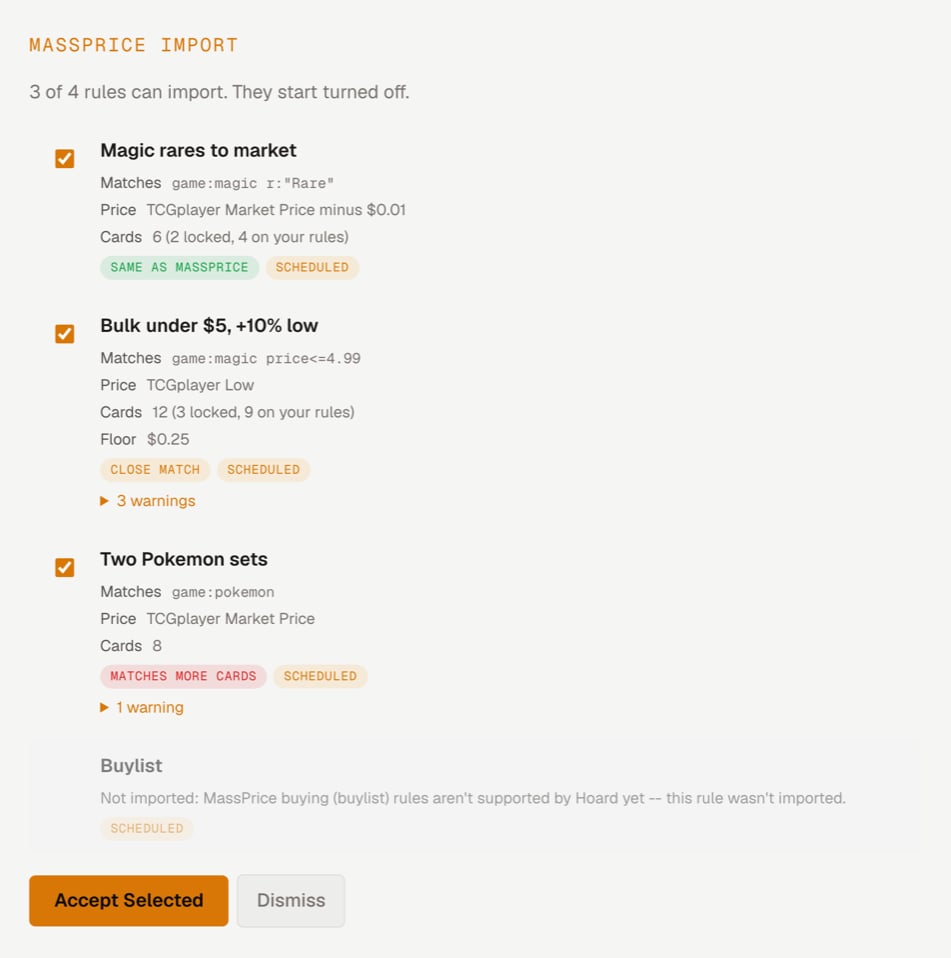
- Matches — the Hoard query the rule became. This tells you exactly which cards the rule will touch.
- Price — the price source, with a
±NN%markup when the rule marks up or down, or “minus $0.01” for a penny undercut. - Cards — how many of your cards it matches, e.g. “120 (4 locked, 30 on your rules)”. Locked cards and cards already on your Hoard rules won’t change.
- Floor — the hard floor, if the rule sets one.
- The match badge — Same as MassPrice, Close match (same cards, price works a little differently) or Matches more cards (a filter couldn’t come across).
- The “Scheduled” badge marks rules that were running in MassPrice, so you can tell your live rules from parked ones.
- Warnings — open any “N warning(s)” disclosure. This is where Hoard tells you it had to approximate something, like importing a multi-set rule without a set filter. Read these before you trust the rule.
Step 6: Accept the rules you want
Every row starts checked. Uncheck anything you don’t want to bring over, then click Accept Selected. Hoard creates the checked rules in the priority order shown in the review, and the confirmation tells you how many were imported. Dismiss walks away without creating anything. Every rule you import arrives disabled, so nothing you just created can change a price yet.Step 7: Enable the ones you want live
Now turn on the rules you actually want running. You have two options:- One at a time. Each imported rule sits in your rule list disabled, with a “From MassPrice” pill for the first 7 days. Enable them individually like any other rule.
- The exact ones at once. Enable imported rules (N) turns on only rules that were scheduled in MassPrice and came across as Same as MassPrice. Anything else shows Preview first and waits for you.