

What you’ll end up with
- A “Sell This Now” list you can pull up with one click
- Cards added two ways: one at a time from a card’s detail panel, and in bulk from a filtered search
- A pricing rule that prices everything on the list at half off, floored, regardless of game
Step 1: Create the list
Open the Cards tab. In the toolbar, click the Lists button — the layers icon, sitting next to the bookmark button. The Lists popover opens.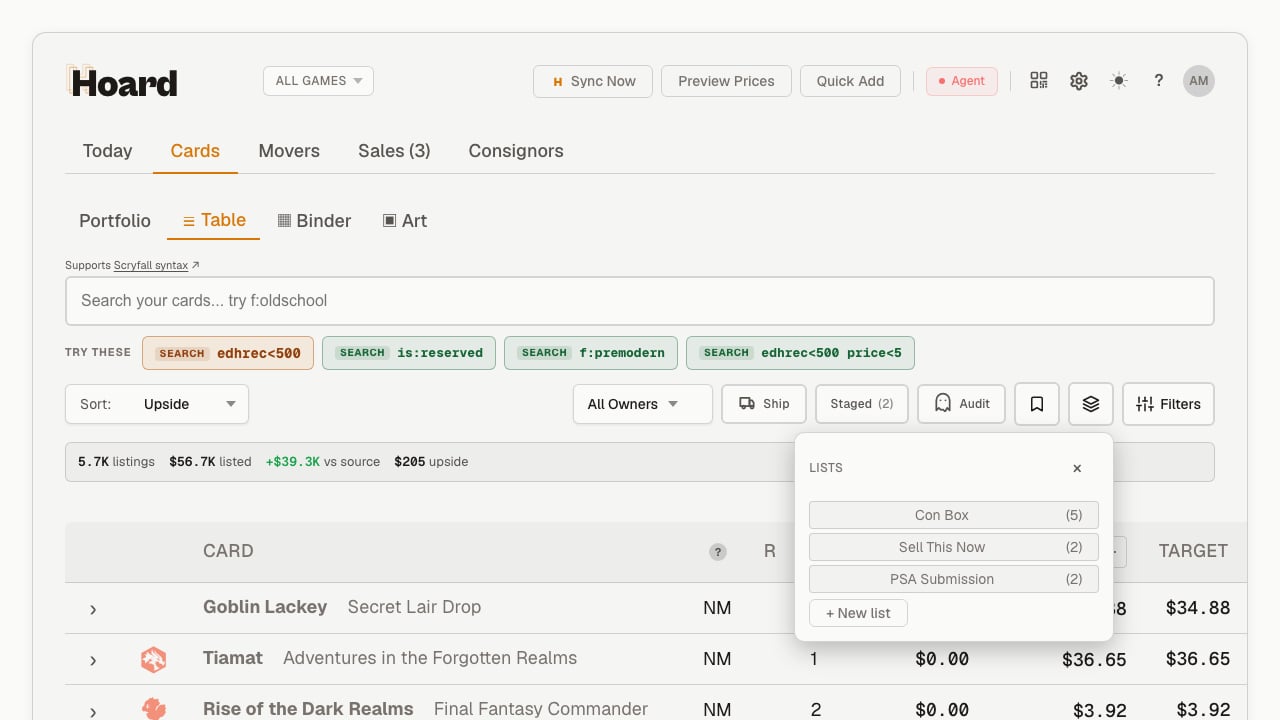
Sell This Now in the + New list form and create it. A new chip appears for it. Behind the scenes Hoard gives it the slug sell-this-now — that’s what you’ll type to search the list, and it stays fixed even if you rename the list later.
Step 2: Add one card from its detail panel
Find a card you want to move and open its detail panel (click the card, or use the chevron on its table row). Open My Copies. Its Lists area shows any lists the card is already on plus a dashed + Add to list button.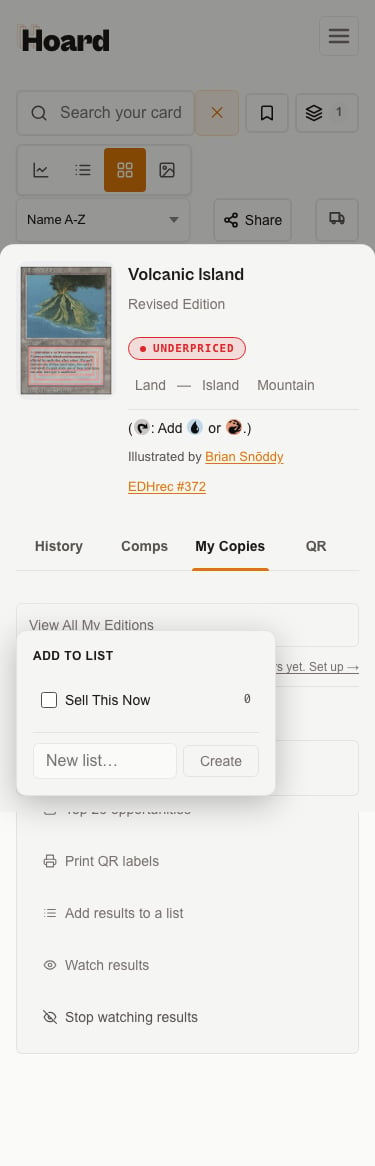
Step 3: Add a whole batch in bulk
One at a time is fine for a few cards, but usually you want to add a pile at once. Do that with a filtered search plus the bulk add. First, narrow your inventory to exactly the cards you want on the list. For a “Sell This Now” list you might search something likeset:"Obsidian Flames" price>2 to grab the worth-listing cards from a set you’re clearing out. Whatever filter you run, the table shows just those cards.
Then open the Export panel on the Cards tab and click Add results to a list (it’s next to Print QR labels). Pick Sell This Now. Every card currently showing — the exact filtered set — gets added.
Bulk add acts on what you filtered to, so your search, game scope, and status filters all carry through. If the batch would push the list past its 1,000-card cap, Hoard adds what fits and tells you how many were left off.
Step 4: Pull up the list
Now check your work. Typelist:sell-this-now in the search bar and run it. The table filters to just the cards on the list, and a filter chip shows the list is active.
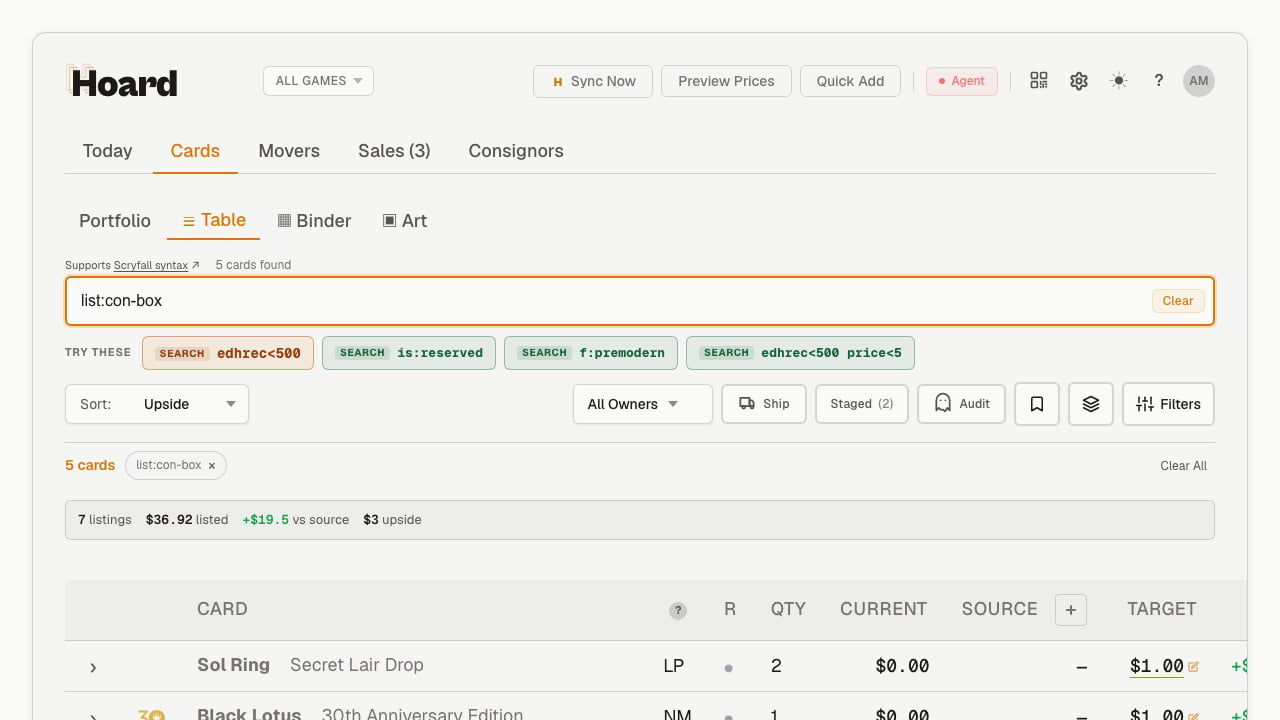
list:sell-this-now price>20 to see just the pricier cards on the list, for example. And if you ever want to see what’s already sold off the list, add is:gone: list:sell-this-now is:gone shows the cards that have since delisted or sold to zero. By default those are hidden, so the plain search shows only what you still have.
Step 5: Price the whole list at half off
Now attach a pricing rule so everything on the list is marked down to move. Set up a pricing rule whose query islist:sell-this-now, with a multiplier of 0.50x. A list rule is allowed to skip the game scope that other rules require — a list is already a specific set of cards you chose by hand, and a real “sell this now” shelf legitimately mixes games — so you don’t need to add a game: token.
When the rule runs, it takes half of each card’s source price and then runs that through your price floors, so nothing drops below the minimum you’ve set. It’s “half the source price, then floored,” not a flat 50% of whatever’s currently showing.
Membership changes re-price immediately. Add another card to the list and it’s marked down right away — you don’t wait for the next sync. Pull a card off the list and it falls back to your other rules on the spot.
What you can do next
- Print QR labels for the list. Filter to
list:sell-this-now, then use Print QR labels in the Export panel to label the physical pile that matches the list. - Build a show box the same way. Make a “Con Box” list, add the cards going to a convention, and price the whole box to move with a
list:con-boxrule. - Audit what sold. Run
list:sell-this-now is:goneafter a busy week to see exactly which cards cleared off the list. - Clean up when you’re done. When the list has served its purpose, search it until it’s empty and use the Delete link in the empty-state message. Deleting the list never touches the cards.