

Step 1: Open the report
Go to Sales > Pulls and click Pull times. Start with 30 days. A 7-day window can swing a lot on one big pull.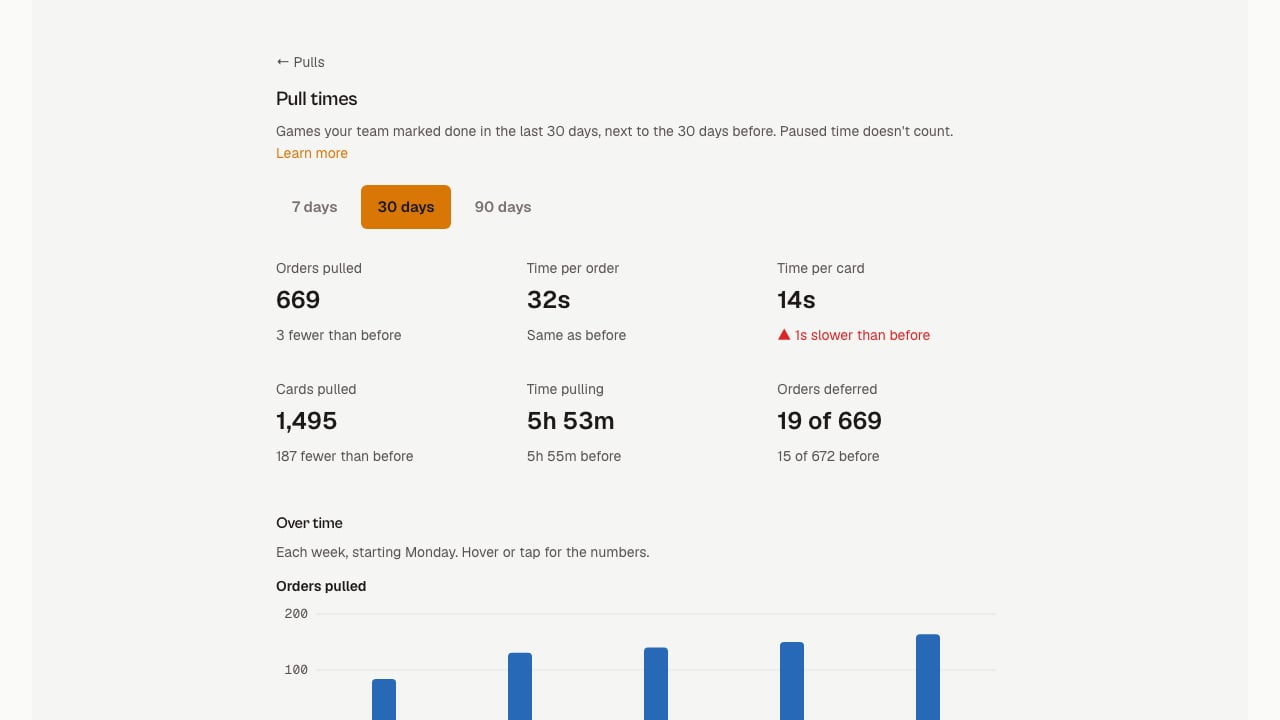
Step 2: Check the tiles
The tiles compare this window with the one before it. If Time per card says “1s slower than before” in red, the whole store slowed down, so look at that before you single anyone out. Orders deferred shows something like “19 of 669”. That’s how many orders were pushed to the end of their queue when each game was marked done.Step 3: Find the slow bar
Scroll to Pullers. Each person gets a bar for their time per card. The gray mark is the store average, labeled with its number, such as “Store 14s”. A bar that runs past the mark is slower than the store.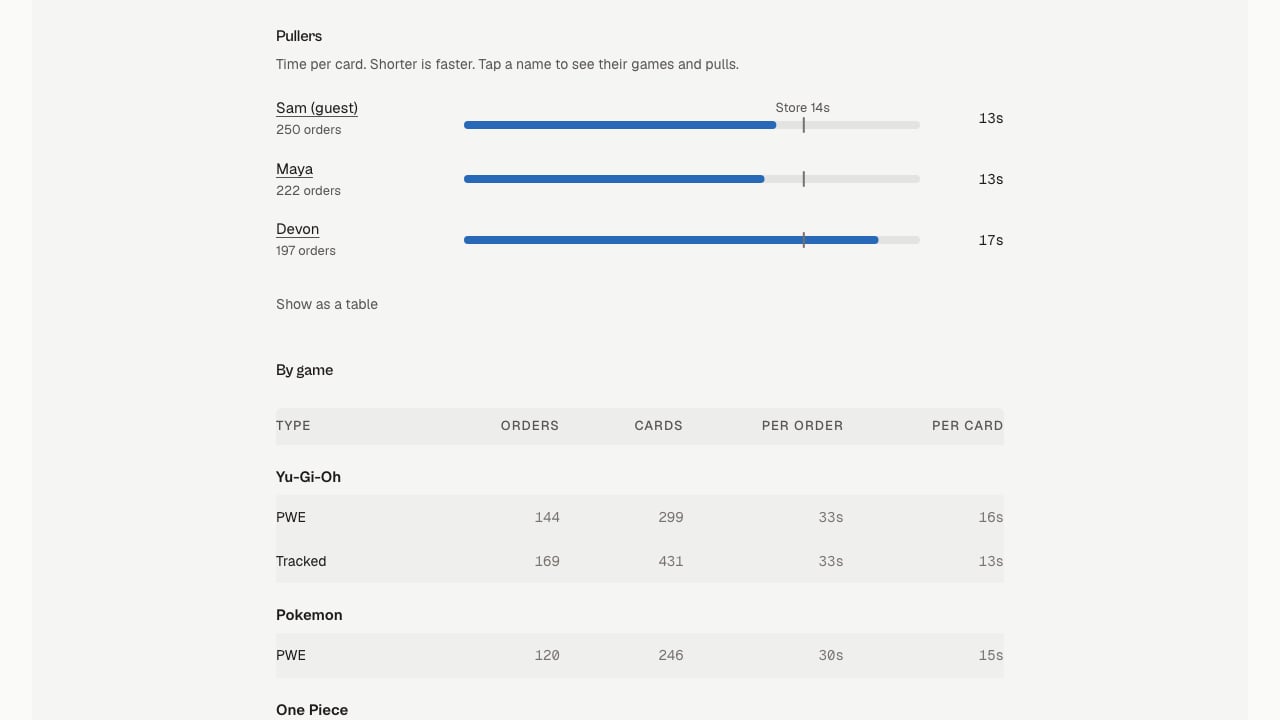
Step 4: Open their page
Tap the name. The tiles now compare that person with the whole store, such as “4s faster than the store”.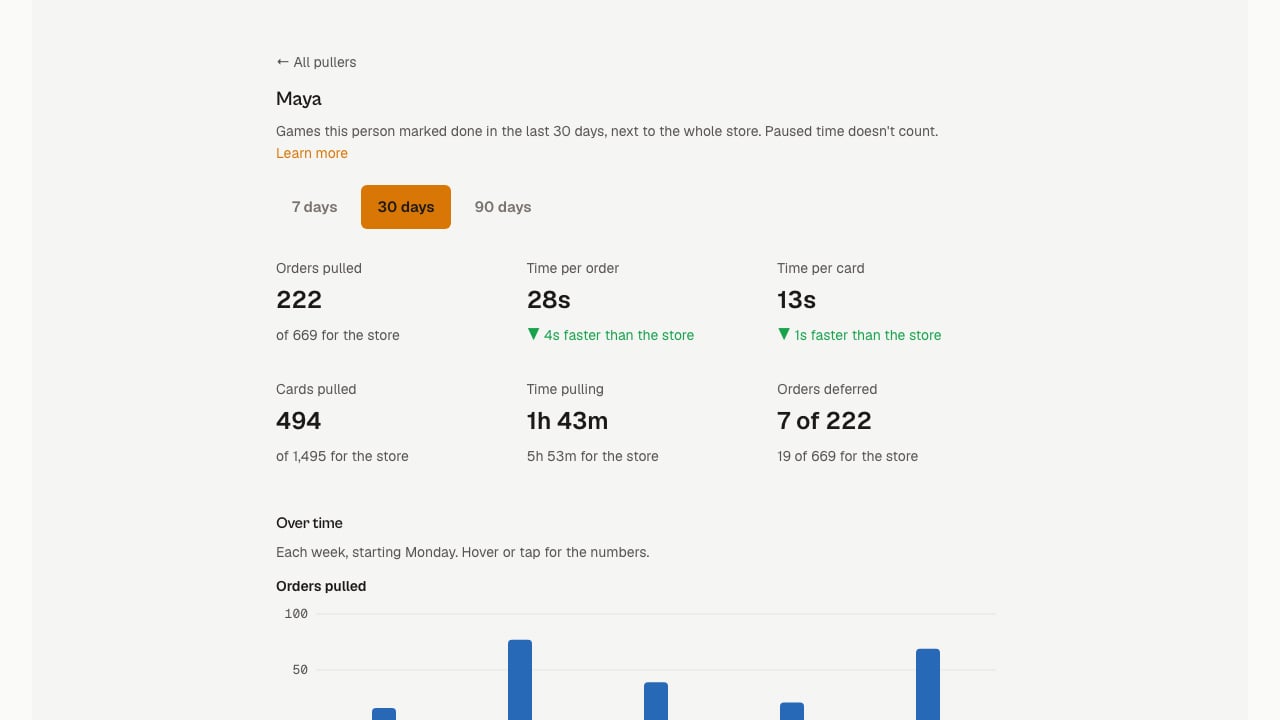
Step 5: Work with them
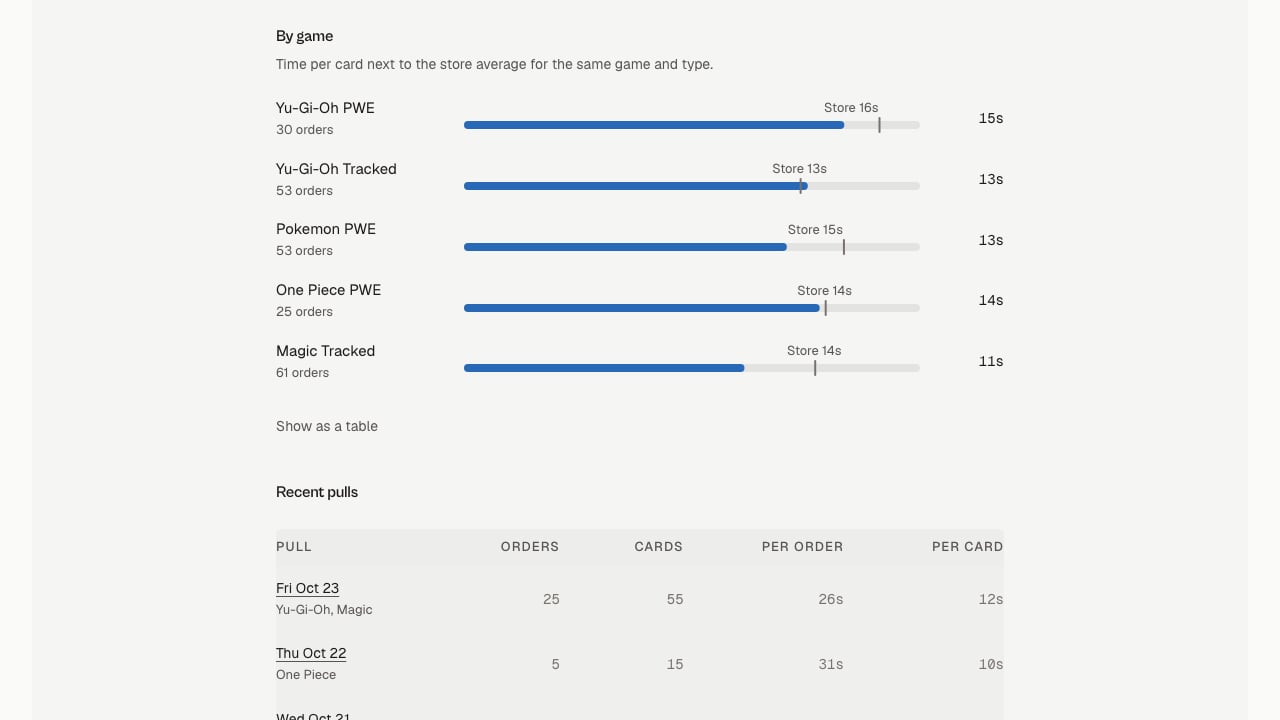
Pick the one game where they’re furthest from the mark and start there. Sit in on a pull of that game and watch where the time goes.Step 6: Check back in a week or two
Open their page again after a few pulls and scroll to Over time. Their line is blue and the store’s is gray. If the gap is shrinking, it’s working.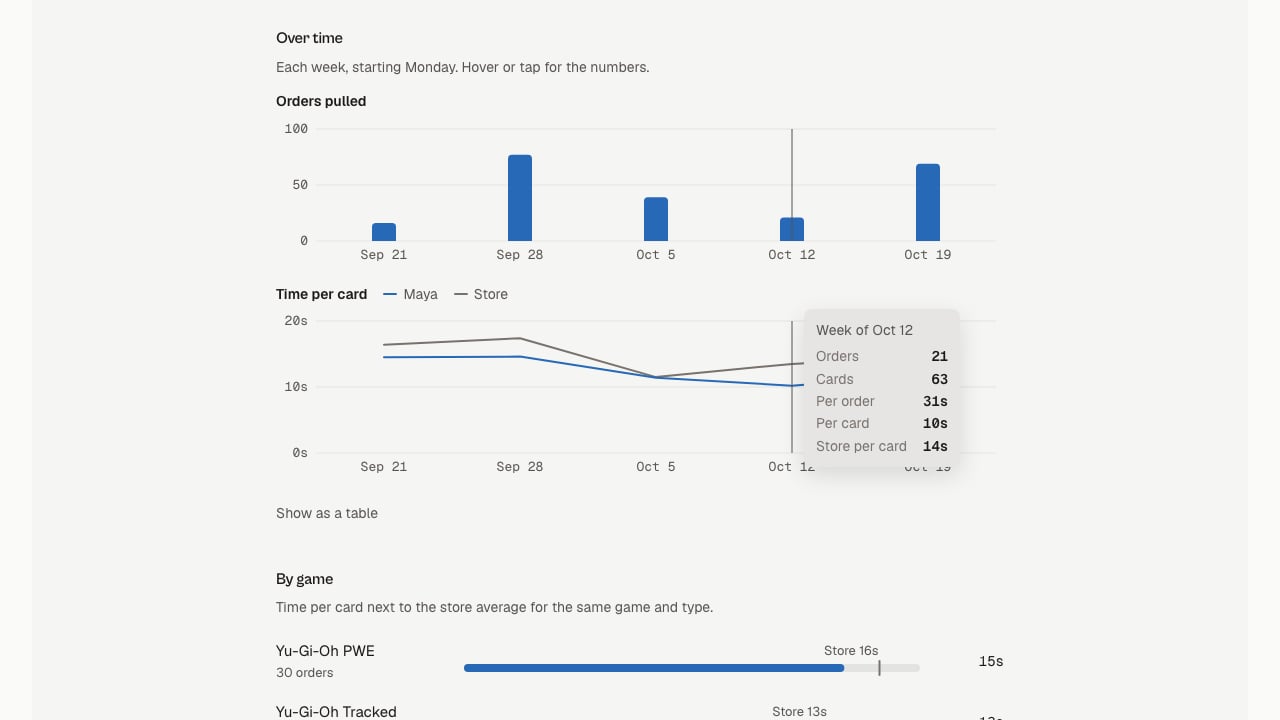
What staff see
A team member who opens Pull times sees only their own pulls, with no one else’s names. It’s a quick way for them to watch their own pace.Limits
- Timing covers a whole game queue, not each order.
- Paused time doesn’t count.
- Refunds and mis-picks aren’t linked to whoever pulled the order.
- If two people work one game, whoever taps Mark done gets the credit.