> ## Documentation Index
> Fetch the complete documentation index at: https://docs.tryhoard.com/llms.txt
> Use this file to discover all available pages before exploring further.
# Your first sync — what just happened
> A walkthrough of your dashboard after Hoard finishes its first sync.
Hoard just finished its first sync. The dashboard is full of numbers now, and you might be wondering what you're looking at. This tutorial walks through each part of the dashboard so you know what Hoard did, what it found, and what to look at first.
***
## The Today tab
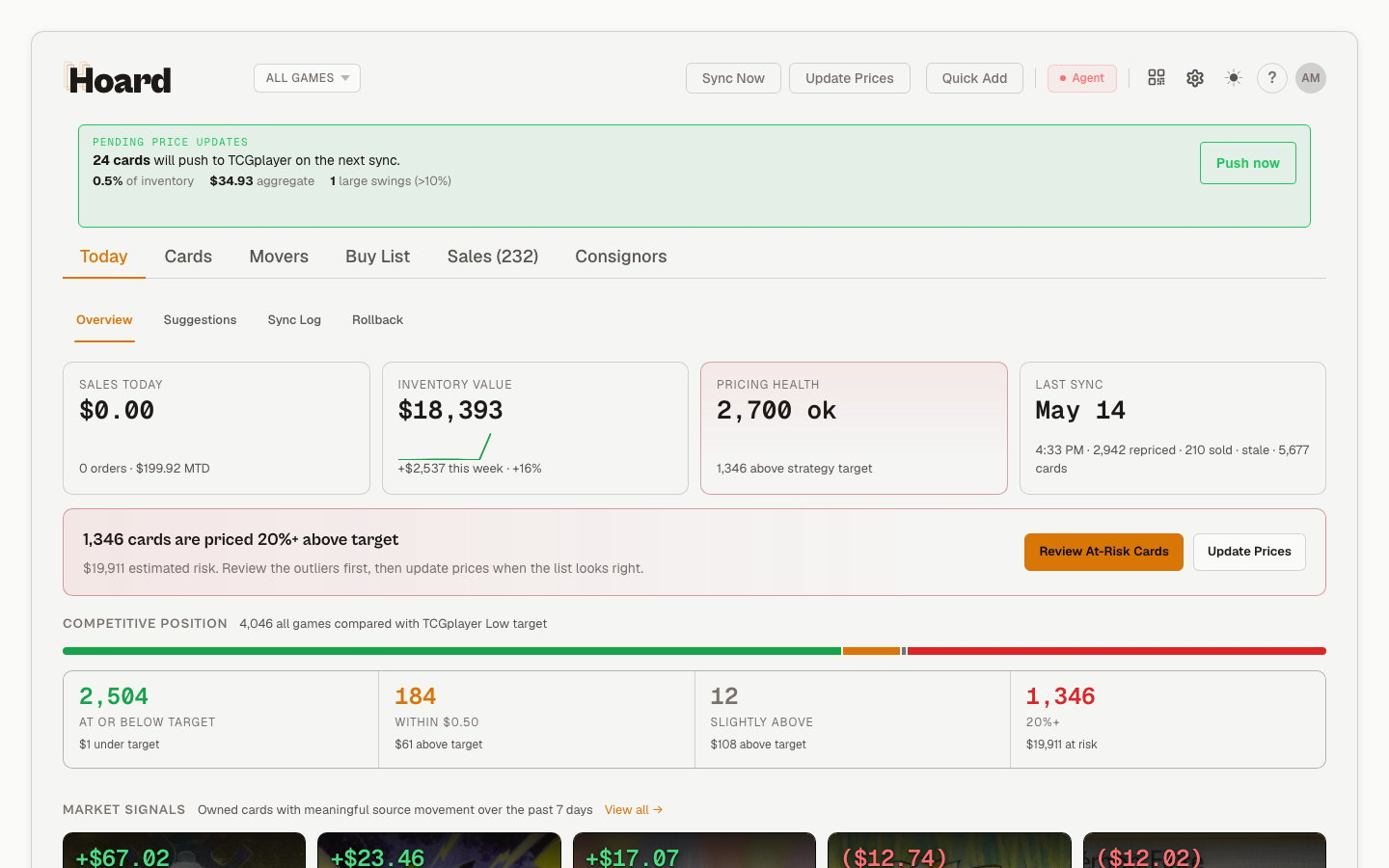
The Today tab is your morning briefing. After a sync, it answers three questions: how's my inventory doing, what changed, and is anything on fire?
 ### The stats bar (top row)
There are four cards across the top:
* **Sales Today** — revenue from today's orders, if any. Don't worry if this is \$0 after your first sync, it takes a few syncs to build up order history. The smaller line shows today's order count and your month-to-date total.
* **Inventory Value** — the total listed value of your inventory at your current prices. The smaller line shows how much that moved this week (green is up, red is down).
* **Pricing Health** — how many of your cards are priced where Hoard thinks they should be versus how many need attention.
* **Last Sync** — when Hoard last checked in with TCGplayer. Tap it to jump to the Sync Log.
### Competitive position
Below the stats, you'll see a section showing how your prices compare to the cheapest listing on TCGplayer. Check out the [competitive position tutorial](/tutorials/read-your-competitive-position) for a deep dive on reading this.
### Top movers
The cards in your inventory that moved the most in market price. These are worth looking at because they might need a price adjustment.
***
## The Sync Log
Click the **Sync Log** subtab on the Today tab to see what happened during your sync.
### The stats bar (top row)
There are four cards across the top:
* **Sales Today** — revenue from today's orders, if any. Don't worry if this is \$0 after your first sync, it takes a few syncs to build up order history. The smaller line shows today's order count and your month-to-date total.
* **Inventory Value** — the total listed value of your inventory at your current prices. The smaller line shows how much that moved this week (green is up, red is down).
* **Pricing Health** — how many of your cards are priced where Hoard thinks they should be versus how many need attention.
* **Last Sync** — when Hoard last checked in with TCGplayer. Tap it to jump to the Sync Log.
### Competitive position
Below the stats, you'll see a section showing how your prices compare to the cheapest listing on TCGplayer. Check out the [competitive position tutorial](/tutorials/read-your-competitive-position) for a deep dive on reading this.
### Top movers
The cards in your inventory that moved the most in market price. These are worth looking at because they might need a price adjustment.
***
## The Sync Log
Click the **Sync Log** subtab on the Today tab to see what happened during your sync.
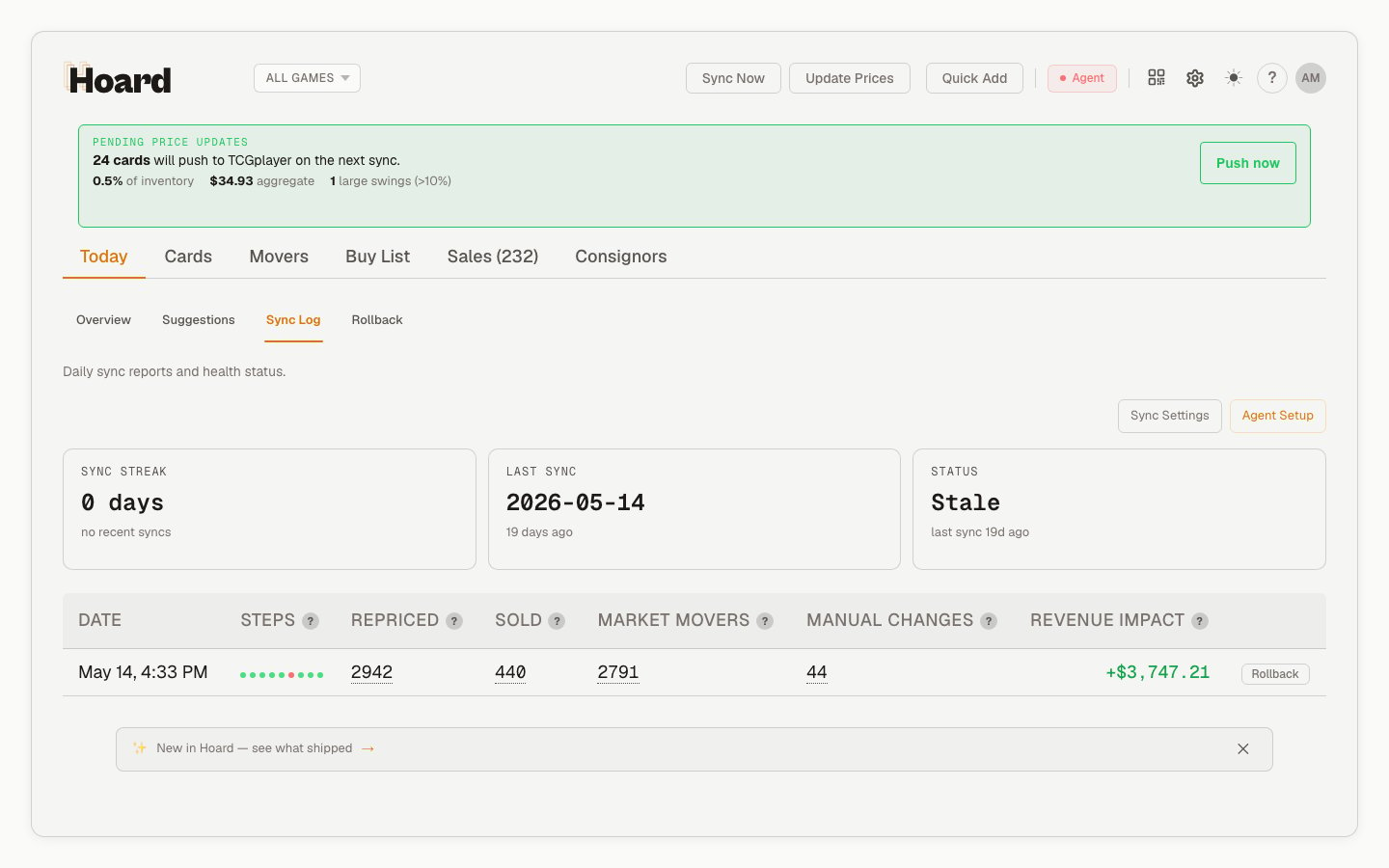 Each row is one sync cycle. Here's what the columns tell you:
| Column | What it means |
| ------------------ | -------------------------------------------------------------------------------------------------------------------------------------------- |
| **Steps** | Green dots mean each step succeeded. A red dot means something failed. Amber means a non-critical step had trouble (like feedback or sales). |
| **Repriced** | How many cards got a new target price. On your first sync this will be high (every card gets priced). |
| **Sold** | Cards that disappeared from your inventory since the last sync. On your first sync this will be 0. |
| **Market Movers** | Cards where the TCGplayer market price changed. |
| **Revenue Impact** | The net dollar effect of all price changes. Green means prices went up overall. |
| **Rollback** | Click this if you don't like what happened. It lets you undo a sync's price changes. |
***
## The Cards tab
Click the **Cards** tab to browse your full inventory.
Each row is one sync cycle. Here's what the columns tell you:
| Column | What it means |
| ------------------ | -------------------------------------------------------------------------------------------------------------------------------------------- |
| **Steps** | Green dots mean each step succeeded. A red dot means something failed. Amber means a non-critical step had trouble (like feedback or sales). |
| **Repriced** | How many cards got a new target price. On your first sync this will be high (every card gets priced). |
| **Sold** | Cards that disappeared from your inventory since the last sync. On your first sync this will be 0. |
| **Market Movers** | Cards where the TCGplayer market price changed. |
| **Revenue Impact** | The net dollar effect of all price changes. Green means prices went up overall. |
| **Rollback** | Click this if you don't like what happened. It lets you undo a sync's price changes. |
***
## The Cards tab
Click the **Cards** tab to browse your full inventory.
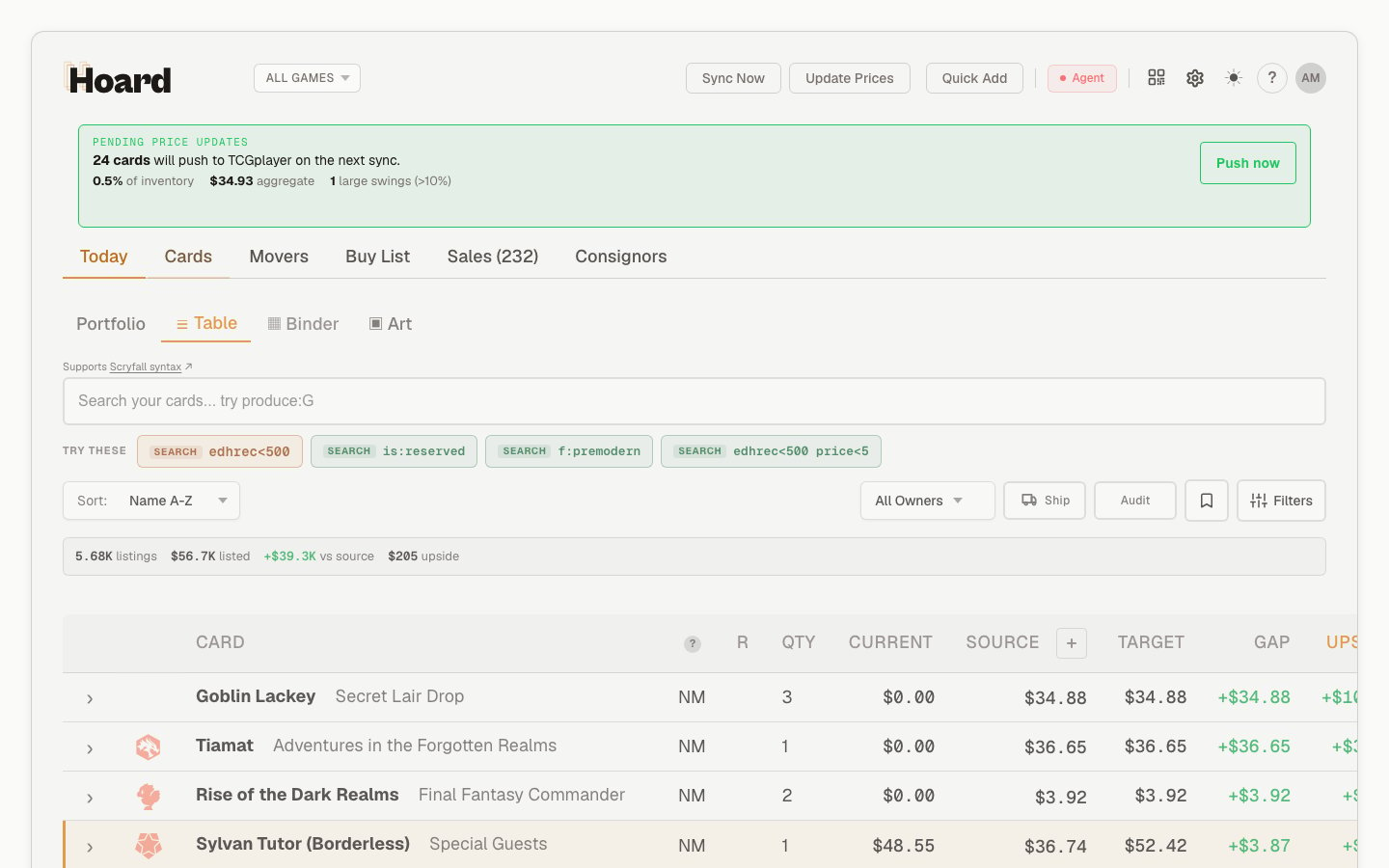 Each card shows:
* **Current** — what you're listed at on TCGplayer right now
* **Low** — the cheapest listing on TCGplayer (including shipping)
* **Market** — TCGplayer's market price
* **Target** — what Hoard thinks you should be listed at, based on your pricing strategy
* **Gap** — the difference between your current price and Hoard's target
* **Upside** — potential dollar value you could capture by adjusting to the target
Cards with a green "On Target" status are already priced where Hoard thinks they should be. Cards without that label have room to adjust.
***
## The Movers tab
The **Movers** tab shows which cards in your collection had the biggest price swings.
Each card shows:
* **Current** — what you're listed at on TCGplayer right now
* **Low** — the cheapest listing on TCGplayer (including shipping)
* **Market** — TCGplayer's market price
* **Target** — what Hoard thinks you should be listed at, based on your pricing strategy
* **Gap** — the difference between your current price and Hoard's target
* **Upside** — potential dollar value you could capture by adjusting to the target
Cards with a green "On Target" status are already priced where Hoard thinks they should be. Cards without that label have room to adjust.
***
## The Movers tab
The **Movers** tab shows which cards in your collection had the biggest price swings.
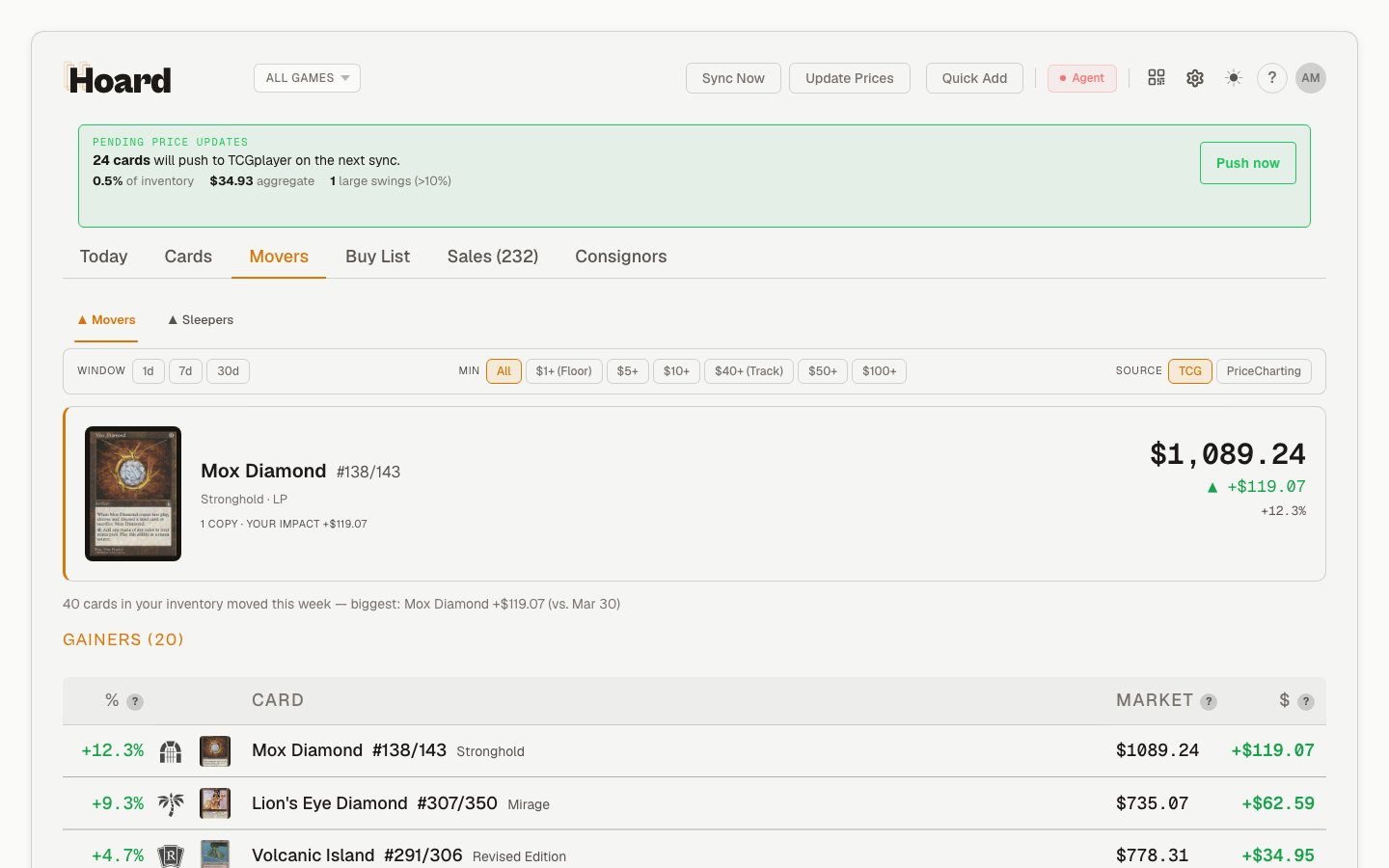 * **Gainers** — cards whose market price went up. If you have "Never Lower Prices" turned on, Hoard already raised your target to match.
* **Losers** — cards whose market price dropped. Check whether your prices should follow or hold. This is where "Never Lower Prices" protects you from market dips you don't agree with.
Use the time window toggle (1 day, 7 days, etc.) to zoom in or out.
***
## What to check first
After your first sync, here's a quick checklist:
1. **Check the Sync Log.** All green dots? Good. A red dot on a critical step means Hoard hit a problem, check the [troubleshooting guide](/troubleshooting/sync-failures).
2. **Glance at the stats bar.** Does your inventory count look right? If you have 5,000 cards on TCGplayer but Hoard shows 200, you might need to enable more product lines in [Settings > Sync](https://www.tryhoard.com/settings/sync).
3. **Scan the Cards tab for big gaps.** Sort by "Upside" to see where the biggest pricing opportunities are. If a card has a large positive gap, your price is below where Hoard thinks it should be.
4. **Check your pricing settings.** Go to [Settings > Repricing](https://www.tryhoard.com/settings/repricing) and make sure your pricing strategy matches how you want to sell. The default is the "Stay Competitive" template: it prices at market value (lifting to just under the lowest listing when competitors price higher), caps changes at 20% per sync (15% for cards under $5), keeps a $1 minimum, and won't lower your prices on its own. It's a solid starting point, but you know your business better.
***
## What happens next
Hoard will keep syncing on a schedule (every 24 hours by default, and more often on higher plans, configurable in [Settings > Sync](https://www.tryhoard.com/settings/sync)). Each sync:
* Exports your latest inventory from TCGplayer
* Uploads it to Hoard
* Runs your pricing rules
* Downloads a repricing CSV
* Imports the new prices back to TCGplayer
You can check the Sync Log anytime to see what happened. The Today tab will always show the latest numbers.
If you want to adjust prices between syncs, use the **Preview Prices** button in the toolbar. It re-runs your pricing rules against your current inventory without waiting for the next sync.
* **Gainers** — cards whose market price went up. If you have "Never Lower Prices" turned on, Hoard already raised your target to match.
* **Losers** — cards whose market price dropped. Check whether your prices should follow or hold. This is where "Never Lower Prices" protects you from market dips you don't agree with.
Use the time window toggle (1 day, 7 days, etc.) to zoom in or out.
***
## What to check first
After your first sync, here's a quick checklist:
1. **Check the Sync Log.** All green dots? Good. A red dot on a critical step means Hoard hit a problem, check the [troubleshooting guide](/troubleshooting/sync-failures).
2. **Glance at the stats bar.** Does your inventory count look right? If you have 5,000 cards on TCGplayer but Hoard shows 200, you might need to enable more product lines in [Settings > Sync](https://www.tryhoard.com/settings/sync).
3. **Scan the Cards tab for big gaps.** Sort by "Upside" to see where the biggest pricing opportunities are. If a card has a large positive gap, your price is below where Hoard thinks it should be.
4. **Check your pricing settings.** Go to [Settings > Repricing](https://www.tryhoard.com/settings/repricing) and make sure your pricing strategy matches how you want to sell. The default is the "Stay Competitive" template: it prices at market value (lifting to just under the lowest listing when competitors price higher), caps changes at 20% per sync (15% for cards under $5), keeps a $1 minimum, and won't lower your prices on its own. It's a solid starting point, but you know your business better.
***
## What happens next
Hoard will keep syncing on a schedule (every 24 hours by default, and more often on higher plans, configurable in [Settings > Sync](https://www.tryhoard.com/settings/sync)). Each sync:
* Exports your latest inventory from TCGplayer
* Uploads it to Hoard
* Runs your pricing rules
* Downloads a repricing CSV
* Imports the new prices back to TCGplayer
You can check the Sync Log anytime to see what happened. The Today tab will always show the latest numbers.
If you want to adjust prices between syncs, use the **Preview Prices** button in the toolbar. It re-runs your pricing rules against your current inventory without waiting for the next sync.