> ## Documentation Index
> Fetch the complete documentation index at: https://docs.tryhoard.com/llms.txt
> Use this file to discover all available pages before exploring further.
# Print and scan your first QR stickers
> Print a sheet of QR price stickers, stick them on your cards, and scan one to quote a live price in person.
This walks you through getting QR price stickers onto your cards: print a sheet, peel and stick, then scan one to see the live page and haggle off it. By the end you'll have a few stickered toploaders you can hand a buyer and quote from on the spot. If you want the full picture first, the [QR stickers feature page](/features/qr-stickers) covers everything; this is the do-it path.
## Step 1: Open the print sheet
Go to **Settings → Public binder tab → "QR price stickers"** and click **Open print sheet**. That prints your whole active inventory.
If you only want stickers for a specific set of cards, start from the **Cards tab** instead: filter the table down to what you want (a set, a search, your high-value cards), then open the print sheet from the **Export panel**. The sheet then carries exactly those cards, in the order they're shown. Either way there's a cap of about 200 labels per run, so filter or batch if you've got more than that.
## Step 2: Pick a style and print
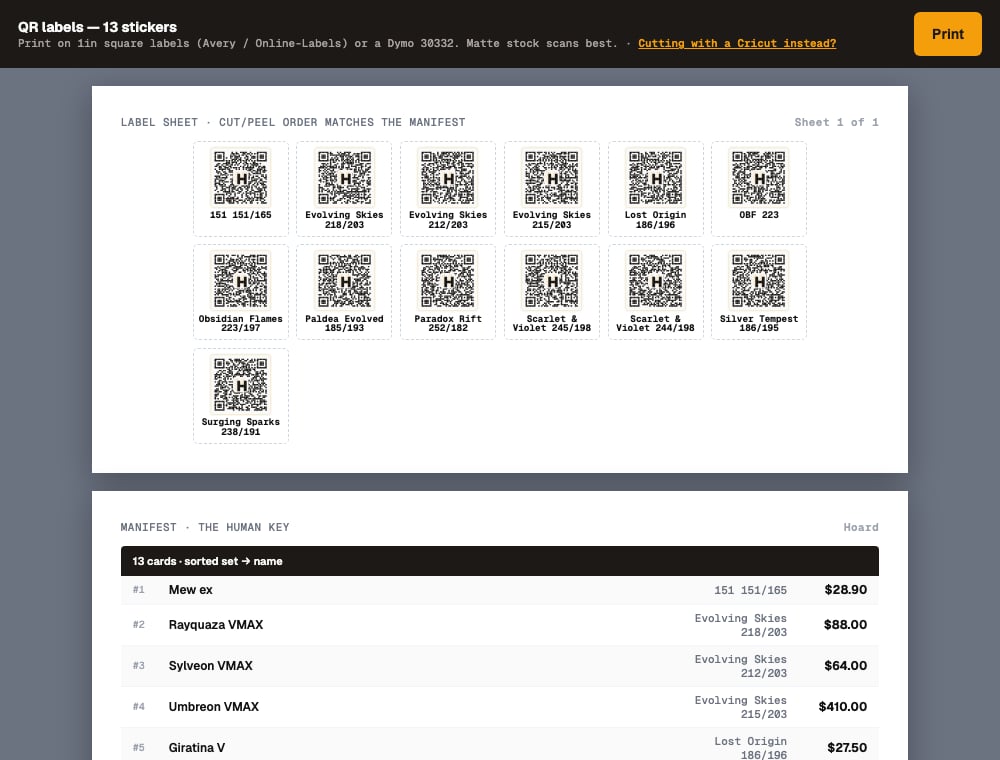
The default sheet is a 6×8 grid of 48 true 1-inch square stamps, sized for off-the-shelf 1-inch square label sheets (Avery, Online-Labels, or a Dymo 30332). Each stamp shows the QR plus a one-line set-and-number identity so you can tell cards apart before you stick them. Load your label sheet and hit **Print**.
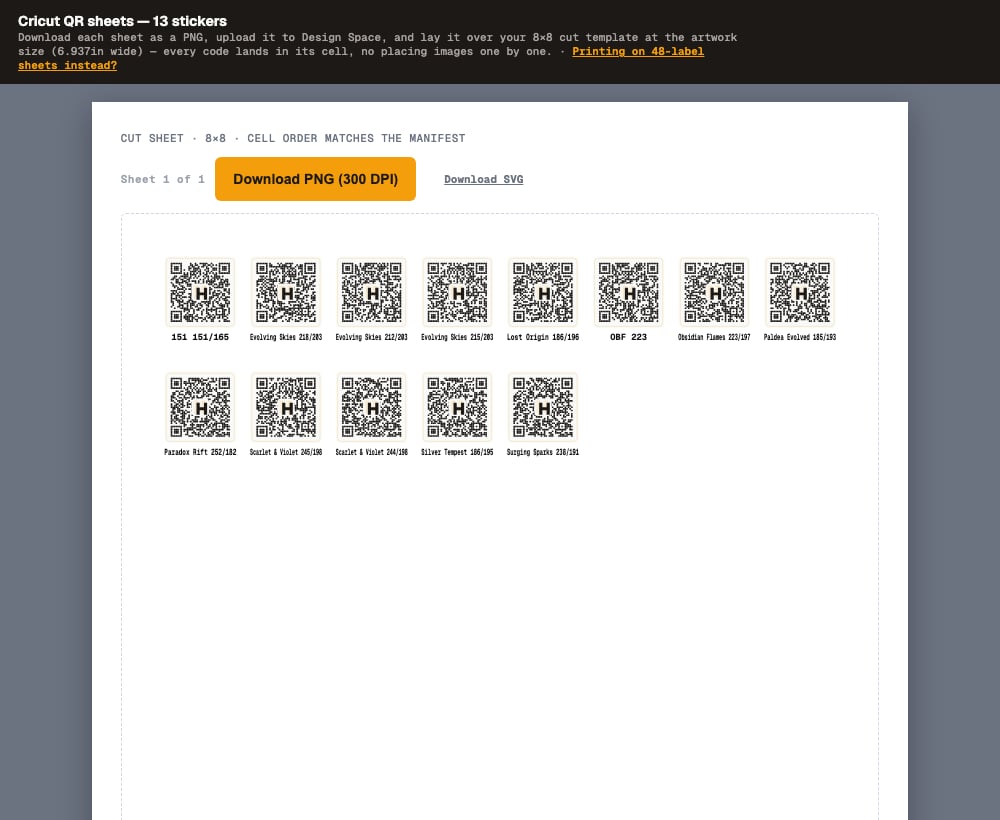
 If you cut your own stickers on a Cricut, click **Cutting with a Cricut instead?** in the toolbar. That switches to an 8×8 sheet matched to a Cricut print-then-cut template, with a one-click **Download PNG (300 DPI)** button (and a **Download SVG** option). Download the PNG, upload that one image to Design Space, and you're placing one image instead of 64 codes by hand.
 Both styles print a **manifest** page at the end, a plain table of every sticker in sheet order. Keep it next to you in the next step; it's how you match a code to the right card without scanning each one.
## Step 3: Peel and stick
Peel a sticker and stick it on the card's toploader or slab. Use the one-line identity on the stamp (and the manifest, if you're matching a stack) to put each sticker on the right card. The sticker is tiny on purpose so it doesn't cover the art.
Once it's stuck, you're done with that card for good. These stickers you printed from your own inventory are bound to that one card forever, so there's no peeling one off to move it to a different card later. When you reprice the card, run a sale on it, or move it to a different condition, the sticker keeps pointing at the same page and the page just reads your new numbers. No reprinting.
## Step 4: Scan one to see the live page
Pull out your phone and scan one of the stickers you just made. You land on the card's live scan page: card art, the card's name and identity, condition and quantity chips, and a "synced N ago" line telling you how fresh the price is.
Both styles print a **manifest** page at the end, a plain table of every sticker in sheet order. Keep it next to you in the next step; it's how you match a code to the right card without scanning each one.
## Step 3: Peel and stick
Peel a sticker and stick it on the card's toploader or slab. Use the one-line identity on the stamp (and the manifest, if you're matching a stack) to put each sticker on the right card. The sticker is tiny on purpose so it doesn't cover the art.
Once it's stuck, you're done with that card for good. These stickers you printed from your own inventory are bound to that one card forever, so there's no peeling one off to move it to a different card later. When you reprice the card, run a sale on it, or move it to a different condition, the sticker keeps pointing at the same page and the page just reads your new numbers. No reprinting.
## Step 4: Scan one to see the live page
Pull out your phone and scan one of the stickers you just made. You land on the card's live scan page: card art, the card's name and identity, condition and quantity chips, and a "synced N ago" line telling you how fresh the price is.
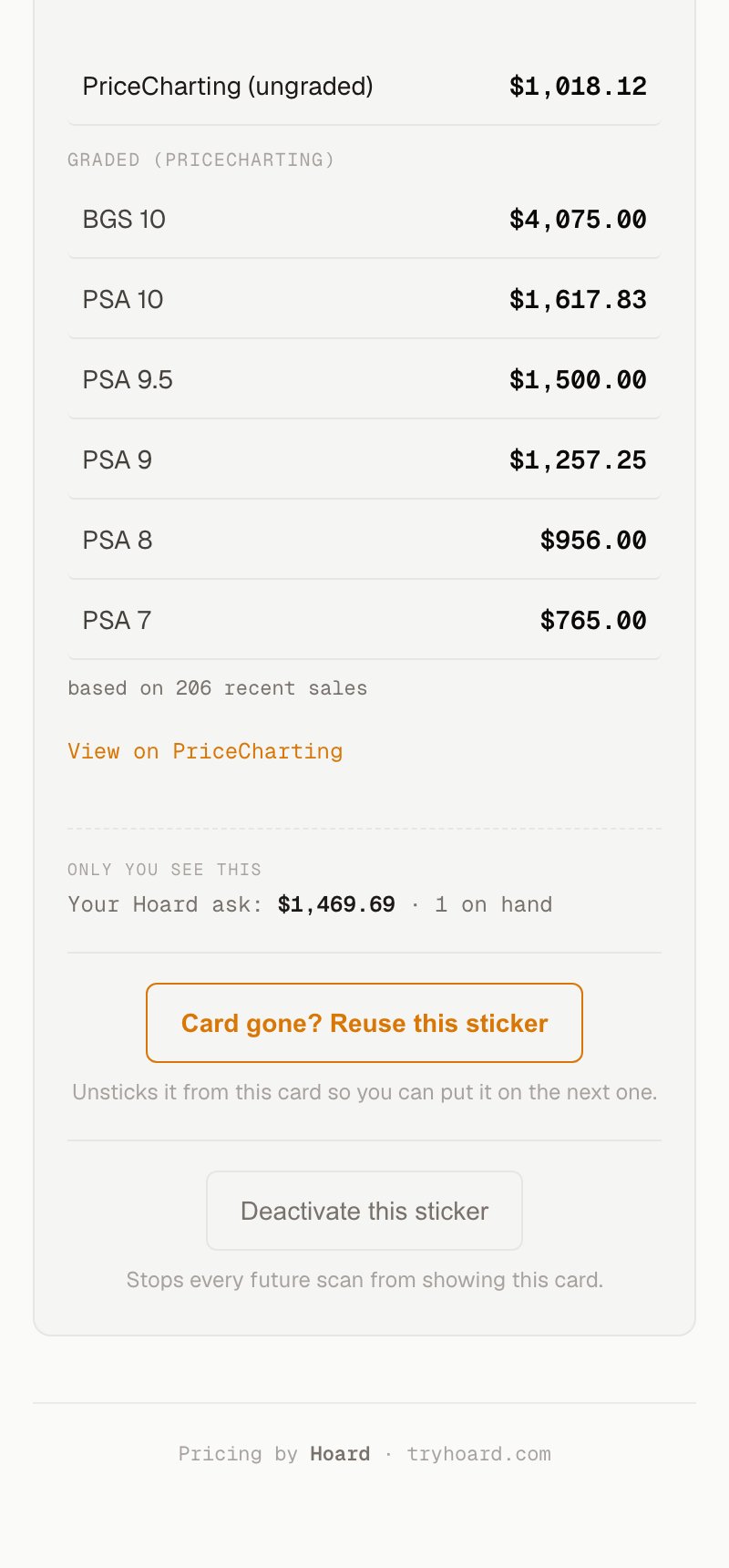
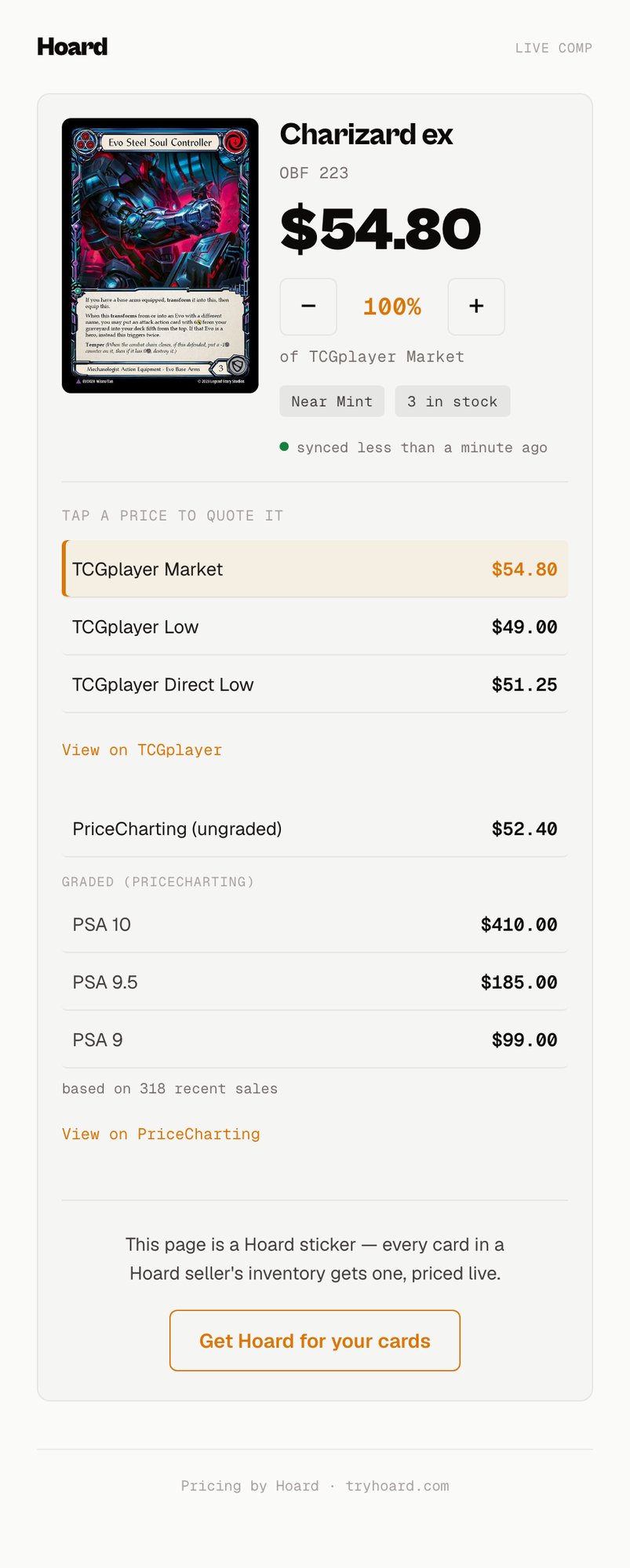 If you scan your own sticker while signed in, you'll also see a **Your Hoard ask** line with your actual listing price. That's owner-only, so a buyer scanning the same sticker never sees it; it's there so you know your floor while you quote.
## Step 5: Quote a price with the haggle dial
The big number at the top is the haggle dial: a market price with an adjustable percentage next to it. Tap − and + to step it from 25% to 200%. Want to quote 85% of market? Step it down to 85% and say the number it shows. The buyer never sees your own ask, just the figure you choose to quote.
To quote off a different comp, tap one of the prices in the list. Tap **Low** and the dial re-bases on TCGplayer Low, relabels itself "of Low," and recomputes at your current percentage. The row you're quoting off highlights amber. The TCGplayer rows, the PriceCharting ungraded row, and (for graded Pokemon) each PSA/BGS grade line are all tappable, each grade on its own line so you're never quoting off a blended number.
Need to double-check the source? Tap **View on TCGplayer** and you land on the exact product and variant, not a search you'd have to dig through.
## Step 6: Preview a card with View QR page
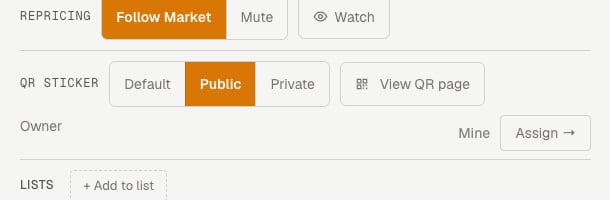
You don't have to print a sticker to see its scan page. Go to any card's detail panel, find the **QR sticker** row, and click **View QR page**. Hoard opens that card's scan page exactly as a buyer would see it, minting the code on the spot if you've never printed it. Use this to sanity-check a card's comps before you commit a sheet to paper, or to jump straight from a card in your dashboard to its sticker page.
If you scan your own sticker while signed in, you'll also see a **Your Hoard ask** line with your actual listing price. That's owner-only, so a buyer scanning the same sticker never sees it; it's there so you know your floor while you quote.
## Step 5: Quote a price with the haggle dial
The big number at the top is the haggle dial: a market price with an adjustable percentage next to it. Tap − and + to step it from 25% to 200%. Want to quote 85% of market? Step it down to 85% and say the number it shows. The buyer never sees your own ask, just the figure you choose to quote.
To quote off a different comp, tap one of the prices in the list. Tap **Low** and the dial re-bases on TCGplayer Low, relabels itself "of Low," and recomputes at your current percentage. The row you're quoting off highlights amber. The TCGplayer rows, the PriceCharting ungraded row, and (for graded Pokemon) each PSA/BGS grade line are all tappable, each grade on its own line so you're never quoting off a blended number.
Need to double-check the source? Tap **View on TCGplayer** and you land on the exact product and variant, not a search you'd have to dig through.
## Step 6: Preview a card with View QR page
You don't have to print a sticker to see its scan page. Go to any card's detail panel, find the **QR sticker** row, and click **View QR page**. Hoard opens that card's scan page exactly as a buyer would see it, minting the code on the spot if you've never printed it. Use this to sanity-check a card's comps before you commit a sheet to paper, or to jump straight from a card in your dashboard to its sticker page.
 ## Step 7 (optional): open one card or lock another
By default your stickers are private, so a stranger who scans one hits a sign-in wall and sees nothing. To open everything up, flip **Public stickers** on under Settings → Public binder.
More often you'll want to open just one card. On that same card detail panel, use the **Default / Public / Private** control:
* Set a chase card to **Public** to open it while the rest of your inventory stays private.
* Set a card to **Private** to lock it even when your account default is public.
## Step 8 (blank stickers only): reuse one when the card sells
If you're working with a **blank claimable sticker** (one you scanned and claimed, not one you printed from your inventory), you can put it back to work after the card sells. The stickers you printed in Step 2 are bound to one card forever and can't be reassigned; this step is for the reusable pool codes only.
Scan the blank sticker on the sold card. You'll see an owner view at the bottom with a **Card gone? Reuse this sticker** button. Tap it. That unsticks the code from the sold card and drops you back into the assign flow, where you scope to a list, search, and tap the next card to put it on. The same physical sticker now rides the next card. Between the two, anyone who scans sees the private wall, never the old sold card, so the hand-off is always clean and deliberate.
## Step 7 (optional): open one card or lock another
By default your stickers are private, so a stranger who scans one hits a sign-in wall and sees nothing. To open everything up, flip **Public stickers** on under Settings → Public binder.
More often you'll want to open just one card. On that same card detail panel, use the **Default / Public / Private** control:
* Set a chase card to **Public** to open it while the rest of your inventory stays private.
* Set a card to **Private** to lock it even when your account default is public.
## Step 8 (blank stickers only): reuse one when the card sells
If you're working with a **blank claimable sticker** (one you scanned and claimed, not one you printed from your inventory), you can put it back to work after the card sells. The stickers you printed in Step 2 are bound to one card forever and can't be reassigned; this step is for the reusable pool codes only.
Scan the blank sticker on the sold card. You'll see an owner view at the bottom with a **Card gone? Reuse this sticker** button. Tap it. That unsticks the code from the sold card and drops you back into the assign flow, where you scope to a list, search, and tap the next card to put it on. The same physical sticker now rides the next card. Between the two, anyone who scans sees the private wall, never the old sold card, so the hand-off is always clean and deliberate.
 ## What's next
That's the whole loop: print once, stick once, and the scanned page stays current forever, plus the reusable blank-code variant when you want one sticker to outlive a single card. To go deeper on the dial, the comps, the grade matrix, claiming blank codes, and the privacy model, read the [QR price stickers feature page](/features/qr-stickers). And if you want to share your collection online instead of card-by-card in person, [the public binder](/features/public-binder) is the matching online surface.
## What's next
That's the whole loop: print once, stick once, and the scanned page stays current forever, plus the reusable blank-code variant when you want one sticker to outlive a single card. To go deeper on the dial, the comps, the grade matrix, claiming blank codes, and the privacy model, read the [QR price stickers feature page](/features/qr-stickers). And if you want to share your collection online instead of card-by-card in person, [the public binder](/features/public-binder) is the matching online surface.