> ## Documentation Index
> Fetch the complete documentation index at: https://docs.tryhoard.com/llms.txt
> Use this file to discover all available pages before exploring further.
# Sync Issues
> Common problems with Hoard Desktop and Hoard Agent, and how to fix them.
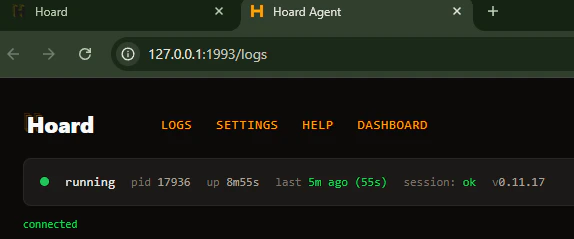
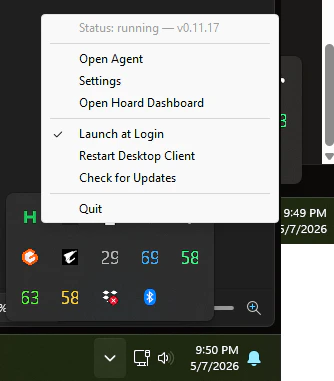
If you use Hoard Desktop, start troubleshooting from the local Agent page. Open it from the tray menu with **Open Agent Logs**.
 ## Hoard connects but never syncs
The status shows "Waiting: no\_sync\_needed" repeatedly.
**Cause:** The server hasn't scheduled a sync yet, or auto-sync is paused.
**Fix:**
1. Go to [Settings → Sync](https://www.tryhoard.com/settings/sync) and make sure Automatic Sync is **On**
2. Click **Sync Now** on the [Dashboard](https://www.tryhoard.com/dashboard) to trigger a manual sync
3. Check your Sync Frequency setting (default: every 24 hours, once daily)
In Hoard Desktop, the same page may show `running`, `session: ok`, and `Waiting - no sync needed right now`. That means Hoard is healthy and simply has not been asked to sync yet.
## Hoard connects but never syncs
The status shows "Waiting: no\_sync\_needed" repeatedly.
**Cause:** The server hasn't scheduled a sync yet, or auto-sync is paused.
**Fix:**
1. Go to [Settings → Sync](https://www.tryhoard.com/settings/sync) and make sure Automatic Sync is **On**
2. Click **Sync Now** on the [Dashboard](https://www.tryhoard.com/dashboard) to trigger a manual sync
3. Check your Sync Frequency setting (default: every 24 hours, once daily)
In Hoard Desktop, the same page may show `running`, `session: ok`, and `Waiting - no sync needed right now`. That means Hoard is healthy and simply has not been asked to sync yet.
 ## "Permission denied" on Mac
```
zsh: permission denied: ./hoard-agent
```
**Fix:** Make the binary executable:
```bash theme={null}
chmod +x hoard-agent
```
## macOS blocks the app ("unidentified developer")
macOS blocks apps not from the App Store. This affects both Hoard Desktop and the Hoard Agent binary.
**Fix 1 — right-click method (no Terminal needed):** Right-click (or Control-click) the file, choose **Open**, then click **Open** again. You only need to do this once.
**Fix 2 — Terminal:** Replace `hoard-desktop` with your actual filename if it differs.
```bash theme={null}
xattr -d com.apple.quarantine ~/Downloads/hoard-desktop
chmod +x ~/Downloads/hoard-desktop
```
For the Hoard Agent binary, swap in `hoard-agent` instead:
```bash theme={null}
xattr -d com.apple.quarantine hoard-agent
chmod +x hoard-agent
```
**Fix 3:** System Settings → Privacy & Security → scroll down → click **Allow Anyway** after the first blocked attempt.
## Windows SmartScreen blocks the app
**Fix:** Click **More info**, then **Run anyway**. This only happens on the first run.
## "Chrome not found" or browser errors
Hoard uses Chrome for automation. If Chrome isn't installed, it downloads Chromium automatically.
If the auto-download fails:
1. Install [Google Chrome](https://www.google.com/chrome/) manually
2. Restart Hoard
## Hoard crashes or exits immediately
Check the error messages for the cause. If you run the agent from the command line, the errors print in the terminal. On Hoard Desktop, open the tray menu and choose **Open Agent Logs** to see them. Common causes:
| Error | Cause | Fix |
| --------------------------- | --------------------- | --------------------------------------------------------------------------------- |
| `HOARD_API_URL is required` | Missing `.env` file | Create `.env` with your config |
| `HOARD_API_KEY is required` | Missing API key | Add your key from [Settings → Account](https://www.tryhoard.com/settings/account) |
| `launch browser: ...` | Chrome/Chromium issue | Install Chrome or check disk space |
For Hoard Desktop, use the tray menu if you need to restart the app itself.
## "Permission denied" on Mac
```
zsh: permission denied: ./hoard-agent
```
**Fix:** Make the binary executable:
```bash theme={null}
chmod +x hoard-agent
```
## macOS blocks the app ("unidentified developer")
macOS blocks apps not from the App Store. This affects both Hoard Desktop and the Hoard Agent binary.
**Fix 1 — right-click method (no Terminal needed):** Right-click (or Control-click) the file, choose **Open**, then click **Open** again. You only need to do this once.
**Fix 2 — Terminal:** Replace `hoard-desktop` with your actual filename if it differs.
```bash theme={null}
xattr -d com.apple.quarantine ~/Downloads/hoard-desktop
chmod +x ~/Downloads/hoard-desktop
```
For the Hoard Agent binary, swap in `hoard-agent` instead:
```bash theme={null}
xattr -d com.apple.quarantine hoard-agent
chmod +x hoard-agent
```
**Fix 3:** System Settings → Privacy & Security → scroll down → click **Allow Anyway** after the first blocked attempt.
## Windows SmartScreen blocks the app
**Fix:** Click **More info**, then **Run anyway**. This only happens on the first run.
## "Chrome not found" or browser errors
Hoard uses Chrome for automation. If Chrome isn't installed, it downloads Chromium automatically.
If the auto-download fails:
1. Install [Google Chrome](https://www.google.com/chrome/) manually
2. Restart Hoard
## Hoard crashes or exits immediately
Check the error messages for the cause. If you run the agent from the command line, the errors print in the terminal. On Hoard Desktop, open the tray menu and choose **Open Agent Logs** to see them. Common causes:
| Error | Cause | Fix |
| --------------------------- | --------------------- | --------------------------------------------------------------------------------- |
| `HOARD_API_URL is required` | Missing `.env` file | Create `.env` with your config |
| `HOARD_API_KEY is required` | Missing API key | Add your key from [Settings → Account](https://www.tryhoard.com/settings/account) |
| `launch browser: ...` | Chrome/Chromium issue | Install Chrome or check disk space |
For Hoard Desktop, use the tray menu if you need to restart the app itself.
 ## "Cooling down after failure" message
When Hoard hits a failure during sync, it doesn't immediately retry. Instead, it waits a bit before trying again to avoid hammering a broken step repeatedly:
| Consecutive failures | Wait time |
| -------------------- | ---------- |
| 1 | 5 minutes |
| 2 | 10 minutes |
| 3 or more | 30 minutes |
You'll see a log message like `Cooling down after failure (5m0s)` in the logs (in the terminal if you run from the command line, or under **Open Agent Logs** on Hoard Desktop). This is normal. Hoard is giving TCGplayer (or your network) time to recover before retrying.
The counter resets after a successful sync. If you've fixed the underlying issue and don't want to wait, just restart Hoard.
## Debug screenshots on failure
When something goes wrong during a sync step, Hoard automatically captures **before and after screenshots** of the browser and uploads them to the server. These help our support team see exactly what Hoard was looking at when it failed (a CAPTCHA page, a changed layout, an error message, etc.).
You don't need to do anything -- this happens automatically. If you contact support about a sync issue, we can look up these screenshots to help troubleshoot.
## Hoard is running but dashboard shows "Offline"
The dashboard tracks when Hoard last checked in. If Hoard is running but shows offline:
1. Check the logs for errors (Hoard may be crashing on heartbeat) — the terminal if you run from the command line, or **Open Agent Logs** on Hoard Desktop
2. Verify your `HOARD_API_URL` is correct (`https://www.tryhoard.com`)
3. Check your internet connection
4. Verify your API key is valid (check [Settings → Account](https://www.tryhoard.com/settings/account))
## "Cooling down after failure" message
When Hoard hits a failure during sync, it doesn't immediately retry. Instead, it waits a bit before trying again to avoid hammering a broken step repeatedly:
| Consecutive failures | Wait time |
| -------------------- | ---------- |
| 1 | 5 minutes |
| 2 | 10 minutes |
| 3 or more | 30 minutes |
You'll see a log message like `Cooling down after failure (5m0s)` in the logs (in the terminal if you run from the command line, or under **Open Agent Logs** on Hoard Desktop). This is normal. Hoard is giving TCGplayer (or your network) time to recover before retrying.
The counter resets after a successful sync. If you've fixed the underlying issue and don't want to wait, just restart Hoard.
## Debug screenshots on failure
When something goes wrong during a sync step, Hoard automatically captures **before and after screenshots** of the browser and uploads them to the server. These help our support team see exactly what Hoard was looking at when it failed (a CAPTCHA page, a changed layout, an error message, etc.).
You don't need to do anything -- this happens automatically. If you contact support about a sync issue, we can look up these screenshots to help troubleshoot.
## Hoard is running but dashboard shows "Offline"
The dashboard tracks when Hoard last checked in. If Hoard is running but shows offline:
1. Check the logs for errors (Hoard may be crashing on heartbeat) — the terminal if you run from the command line, or **Open Agent Logs** on Hoard Desktop
2. Verify your `HOARD_API_URL` is correct (`https://www.tryhoard.com`)
3. Check your internet connection
4. Verify your API key is valid (check [Settings → Account](https://www.tryhoard.com/settings/account))