> ## Documentation Index
> Fetch the complete documentation index at: https://docs.tryhoard.com/llms.txt
> Use this file to discover all available pages before exploring further.
# Settings
> Everything on the Settings page: sync, pricing, rules, public binder, account, and notifications.
The Settings page has eight tabs: Account, Assistants, Billing, Notifications, Public binder, Repricing, Rules, and Sync. Here's what each one does and when you'd change things.
Go to [Settings](https://www.tryhoard.com/settings) from the gear icon in the dashboard header, or from the "Settings" link in Hoard Desktop. It lands on the Repricing tab by default.
***
## Sync
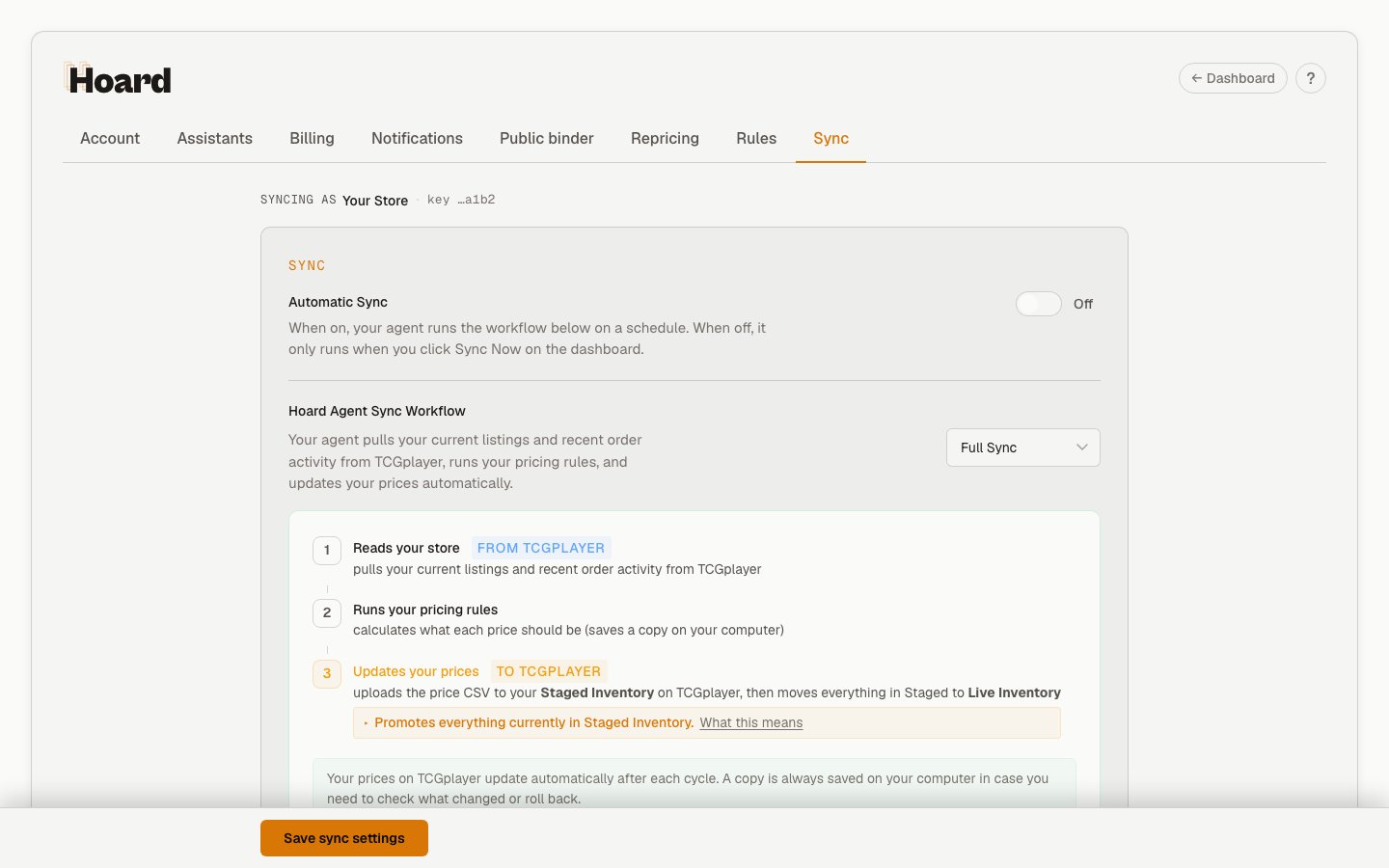 Controls how and when Hoard syncs your inventory. The **Automatic Sync** master toggle sits at the top — turn the whole thing off in one click, and use the pause-duration buttons (1 hour, 4 hours, 24 hours, or Until I resume) when you want a temporary break without forgetting to turn it back on.
### Sync frequency
How often Hoard checks in and syncs. Options: every 4, 8, 12, or 24 hours (default: 24, once daily). How often you can sync also depends on your plan. Hoard must be running on your computer for syncs to happen. If it's off during a scheduled sync, it picks up on the next check-in.
Use **Preferred Sync Hour** when you want the cadence anchored to a local wall-clock time. Use **Quiet Window** to block scheduled syncs during a buying rush or shipping block. Use **Days of Week** if you only want Hoard to sync on certain days. The next-sync preview below those controls shows the next eligible time after your cadence, quiet window, day mask, pause state, and timezone are applied.
### Product lines
Choose which games show up on your dashboard. Hoard pins games already detected in your inventory, keeps the common games close at hand, and gives you a search box for the longer TCGplayer game list.
You can also choose which product groups Hoard is allowed to reprice. Unchecked games still sync and stay visible, but Hoard does not touch their prices. Sealed products and accessories have separate toggles.
### Import historical data
Three import controls for pulling in older data from TCGplayer:
* **Orders** — pick a start year (2020 or later) and Hoard backfills your order history in yearly chunks
* **Feedback** — pulls all your buyer feedback ratings
* **Sales** — pick how many months back (up to 24) and Hoard backfills monthly sales reports
Each one shows a progress bar while running. Imports happen between sync cycles so they don't interrupt your regular pricing updates.
***
## Repricing
Controls how and when Hoard syncs your inventory. The **Automatic Sync** master toggle sits at the top — turn the whole thing off in one click, and use the pause-duration buttons (1 hour, 4 hours, 24 hours, or Until I resume) when you want a temporary break without forgetting to turn it back on.
### Sync frequency
How often Hoard checks in and syncs. Options: every 4, 8, 12, or 24 hours (default: 24, once daily). How often you can sync also depends on your plan. Hoard must be running on your computer for syncs to happen. If it's off during a scheduled sync, it picks up on the next check-in.
Use **Preferred Sync Hour** when you want the cadence anchored to a local wall-clock time. Use **Quiet Window** to block scheduled syncs during a buying rush or shipping block. Use **Days of Week** if you only want Hoard to sync on certain days. The next-sync preview below those controls shows the next eligible time after your cadence, quiet window, day mask, pause state, and timezone are applied.
### Product lines
Choose which games show up on your dashboard. Hoard pins games already detected in your inventory, keeps the common games close at hand, and gives you a search box for the longer TCGplayer game list.
You can also choose which product groups Hoard is allowed to reprice. Unchecked games still sync and stay visible, but Hoard does not touch their prices. Sealed products and accessories have separate toggles.
### Import historical data
Three import controls for pulling in older data from TCGplayer:
* **Orders** — pick a start year (2020 or later) and Hoard backfills your order history in yearly chunks
* **Feedback** — pulls all your buyer feedback ratings
* **Sales** — pick how many months back (up to 24) and Hoard backfills monthly sales reports
Each one shows a progress bar while running. Imports happen between sync cycles so they don't interrupt your regular pricing updates.
***
## Repricing
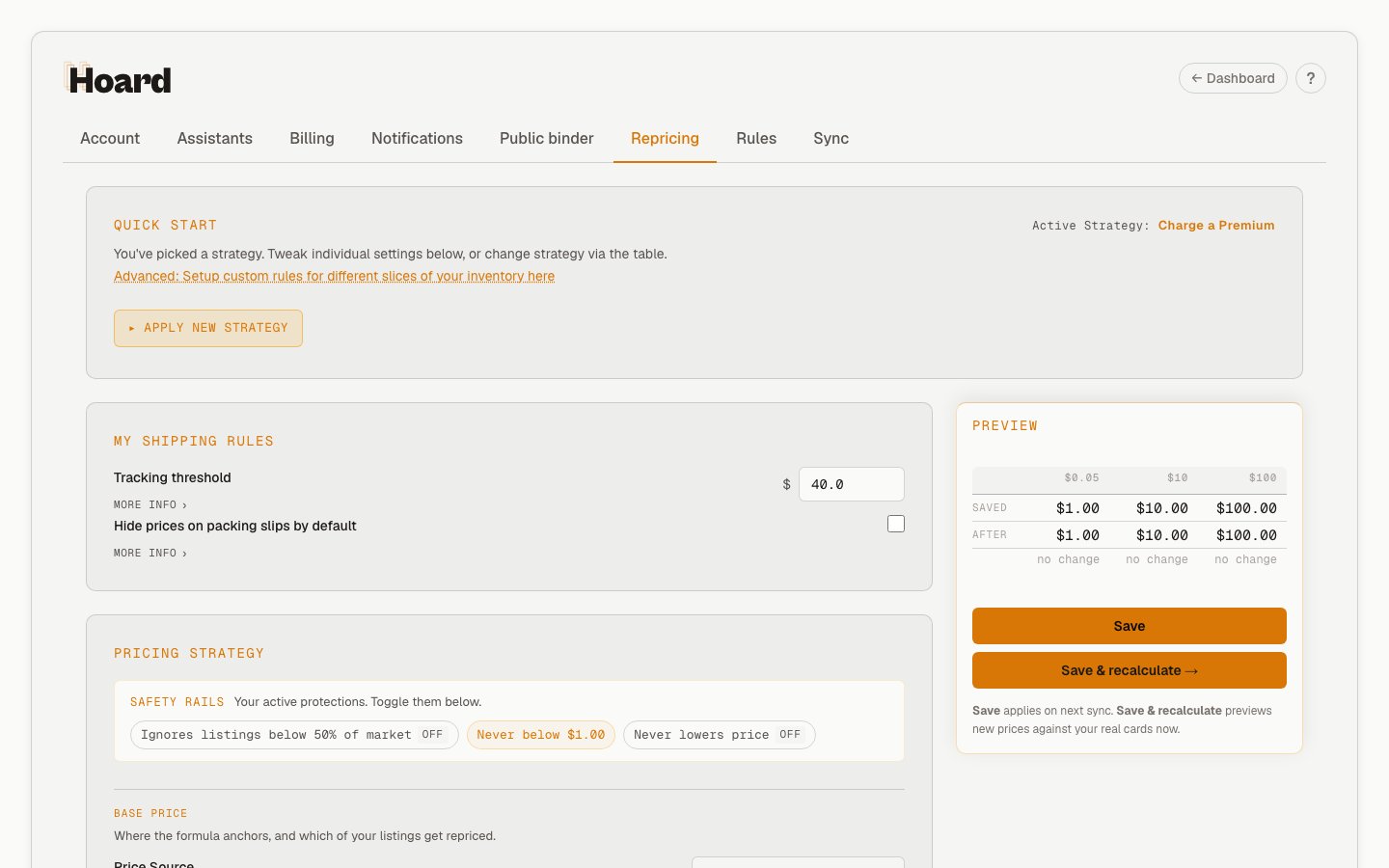 Your pricing strategy. Changes here take effect on the next sync, or immediately if you click **Save & recalculate** in the sticky footer (which previews new prices against your real cards now). **Save** alone applies on the next sync.
### Quick Start templates
Four one-click starting points. Once a strategy is active, the comparison table collapses by default and shows your active strategy as a chip; tap **Apply New Strategy** to expand the table again. You can also click any column header in the table to apply that template — same as clicking the per-column Apply button.
* **Charge a Premium** — market price + 5% cushion, never lower prices on, floor-aware at 95%, 15% change cap (10% for cards under \$5). For patient sellers who'd rather miss a sale than leave money on the table.
* **Stay Competitive** — market price, never lower prices on, floor-aware at 99% (undercuts the lowest listing by 1%), 20% change cap (15% for cards under \$5). For most sellers — match the market without leading the race.
* **Move Product** — low price, 25% change cap on staples but cheap cards swing freely (50% cap under \$5), velocity decay on (stale cards get a small weekly drop). For clearing inventory.
* **Win the Buy Box** — low + shipping × 0.98, velocity boost on (fast-sellers get bumped), 30% change cap on staples, 50% for cheap cards. For aggressive sellers.
Pick a template, then tweak individual settings below. The full breakdown — what each lever does, when to override the default — is on the [Repricing](/features/pricing) page.
### Price source
Which TCGplayer price to use as the base for all calculations. Market Price (default) uses the volume-weighted average of recent sales. Low + Shipping uses the lowest current listing. See [Price source](/features/pricing#price-source) for details.
### Price markup
Percentage above your chosen price source. Options: 0% to 50%.
### Custom listing price updates
Whether Hoard includes your TCGplayer photo listings and custom listings in pricing. On by default. Turn off if you have graded or specialty listings with manually set prices you don't want Hoard to touch.
### Never lower prices
When on, prices only go up. Protects against temporary market dips, bot-driven crashes, and fire sales by other sellers. Turn off for liquidation strategies.
### Minimum card price (floor)
The lowest price Hoard will set for any card. Default \$1.00. The floor keeps low-value cards at a price that covers your time and shipping, and makes your store attractive for TCGplayer's cart optimizer (which routes buyers to sellers who can fill orders efficiently).
### Lowest listing awareness
When enabled, Hoard prices near the lowest competitor listing instead of undercutting it when your formula would put you below the floor. Ignores suspicious listings below 50% of market to filter out bots. The control is framed as **"Undercut the lowest listing by N%"** — 1% means a single tick below, 5% is the default, 20% is an aggressive undercut.
### Shipping rules
My Shipping Rules sits above Pricing Strategy because the tracking threshold and shipping adder both feed the price preview math. Set your tracking threshold (the dollar amount above which you ship with tracking) and the shipping cost adder (off by default, but onboarding flips it on automatically for sellers who picked "I ship orders myself"). See [Shipping cost adder](/features/pricing#shipping-cost-adder) for details.
### Sales velocity
When enabled, cards that sell quickly get a small price bump (fast sellers), and cards sitting for a long time get a small reduction (stale prices). Both toggles are independent. See [Velocity pricing](/features/velocity-pricing).
### Price change safety
Caps how much any card's price can change per sync. Separate caps for cards above and below \$5. Choose hold (skip the change entirely) or clamp (limit to the max percentage). Off by default. See [Price change safety](/features/pricing#price-change-safety).
### Saving changes
The pricing footer is sticky and bundles the live preview alongside two save actions:
* **Save** — writes the new strategy. It applies on your next sync.
* **Save & recalculate** — writes the strategy and immediately previews the new prices against your real cards, so you can see what will happen before the next sync runs.
***
## Rules
Per-card pricing rules created from bookmarked searches. Each rule has its own multiplier, price source, floor behavior, and never-go-down setting. Rules are evaluated top to bottom — first enabled match wins.
The **New pricing rule** wizard sits inside its own tinted panel so it's visually distinct from your saved rules. Rule queries wrap onto a second line if needed rather than truncating to a stub, and the rarity dropdown groups by friendly labels (Land, Token) instead of leaking single-letter rarity codes.
Game pills (Pokémon, Magic, One Piece, etc.) appear next to each rule so you can scan a long rule list and spot which product line each one targets.
See [Pricing rules](/features/pricing#pricing-rules) for the full reference, and the [pin and price tutorial](/tutorials/pin-and-price-reserved-list) for a walkthrough.
***
## Public binder
Publish a shareable URL with your top cards. Buyers see image, name, set, and condition — no prices — and click through to your TCGplayer listings. Manage the publish/expiry/indexable settings here; reset or suspend the URL from the Danger zone at the bottom of the tab.
Full reference: [Share your binder](/features/public-binder).
***
## Account
### Profile
Your email, timezone, and password. Your timezone sets which calendar day an order counts on across your sales reports, the Customers list, and the orders timeline, and it controls when your morning digest is delivered.
### API key
Your API key for Hoard. Click to reveal and copy. Treat it like a password. There's no self-serve rotate or regenerate button, so if you need to rotate or revoke a key, contact support.
### Danger Zone
A card at the bottom of the Account tab for irreversible actions, kept visually separate so you don't hit it by accident.
* **Delete account** — permanently removes your account and all data. This cannot be undone.
***
## Assistants
Connect and manage AI assistants that talk to Hoard over MCP. Each assistant you've connected shows up here as its own row, and you can disconnect any of them with one click — revoking a connection cuts off its access right away.
This tab is also where you enable or disable agent permissions: a single toggle plus a read-only view of what the agent is allowed to do. When permissions are off, connected assistants can read your store but can't request changes. There's no per-action permission editor yet (it's on the roadmap), and the activity log is available through the API rather than as a page here.
***
## Notifications
Email digests and sync alerts.
* **Daily Digest** — a morning email with overnight sync results, orders, price changes, and top movers. Toggle on or off.
* **Weekly Digest** — a Monday summary with 7-day sales, inventory value shift, and top movers. Toggle on or off.
* **Delivery Time** — pick what hour to send your digests in your local timezone. Options run from 5:00 AM to 11:00 AM (default 7:00 AM).
* **Hoard Offline Alert** — emails you if Hoard hasn't checked in for 24 hours. Always on.
Your pricing strategy. Changes here take effect on the next sync, or immediately if you click **Save & recalculate** in the sticky footer (which previews new prices against your real cards now). **Save** alone applies on the next sync.
### Quick Start templates
Four one-click starting points. Once a strategy is active, the comparison table collapses by default and shows your active strategy as a chip; tap **Apply New Strategy** to expand the table again. You can also click any column header in the table to apply that template — same as clicking the per-column Apply button.
* **Charge a Premium** — market price + 5% cushion, never lower prices on, floor-aware at 95%, 15% change cap (10% for cards under \$5). For patient sellers who'd rather miss a sale than leave money on the table.
* **Stay Competitive** — market price, never lower prices on, floor-aware at 99% (undercuts the lowest listing by 1%), 20% change cap (15% for cards under \$5). For most sellers — match the market without leading the race.
* **Move Product** — low price, 25% change cap on staples but cheap cards swing freely (50% cap under \$5), velocity decay on (stale cards get a small weekly drop). For clearing inventory.
* **Win the Buy Box** — low + shipping × 0.98, velocity boost on (fast-sellers get bumped), 30% change cap on staples, 50% for cheap cards. For aggressive sellers.
Pick a template, then tweak individual settings below. The full breakdown — what each lever does, when to override the default — is on the [Repricing](/features/pricing) page.
### Price source
Which TCGplayer price to use as the base for all calculations. Market Price (default) uses the volume-weighted average of recent sales. Low + Shipping uses the lowest current listing. See [Price source](/features/pricing#price-source) for details.
### Price markup
Percentage above your chosen price source. Options: 0% to 50%.
### Custom listing price updates
Whether Hoard includes your TCGplayer photo listings and custom listings in pricing. On by default. Turn off if you have graded or specialty listings with manually set prices you don't want Hoard to touch.
### Never lower prices
When on, prices only go up. Protects against temporary market dips, bot-driven crashes, and fire sales by other sellers. Turn off for liquidation strategies.
### Minimum card price (floor)
The lowest price Hoard will set for any card. Default \$1.00. The floor keeps low-value cards at a price that covers your time and shipping, and makes your store attractive for TCGplayer's cart optimizer (which routes buyers to sellers who can fill orders efficiently).
### Lowest listing awareness
When enabled, Hoard prices near the lowest competitor listing instead of undercutting it when your formula would put you below the floor. Ignores suspicious listings below 50% of market to filter out bots. The control is framed as **"Undercut the lowest listing by N%"** — 1% means a single tick below, 5% is the default, 20% is an aggressive undercut.
### Shipping rules
My Shipping Rules sits above Pricing Strategy because the tracking threshold and shipping adder both feed the price preview math. Set your tracking threshold (the dollar amount above which you ship with tracking) and the shipping cost adder (off by default, but onboarding flips it on automatically for sellers who picked "I ship orders myself"). See [Shipping cost adder](/features/pricing#shipping-cost-adder) for details.
### Sales velocity
When enabled, cards that sell quickly get a small price bump (fast sellers), and cards sitting for a long time get a small reduction (stale prices). Both toggles are independent. See [Velocity pricing](/features/velocity-pricing).
### Price change safety
Caps how much any card's price can change per sync. Separate caps for cards above and below \$5. Choose hold (skip the change entirely) or clamp (limit to the max percentage). Off by default. See [Price change safety](/features/pricing#price-change-safety).
### Saving changes
The pricing footer is sticky and bundles the live preview alongside two save actions:
* **Save** — writes the new strategy. It applies on your next sync.
* **Save & recalculate** — writes the strategy and immediately previews the new prices against your real cards, so you can see what will happen before the next sync runs.
***
## Rules
Per-card pricing rules created from bookmarked searches. Each rule has its own multiplier, price source, floor behavior, and never-go-down setting. Rules are evaluated top to bottom — first enabled match wins.
The **New pricing rule** wizard sits inside its own tinted panel so it's visually distinct from your saved rules. Rule queries wrap onto a second line if needed rather than truncating to a stub, and the rarity dropdown groups by friendly labels (Land, Token) instead of leaking single-letter rarity codes.
Game pills (Pokémon, Magic, One Piece, etc.) appear next to each rule so you can scan a long rule list and spot which product line each one targets.
See [Pricing rules](/features/pricing#pricing-rules) for the full reference, and the [pin and price tutorial](/tutorials/pin-and-price-reserved-list) for a walkthrough.
***
## Public binder
Publish a shareable URL with your top cards. Buyers see image, name, set, and condition — no prices — and click through to your TCGplayer listings. Manage the publish/expiry/indexable settings here; reset or suspend the URL from the Danger zone at the bottom of the tab.
Full reference: [Share your binder](/features/public-binder).
***
## Account
### Profile
Your email, timezone, and password. Your timezone sets which calendar day an order counts on across your sales reports, the Customers list, and the orders timeline, and it controls when your morning digest is delivered.
### API key
Your API key for Hoard. Click to reveal and copy. Treat it like a password. There's no self-serve rotate or regenerate button, so if you need to rotate or revoke a key, contact support.
### Danger Zone
A card at the bottom of the Account tab for irreversible actions, kept visually separate so you don't hit it by accident.
* **Delete account** — permanently removes your account and all data. This cannot be undone.
***
## Assistants
Connect and manage AI assistants that talk to Hoard over MCP. Each assistant you've connected shows up here as its own row, and you can disconnect any of them with one click — revoking a connection cuts off its access right away.
This tab is also where you enable or disable agent permissions: a single toggle plus a read-only view of what the agent is allowed to do. When permissions are off, connected assistants can read your store but can't request changes. There's no per-action permission editor yet (it's on the roadmap), and the activity log is available through the API rather than as a page here.
***
## Notifications
Email digests and sync alerts.
* **Daily Digest** — a morning email with overnight sync results, orders, price changes, and top movers. Toggle on or off.
* **Weekly Digest** — a Monday summary with 7-day sales, inventory value shift, and top movers. Toggle on or off.
* **Delivery Time** — pick what hour to send your digests in your local timezone. Options run from 5:00 AM to 11:00 AM (default 7:00 AM).
* **Hoard Offline Alert** — emails you if Hoard hasn't checked in for 24 hours. Always on.