> ## Documentation Index
> Fetch the complete documentation index at: https://docs.tryhoard.com/llms.txt
> Use this file to discover all available pages before exploring further.
# Order Tracking
> Import and analyze your TCGplayer order history.
Hoard imports your TCGplayer order history and tracks repeat customers, order volume, and buying patterns.
## What gets imported
Hoard exports your order history from TCGplayer's seller portal:
* Order number and date
* Buyer name
* Order status
* Product amount, shipping, and total
**First sync:** Imports full order history back to January 2020.
**Subsequent syncs:** Keep your recent orders current, including status changes like refunds and cancellations. Older history stays put once it's imported, so syncs stay fast even on high-volume accounts.
## Refresh orders during the day
From the dashboard, **Refresh Orders** queues a focused order refresh. It asks Hoard to fetch updated TCGplayer order data without running a full inventory sync.
If an active Visual Pull session exists, the refresh does not add new orders to that pull. It only updates order data and flags already-pulled orders that now need review.
## Customers tab
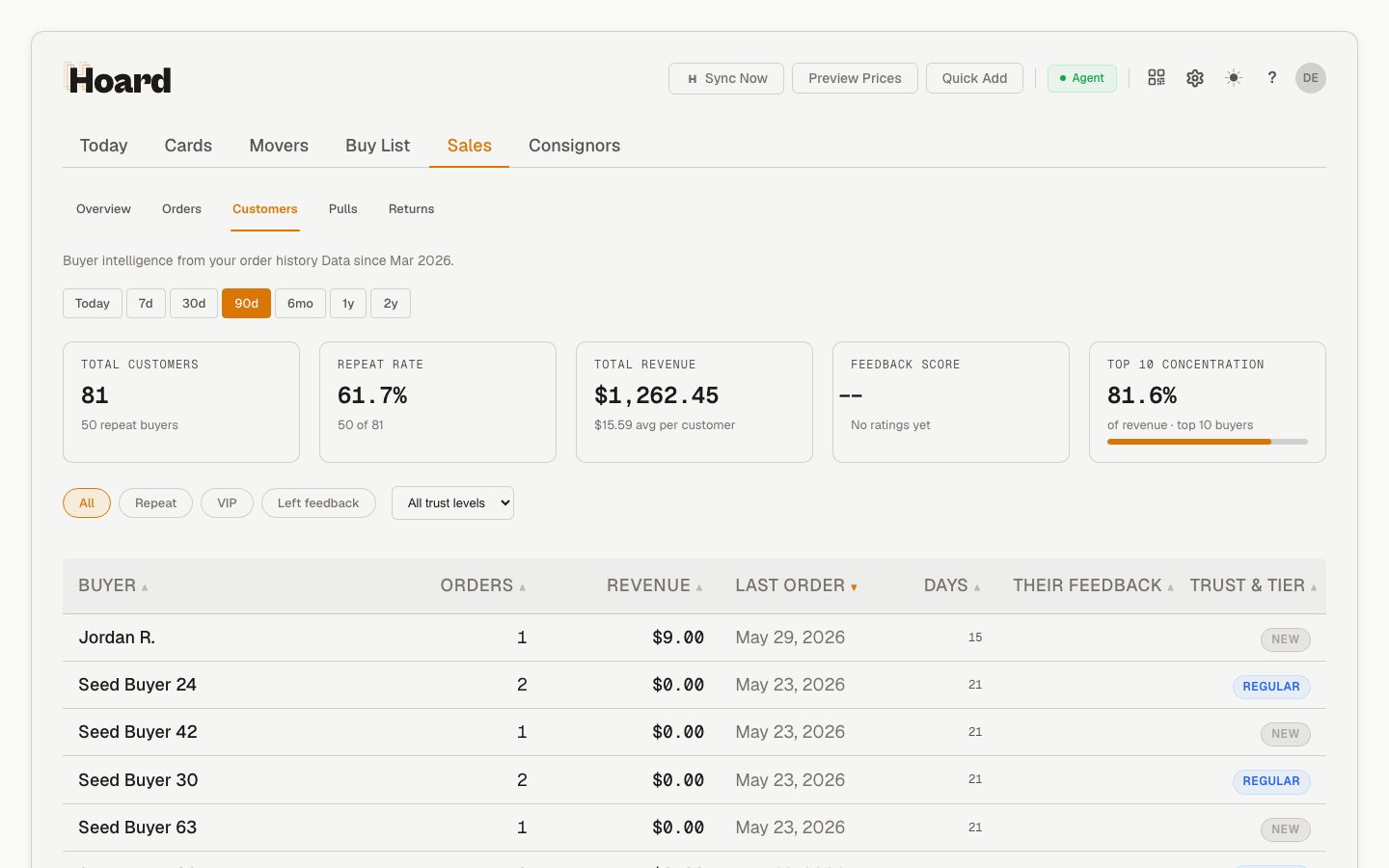 The **Customers** tab on your Dashboard shows:
* Total unique buyers
* Repeat customers (buyers with 2+ orders)
* Customer lifetime value
* Order frequency per customer
* Notes (you can add notes to any customer)
## Pull links
When an order belongs to a Visual Pull session, Hoard shows a pull link next to that order in manager-facing order rows. You can find it in:
* **Sales > Orders**
* Customer order history
* Return order rows
In **Sales > Orders**, the Pull column also includes **Unassign** for managers. Use it only when an order should be removed from its pull and made eligible for a future pull session.
## Export to PirateShip
Hoard's Orders tab has an **Export to PirateShip** button that downloads a CSV of orders ready for labels — PirateShip's bulk-upload field-mapper accepts it directly.
What it does:
* Includes only **Tracked** and **Expedited** orders. PWE orders are skipped — they don't need PirateShip labels.
* Pre-classifies each order: Tracked orders ship as **USPS Ground Advantage**, Expedited as **USPS Priority Mail**.
* Honors your current filters. If you've narrowed the Orders tab to "Today" or a specific status, the export contains only those orders.
* If you've multi-selected rows, the export uses your selection (with any PWE rows automatically dropped).
* **US addresses only.** Orders with non-US ZIP formats (Canadian, UK, etc.) are skipped from the export and need a manual label in PirateShip. Most TCGplayer sellers have international shipping turned off, so this rarely comes up.
PirateShip remembers the column mapping after the first import. From then on, drag the CSV in and the labels are ready to print.
The Tracked-vs-PWE threshold is whatever you've set on your Hoard account (defaults to \$50). You can change it in Settings.
## Why track orders
Repeat buyers tend to drive a disproportionate share of revenue. Knowing who comes back helps you prioritize service and packing quality for the people who matter most. Order trends also show which days and months are busiest, and average order value gives you a read on whether your pricing is in the right range.
Order import is non-fatal. If it fails during a sync, your inventory sync still completes. Orders will catch up on the next cycle.
The **Customers** tab on your Dashboard shows:
* Total unique buyers
* Repeat customers (buyers with 2+ orders)
* Customer lifetime value
* Order frequency per customer
* Notes (you can add notes to any customer)
## Pull links
When an order belongs to a Visual Pull session, Hoard shows a pull link next to that order in manager-facing order rows. You can find it in:
* **Sales > Orders**
* Customer order history
* Return order rows
In **Sales > Orders**, the Pull column also includes **Unassign** for managers. Use it only when an order should be removed from its pull and made eligible for a future pull session.
## Export to PirateShip
Hoard's Orders tab has an **Export to PirateShip** button that downloads a CSV of orders ready for labels — PirateShip's bulk-upload field-mapper accepts it directly.
What it does:
* Includes only **Tracked** and **Expedited** orders. PWE orders are skipped — they don't need PirateShip labels.
* Pre-classifies each order: Tracked orders ship as **USPS Ground Advantage**, Expedited as **USPS Priority Mail**.
* Honors your current filters. If you've narrowed the Orders tab to "Today" or a specific status, the export contains only those orders.
* If you've multi-selected rows, the export uses your selection (with any PWE rows automatically dropped).
* **US addresses only.** Orders with non-US ZIP formats (Canadian, UK, etc.) are skipped from the export and need a manual label in PirateShip. Most TCGplayer sellers have international shipping turned off, so this rarely comes up.
PirateShip remembers the column mapping after the first import. From then on, drag the CSV in and the labels are ready to print.
The Tracked-vs-PWE threshold is whatever you've set on your Hoard account (defaults to \$50). You can change it in Settings.
## Why track orders
Repeat buyers tend to drive a disproportionate share of revenue. Knowing who comes back helps you prioritize service and packing quality for the people who matter most. Order trends also show which days and months are busiest, and average order value gives you a read on whether your pricing is in the right range.
Order import is non-fatal. If it fails during a sync, your inventory sync still completes. Orders will catch up on the next cycle.