> ## Documentation Index
> Fetch the complete documentation index at: https://docs.tryhoard.com/llms.txt
> Use this file to discover all available pages before exploring further.
# Inventory Sync
> How Hoard syncs your TCGplayer inventory automatically.
Hoard exports your full TCGplayer inventory as a CSV and uploads it to the Hoard server on a schedule you control.
## What gets synced
Every sync captures your complete seller inventory:
* Card name, set, condition, printing (foil/non-foil)
* Your current listed price
* TCG Market Price and TCG Low Price
* Quantity in stock
* Card catalog identifiers (for matching images and market data)
## How syncing works
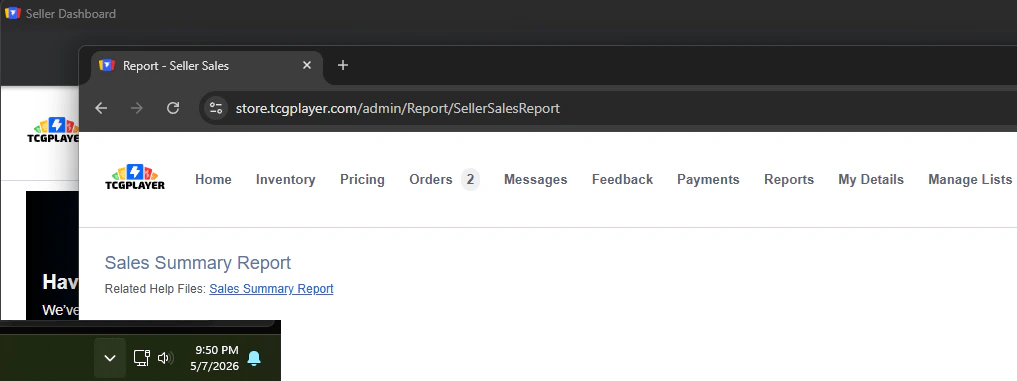 During a sync, Hoard may open one or more TCGplayer browser windows. Hoard uses them for the steps that need a real browser (initial login and the Move-to-Live price upload). Most other steps now run in quiet mode, talking to TCGplayer directly without opening a window — so most of a sync should pass without taking over your screen. When a window does open, leave it visible until that step finishes.
```
1. Hoard polls server "Should I sync?"
2. Server responds "Yes" (based on your schedule)
3. Hoard opens TCGplayer Seller Portal → Pricing → Export
4. Hoard downloads inventory CSV Your full pricing export
5. Hoard uploads to server Sends your inventory data securely
6. Hoard processes the data Matches cards, calculates prices
7. Hoard generates price updates Based on your pricing strategy
8. Hoard downloads updates CSV of new prices
9. Hoard imports to TCGplayer Seller Portal → Pricing → Import
```
## Sync schedule
Configure in [Settings > Sync](https://www.tryhoard.com/settings):
| Frequency | Use case |
| --------------------- | ---------------------- |
| Every 4 hours | Most sellers (default) |
| Every 8 hours | Moderate-volume stores |
| Every 12 hours | Lower-volume stores |
| Once daily (24 hours) | Low-volume or testing |
You can also control when those syncs are allowed to fire:
* **Preferred Sync Hour** pins the cadence to a wall-clock hour in your timezone. For example, a 4-hour cadence pinned to 3 AM runs at 3 AM, 7 AM, 11 AM, 3 PM, 7 PM, and 11 PM local time.
* **Quiet Window** prevents scheduled syncs during a window like 6 PM to 10 PM. If a scheduled slot lands inside the window, Hoard waits until the window ends instead of running in the middle of your busiest buying hours.
* **Days of Week** limits syncs to specific days. Leave every day checked for normal daily operation.
Settings and the dashboard both show the next eligible sync time. If the timestamp is being recomputed after a settings change, you may briefly see "Computing..." until the scheduler refreshes it.
## Multi-product-line sync
If you sell across multiple product lines, Hoard handles each one separately. Go to [Settings](https://www.tryhoard.com/settings) to choose which games appear on your dashboard and which ones Hoard is allowed to reprice. Inventory-detected games are pinned first, and less common TCGplayer games are available through search.
## Cooldown after failures
When a sync fails on a critical step (login, export, or upload), Hoard pauses before retrying. This keeps it from hitting TCGplayer over and over while something is down. The cooldown clears on its own once things are working again.
## Manual sync
Click **Sync Now** on the [Dashboard](https://www.tryhoard.com/dashboard) to trigger an immediate sync. Hoard picks it up within 30 seconds.
During a sync, Hoard may open one or more TCGplayer browser windows. Hoard uses them for the steps that need a real browser (initial login and the Move-to-Live price upload). Most other steps now run in quiet mode, talking to TCGplayer directly without opening a window — so most of a sync should pass without taking over your screen. When a window does open, leave it visible until that step finishes.
```
1. Hoard polls server "Should I sync?"
2. Server responds "Yes" (based on your schedule)
3. Hoard opens TCGplayer Seller Portal → Pricing → Export
4. Hoard downloads inventory CSV Your full pricing export
5. Hoard uploads to server Sends your inventory data securely
6. Hoard processes the data Matches cards, calculates prices
7. Hoard generates price updates Based on your pricing strategy
8. Hoard downloads updates CSV of new prices
9. Hoard imports to TCGplayer Seller Portal → Pricing → Import
```
## Sync schedule
Configure in [Settings > Sync](https://www.tryhoard.com/settings):
| Frequency | Use case |
| --------------------- | ---------------------- |
| Every 4 hours | Most sellers (default) |
| Every 8 hours | Moderate-volume stores |
| Every 12 hours | Lower-volume stores |
| Once daily (24 hours) | Low-volume or testing |
You can also control when those syncs are allowed to fire:
* **Preferred Sync Hour** pins the cadence to a wall-clock hour in your timezone. For example, a 4-hour cadence pinned to 3 AM runs at 3 AM, 7 AM, 11 AM, 3 PM, 7 PM, and 11 PM local time.
* **Quiet Window** prevents scheduled syncs during a window like 6 PM to 10 PM. If a scheduled slot lands inside the window, Hoard waits until the window ends instead of running in the middle of your busiest buying hours.
* **Days of Week** limits syncs to specific days. Leave every day checked for normal daily operation.
Settings and the dashboard both show the next eligible sync time. If the timestamp is being recomputed after a settings change, you may briefly see "Computing..." until the scheduler refreshes it.
## Multi-product-line sync
If you sell across multiple product lines, Hoard handles each one separately. Go to [Settings](https://www.tryhoard.com/settings) to choose which games appear on your dashboard and which ones Hoard is allowed to reprice. Inventory-detected games are pinned first, and less common TCGplayer games are available through search.
## Cooldown after failures
When a sync fails on a critical step (login, export, or upload), Hoard pauses before retrying. This keeps it from hitting TCGplayer over and over while something is down. The cooldown clears on its own once things are working again.
## Manual sync
Click **Sync Now** on the [Dashboard](https://www.tryhoard.com/dashboard) to trigger an immediate sync. Hoard picks it up within 30 seconds.
 If you use Hoard Desktop, you can also click **Sync Now** from the local page. The button requests a sync; Hoard starts it on the next check-in.
## Sync history
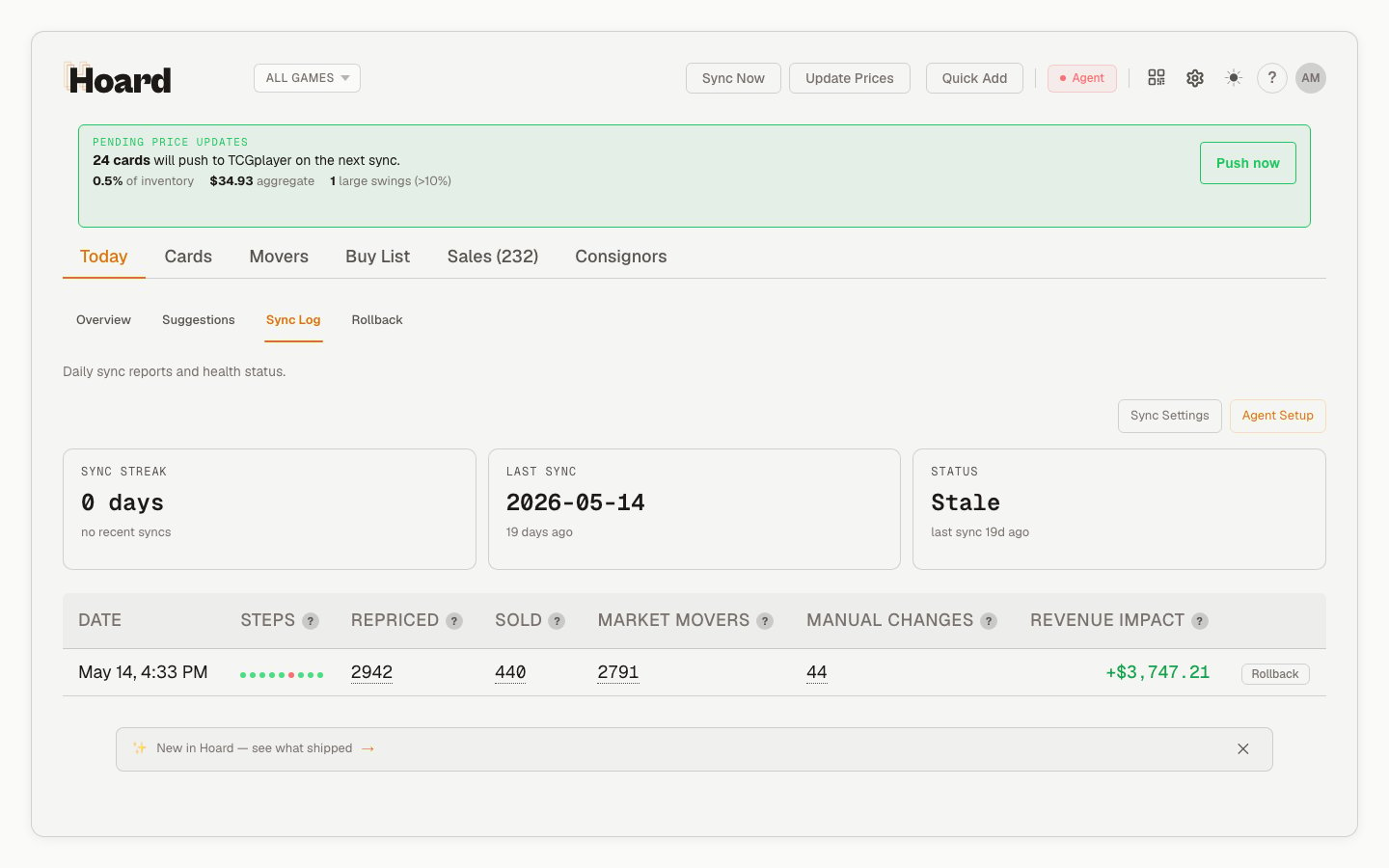
The Dashboard's **Sync Log** tab shows every sync with:
* Date and time
* Cards repriced
* Cards sold since last sync
* Market movers detected
* Revenue impact of price changes
If you use Hoard Desktop, you can also click **Sync Now** from the local page. The button requests a sync; Hoard starts it on the next check-in.
## Sync history
The Dashboard's **Sync Log** tab shows every sync with:
* Date and time
* Cards repriced
* Cards sold since last sync
* Market movers detected
* Revenue impact of price changes